Import recordings and other files
Add local audio, video, images or attachments so you can open the sources and work with them in a sheet.
Choose local files
To transcribe recordings, play them beside their transcripts, or search what was said, Frisket needs the audio or video files themselves in your project. A link to a recording, or a sheet of file names, isn't enough.
- On the Data tab, click Import data… at the left of the ribbon.
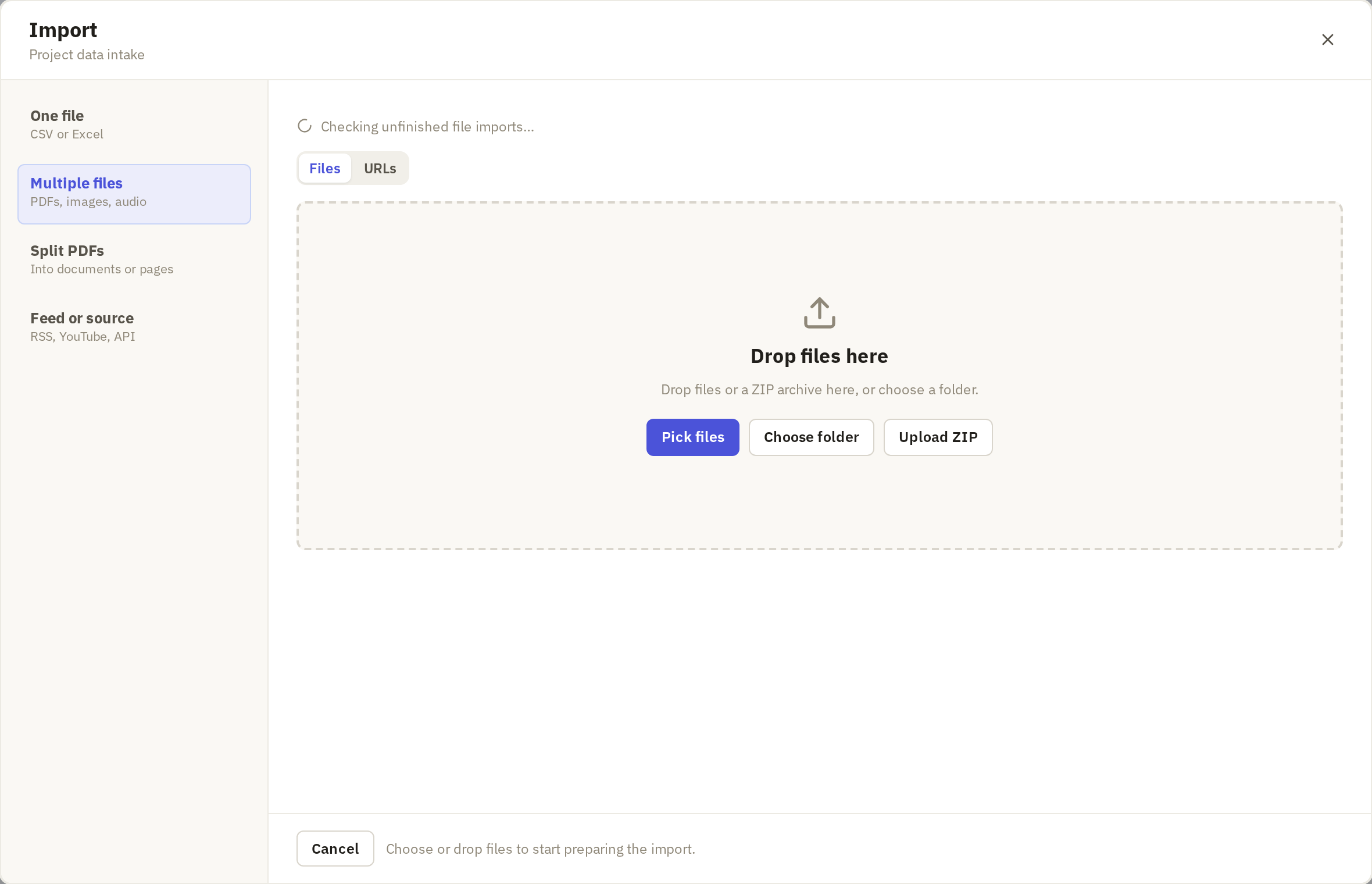
- In the Import dialog, click Multiple files.
- Click Pick files to choose recordings, Choose folder for a whole folder, or Upload ZIP for an archive. You can also drag the files onto the dialog.

If the recordings are online, such as on YouTube or a council's website, put their links in a sheet column instead. Then use Download media, on the Data tab, to fetch each recording into the sheet.
Follow the import
Audio and video files import straight away. When it's done, Frisket shows Files imported; click Done.
The new sheet has a row per file:
- filename: the file's name.
- media: the recording itself.
- size: the file size.
If your selection also included PDFs, the import goes through Check text first.
Open a source recording
Check you have the right recordings before you spend time transcribing them.
- To listen in the grid, click the small waveform icon at the left of a media cell. A Now playing player appears; click the icon again to stop. This works when every file in the column is audio.
- To watch a video, or see a recording in full, click Document above the grid and choose the recording from the list on the left.
Review search preparation
Search and Ask can only find what was said in a recording once it has a transcript. By default Frisket doesn't transcribe recordings when you import them, because it takes time; you transcribe the ones you need.
To have every new recording transcribed automatically, a project owner can turn on Prepare new files automatically and then Transcribe new recordings automatically in Settings › Project › Data Management, under Search preparation. New recordings then go through Make these files searchable after import.
Create a transcript when you need one
Use the Transcribe action to add a transcript to each recording in the sheet.
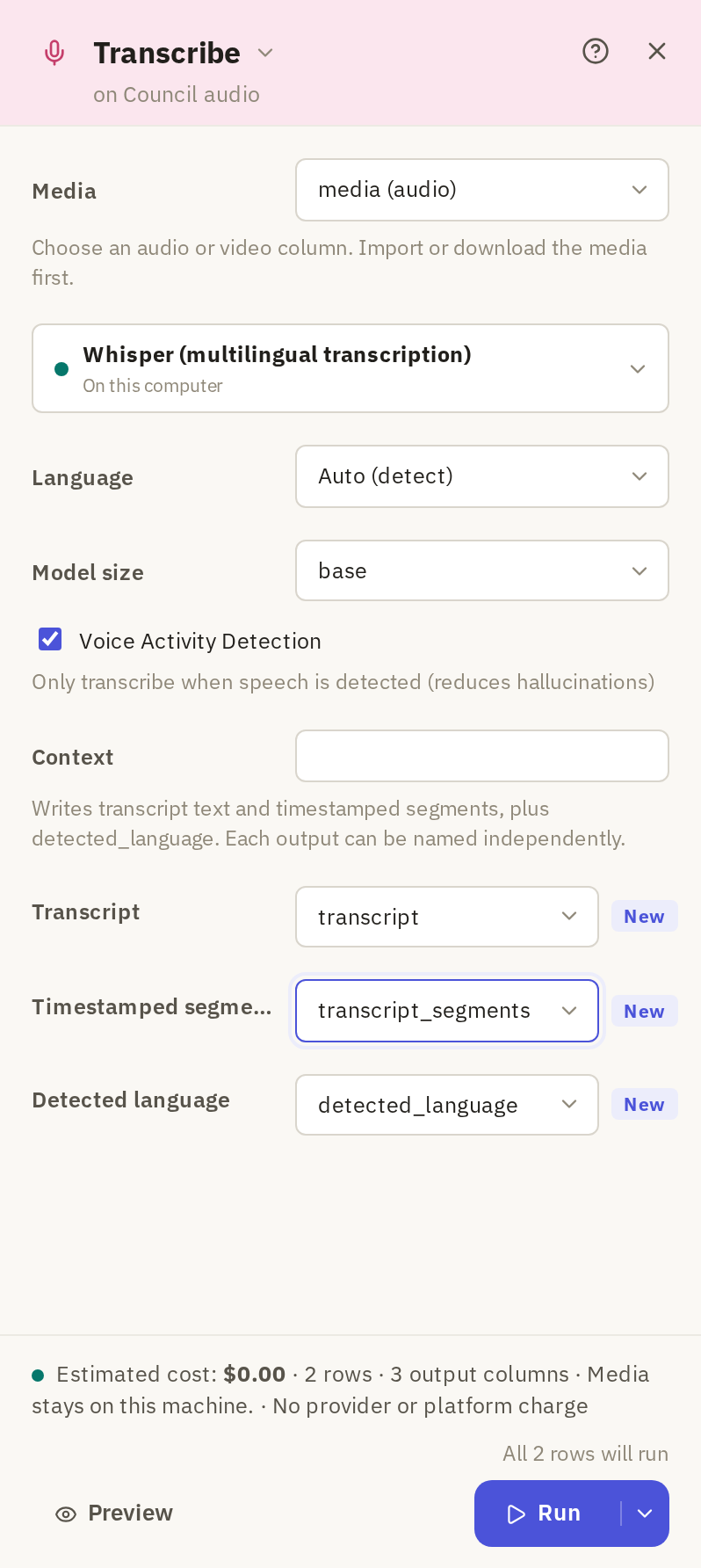
- On the Media tab, click Transcribe.
- Under Media, choose the column holding the recordings.
- Click the engine box and choose an engine. If you're not sure which, try a few on a short passage first with Transcribe Compare.
- Set the engine's options. Model size trades speed for accuracy; Language can stay on Auto (detect).

Then choose the columns it creates:
- Transcript holds the full text.
- Timestamped segments holds the text split into short passages, each with its time in the recording. Keep this: Document view needs it to play the recording from a passage.
- Detected language records the language, for engines that detect it.
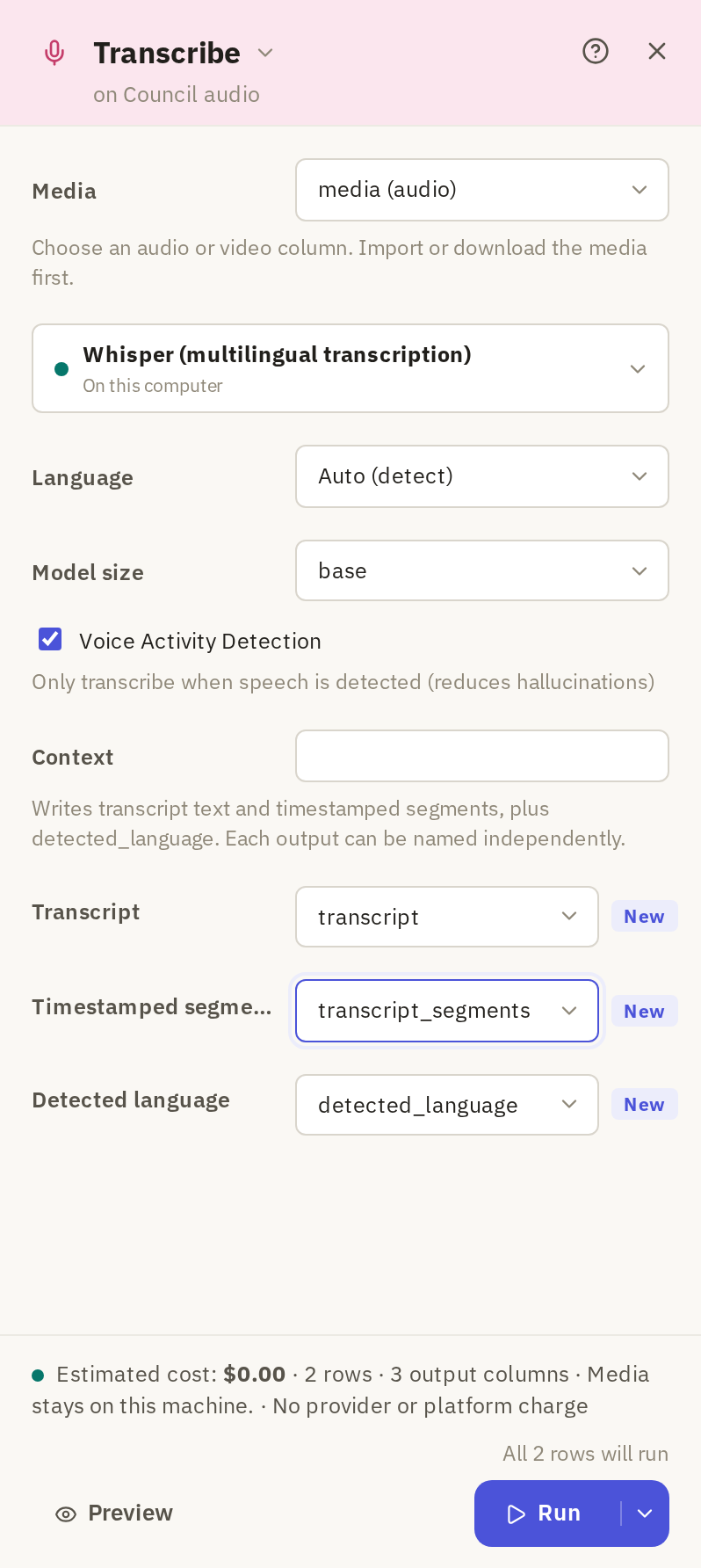
Check the footer: it says how many rows will run, and the estimated cost. An engine that runs where Frisket runs has no provider charge. Click Run. Each row fills in as its recording finishes.
When it's done, open Document to read each transcript beside its recording.