Listen with a transcript
Play a recording and follow its transcript in Document view.
Open a recording
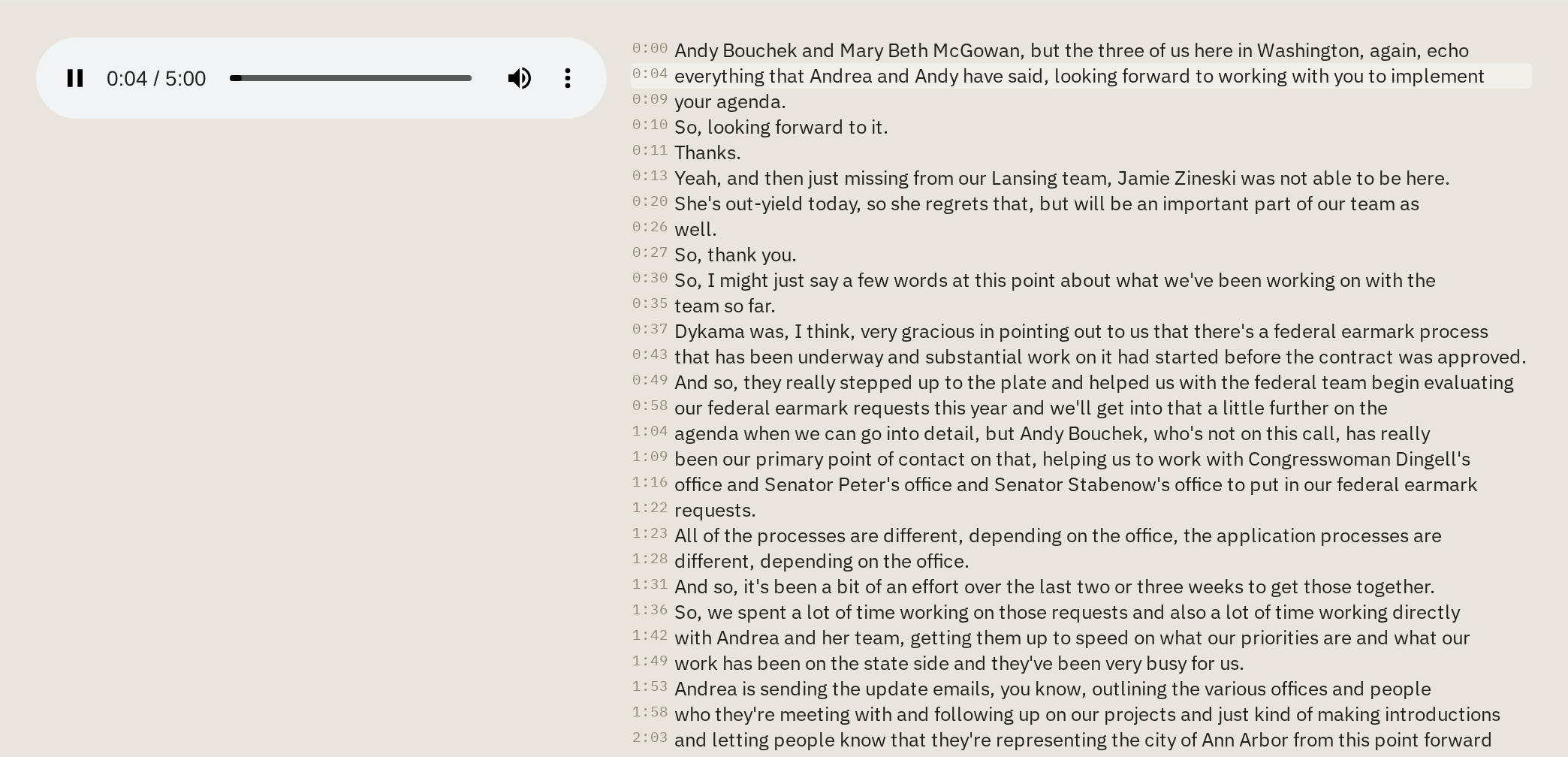
Document view shows a recording's player beside its transcript, so you can read a passage and hear it at the same time.
- In the sheet with the recordings, click Document above the grid.
- Choose a recording from the list on the left. Type in Search documents… to find one by name.
If the recording has a transcript with timestamped segments, it appears under the player. If not, you'll see just the player.
Jump to a passage
The transcript is split into short passages, each with its time in the recording.
- Click a passage. The player jumps to that point and plays.
- Listen, and pause or drag the player's position to hear it again. The passage being played is highlighted as the recording goes on.
- Compare what you hear with the text.
Check especially:
- names, which engines often spell as they sound
- numbers, dates and amounts
- who is speaking. A speaker label separates voices but doesn't say whose they are.
- short words that change the meaning, such as "not", "can" and "can't"
If the transcript has text but no timestamps, you can read it beside the player, but you can't click to a passage. Transcribe the recording again with Timestamped segments turned on.
Create a transcript
If a recording has no transcript, create one with the Transcribe action. Make sure Timestamped segments is one of the columns it creates.
Analyze the transcript
Once you have transcripts, you can work with them like any other text column. Back in the grid, use the Transcript column as the source for another action:
- Extract fields pulls out facts you name, such as each vote and its result.
- Named entities lists the people, organizations and places mentioned.
Errors in the transcript carry into these results. If an extracted name or number matters, go back to the recording and listen.