Compare transcription on the same passage
Compare speech engines on one recording excerpt, then listen to the words where they differ.
Open Transcribe Compare
Transcription engines make different mistakes. One mishears names, another drops quiet speakers, another invents words during silence. You can't tell which suits your recordings without trying them on your own audio. Transcribe Compare runs several engines on the same short passage and puts the results side by side, so you can listen to the places they disagree.
It's a scratch space. Nothing from it is saved to your sheets; when you've chosen an engine, you transcribe the full recordings with the Transcribe action.
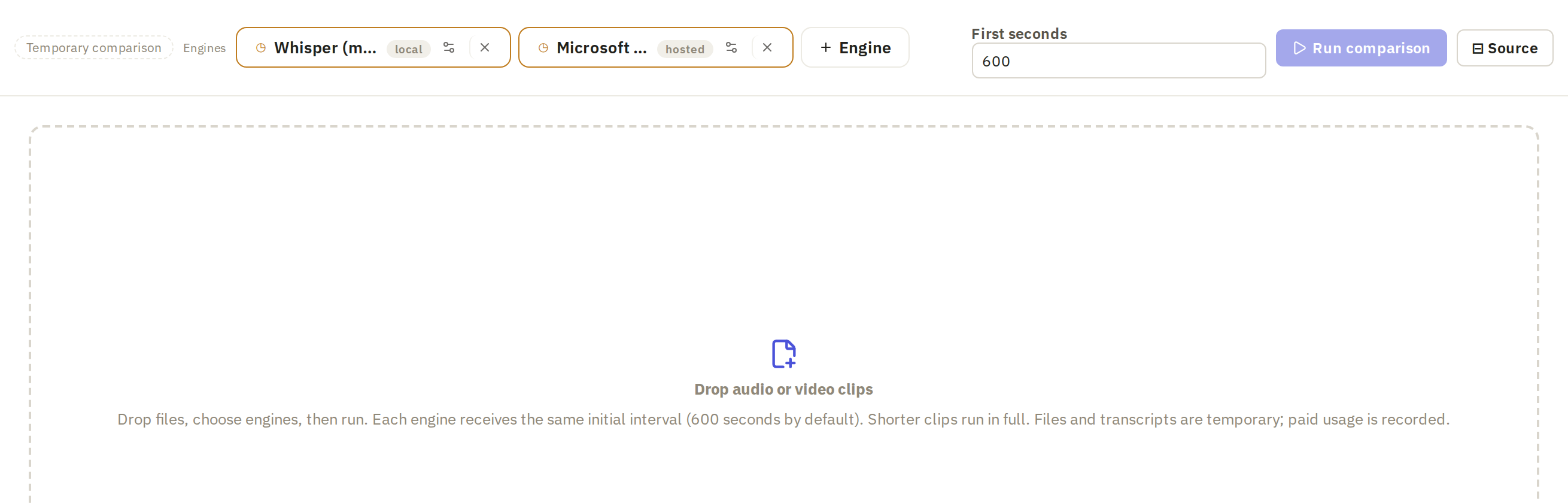
On the Media tab, click Transcribe Compare, in the Transcripts group. It opens in its own tab beside your sheets.

Add a recording
Transcribe Compare works on files from your computer, not on rows in a sheet. Click Drop audio or video clips and choose a file, or drag it onto the drop area. Its name appears in the list on the left.
Pick a recording that's typical of your material, with the problems you care about: names, numbers, people talking over each other, a noisy room. A clean passage makes every engine look good.

Choose the engines
Each chip along the top is one engine with its settings, called a variant. Frisket starts you with a couple, depending on which engines are set up.
- To add an engine, click + Engine and choose one from the list.
- To remove one, click the × on its chip.
- To change an engine's settings, click its chip. Configure variant opens.
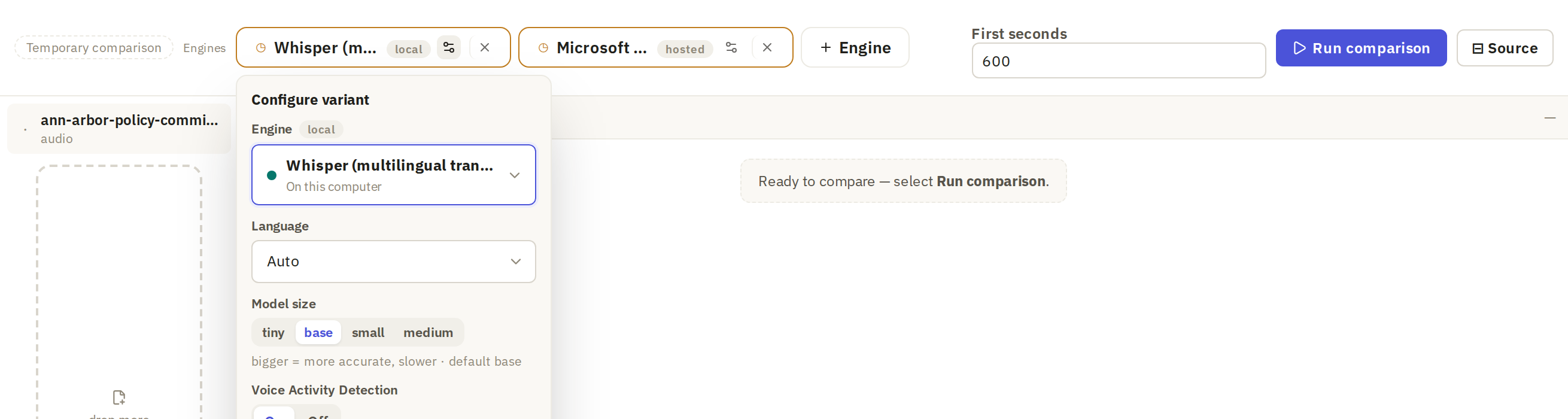
The settings depend on the engine:
- Language: leave it on Auto unless the engine detects the wrong language.
- Model size: for engines with several sizes, such as Whisper. Larger sizes are more accurate and slower. Start with base.
- Voice Activity Detection: skips stretches with no speech, which stops some engines making up words during silence. Leave it on.
- Identify speakers: labels which passages come from which voice. The labels separate voices; they don't say who is talking.
To compare two settings of the same engine, such as two model sizes, click Duplicate variant and change the copy.
A useful first comparison is one engine that runs where Frisket runs, such as Whisper, against one hosted engine. Hosted engines are charged by the provider, so this tells you whether paying is worth it on your audio.
Choose how much to compare
First seconds sets how much of the start of the recording each engine hears. It starts at 600, ten minutes. Set it to 30 for a first check: thirty seconds is enough to hear how each engine handles your speakers, and it keeps hosted costs small. A recording shorter than this runs in full.

Run the comparison
Click Run comparison. Each engine's column fills in as it finishes. If Frisket asks you to approve an estimate, check it and click Run it, or Cancel to change the settings.

If an engine fails, its column says so, with the reason. Read it before clicking Retry: a missing API key or model won't fix itself.
Listen where the words differ
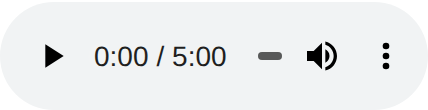
Read the columns side by side. Where they agree, the words are probably right. Where they differ, listen. Click Source to open the recording's player, find the passage and play it.
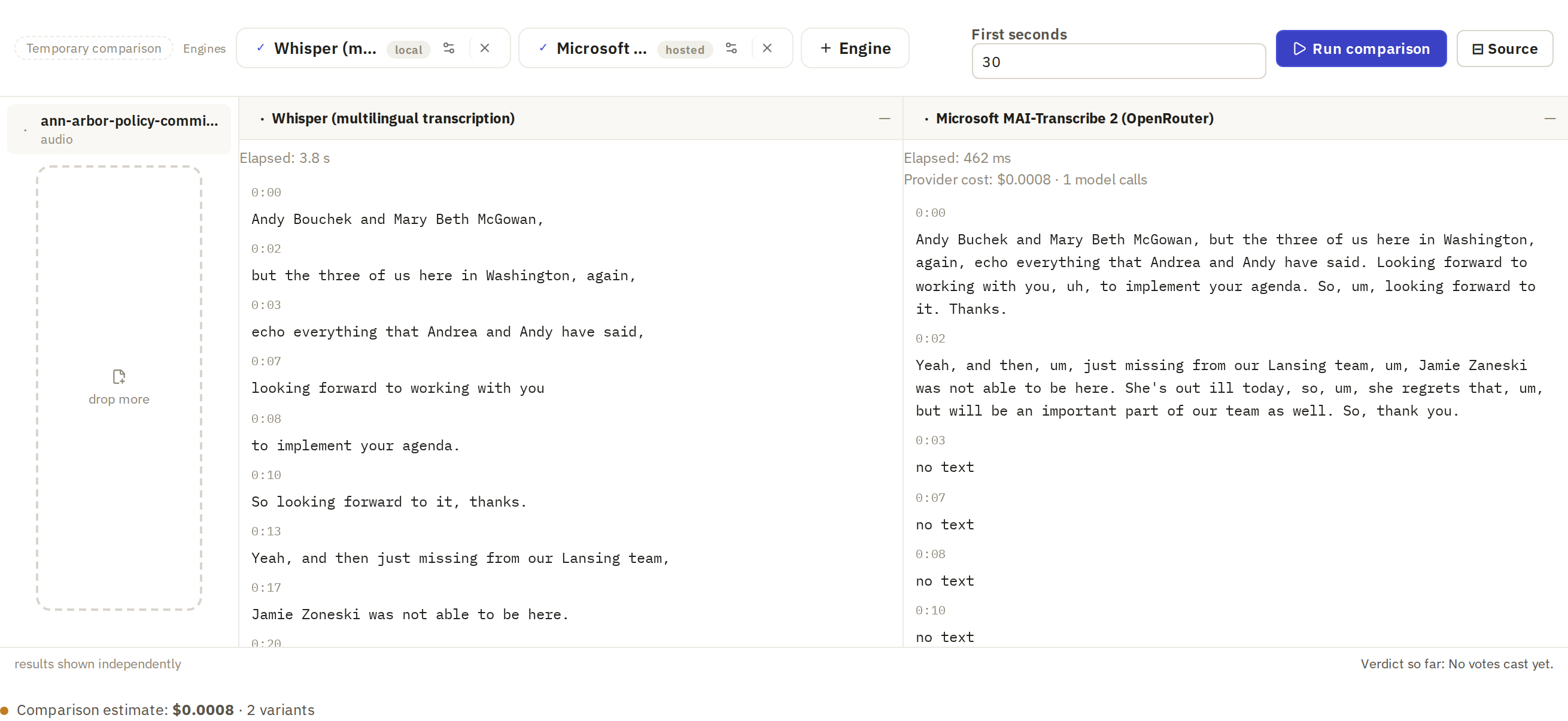
Pay most attention to:
- names, which engines often spell phonetically
- numbers and amounts
- short words that change the meaning, such as "not"
- passages where one engine has text and another has none
To record your choice, click the vote chip at the top of each column: once for keep, again for reject. Verdict so far at the bottom adds up your votes. When you close the tab, the transcripts and votes are discarded; click Copy verdict in the closing dialog to keep the tally.
Save a transcript on a sheet
When you've chosen an engine, transcribe your recordings with it so the transcripts are saved with them:
- Import the recordings into a sheet, if they aren't already.
- On the Media tab, click Transcribe.
- Choose the recordings column and the engine and settings you chose here, then click Run.
