Import files from URLs
Retrieve linked contents through the importer, or keep a list of URLs as table values for later work.
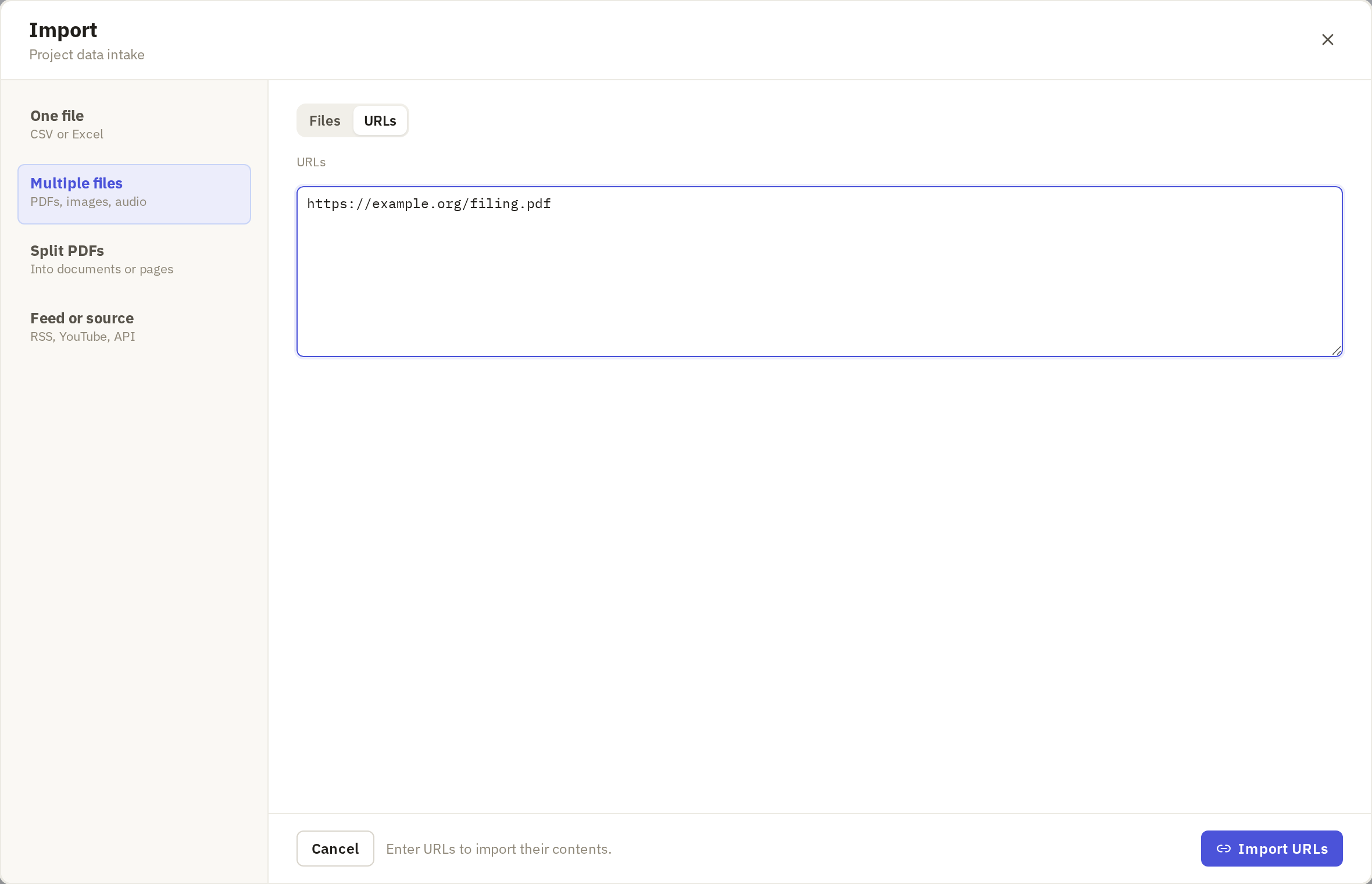
Switch Multiple files to URLs
Use this when the files you want are online: a set of PDFs linked from a government site, or recordings on YouTube. Frisket downloads each one into your project, so you have a copy that won't change or disappear.
- On the Data tab, click Import data….
- Click Multiple files, then URLs.
- Paste the links, one per line.
- Click Import URLs.
What you get depends on the link:
- A link straight to a file, such as a PDF, downloads that file.
- A link to a video or recording on a site such as YouTube downloads the recording.
- A link to an ordinary web page downloads the page's HTML code, not the page as you see it. To keep a web page as it looks, use Capture page instead.
Follow the flow for the downloaded contents
When the downloads finish, they go through the same review as files from your computer. PDFs go to Check text, for example.
Import recordings and other files
Some links fail: the page has moved, a downloaded file is too large (over 512 MB), or the site refuses. Frisket keeps a row for each failed link with the reason, so you can see what's missing and try again.
Keep URLs as rows instead
Sometimes you want the links themselves in a sheet, with other information beside them, such as a spreadsheet of agencies and the URL of each one's budget. Import that as a table, with a column of URLs, using One file or Paste rows.
Choose what to retrieve from the URL column
With a column of links in a sheet, you can fetch what they point to, one row at a time. Use an action from the Web group on the Data tab:
- Fetch URL downloads the linked file.
- Download media downloads a recording or video.
- Capture page saves a web page as it looks.
For a source that keeps adding items, such as a news feed, use a feed instead, so Frisket can check it for new ones.