Turn council recordings into checked transcripts
Transcribe two five-minute excerpts of city council meetings, then check the transcript by listening to the recording.
Open the recordings and their source details
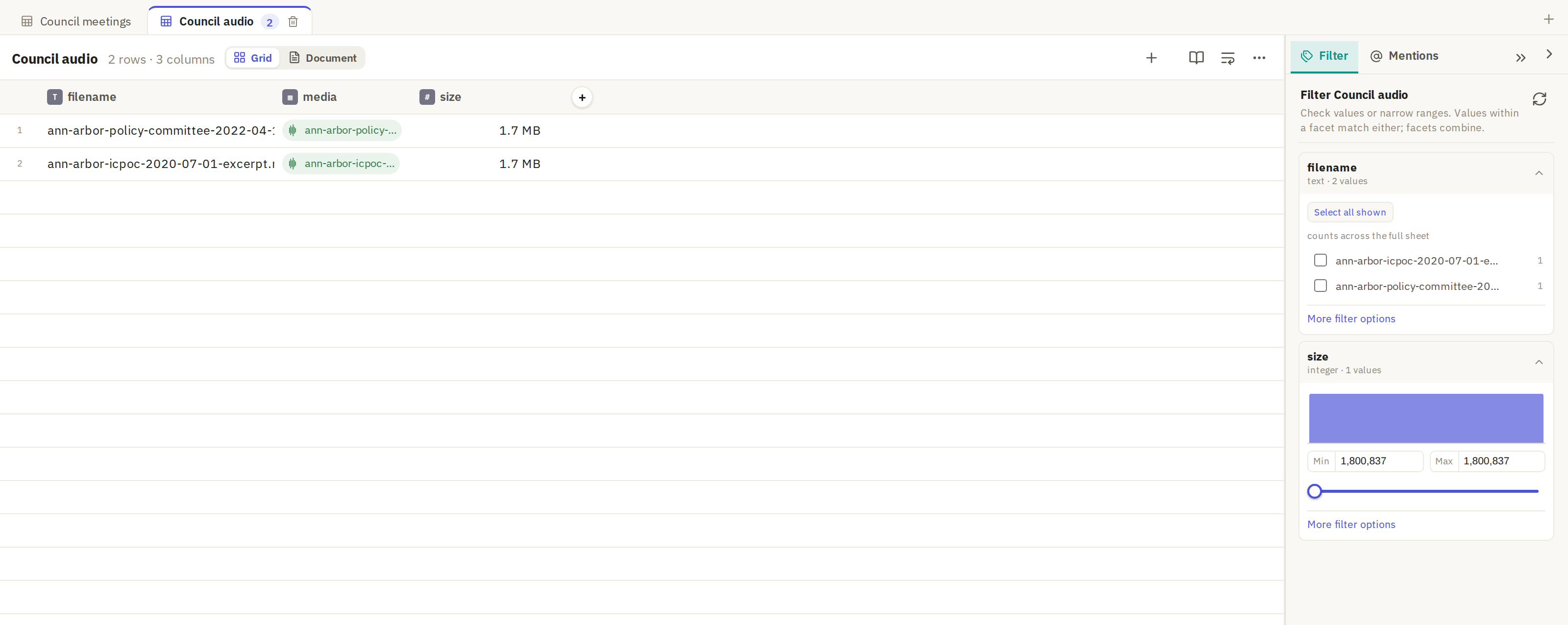
The sample opens on the Council audio sheet. Each row is one recording, a five-minute excerpt of an Ann Arbor city council meeting. To listen, click the small waveform icon at the left of a media cell; click it again to stop.
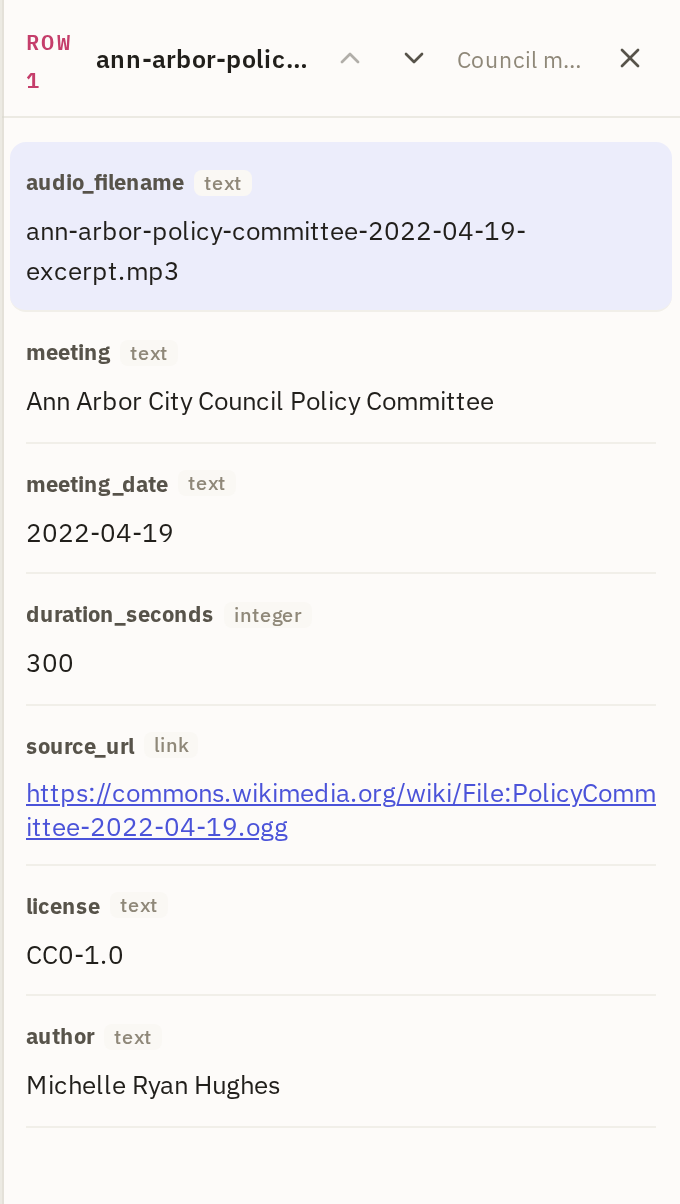
The Council meetings sheet has each meeting's date, a link to the original recording, its license and its author, so you can cite where the audio came from. Click its tab, then click a row to see all of these at once.
Open Transcribe Compare
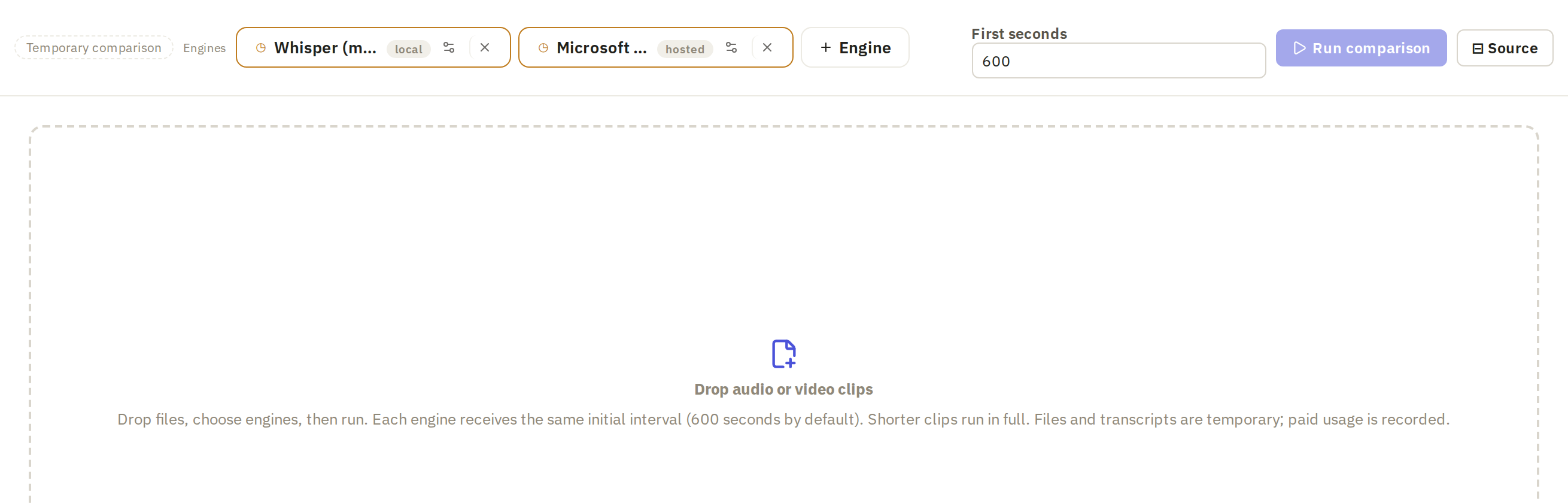
Different transcription engines make different mistakes, and you can't tell which is better without hearing them on your own audio. Transcribe Compare runs several engines on the same short passage and shows the results side by side. It's a scratch space: nothing from it is saved to your sheet. On the Media tab, click Transcribe Compare. It opens in its own tab beside your sheets, with an empty drop area.

Add the recording
Transcribe Compare works on files from your computer, not on rows in a sheet. Click Download the files at the top of this page if you haven't already. Then click the drop area and choose the Policy Committee recording, or drag it onto the drop area. Its name appears in the list on the left.
Every engine hears the same file, so differences come from the engines, not the audio.
Set to: ann-arbor-policy-committee-2022-04-19-excerpt.mp3

Choose the engines
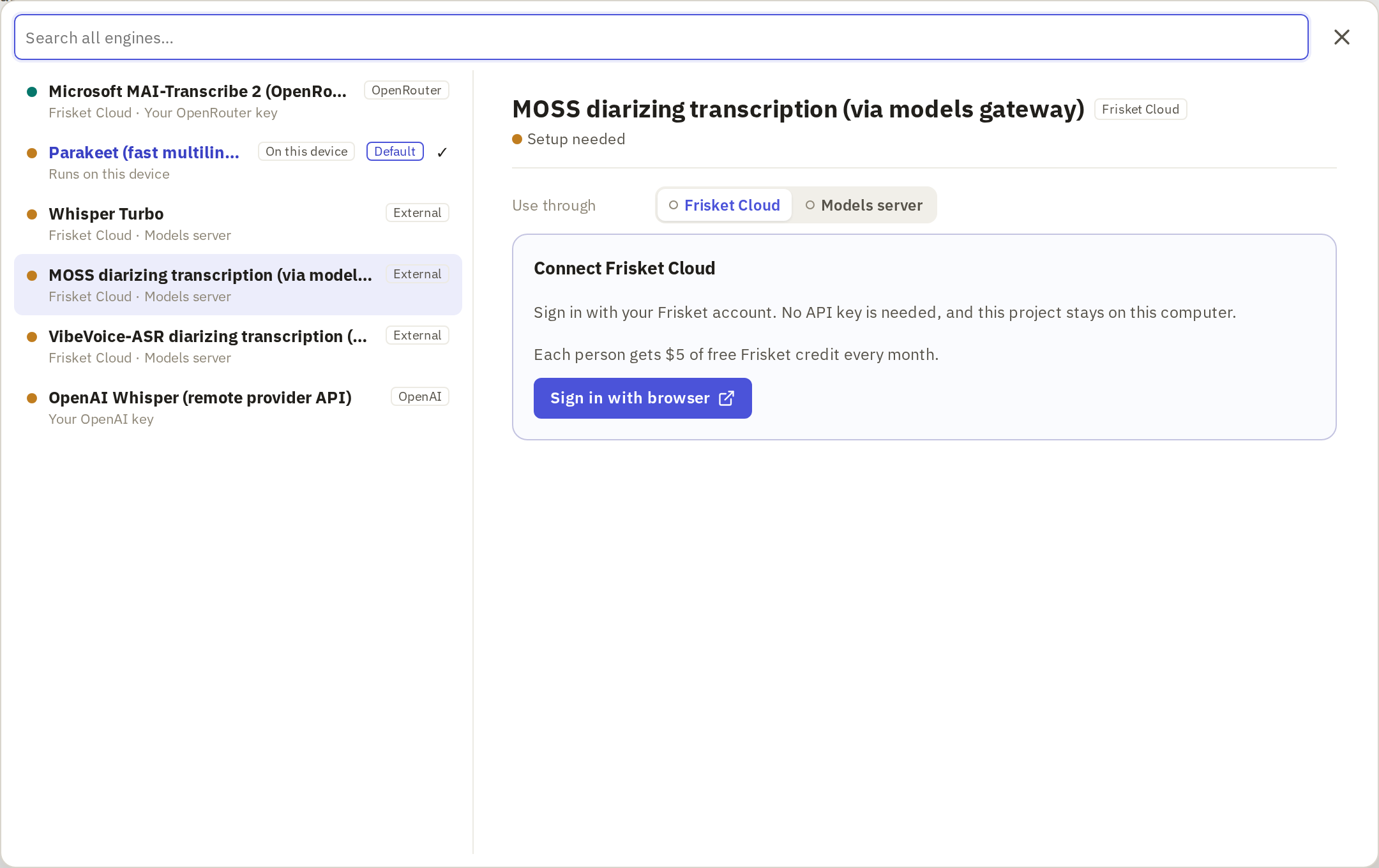
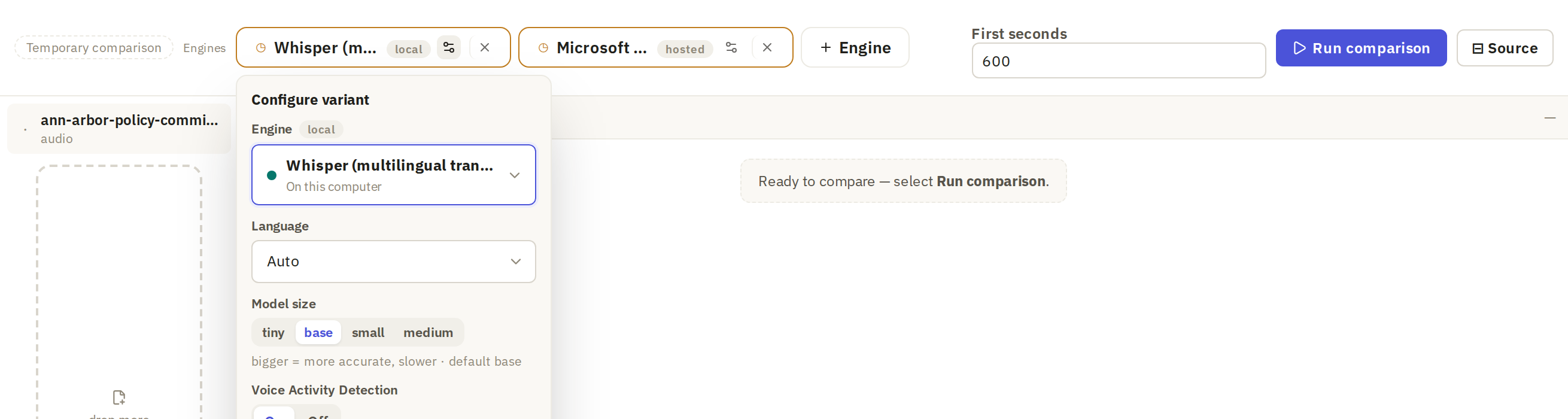
Each chip along the top is one engine with its settings. Frisket starts you with a couple, depending on what's set up. You want two: Whisper, which runs where Frisket runs, and Microsoft MAI-Transcribe 2 (OpenRouter), a hosted engine. Comparing them shows whether paying for the hosted one is worth it on your audio.
- If either is missing, click + Engine and choose it from the list.
- Remove any other engine with the × on its chip.
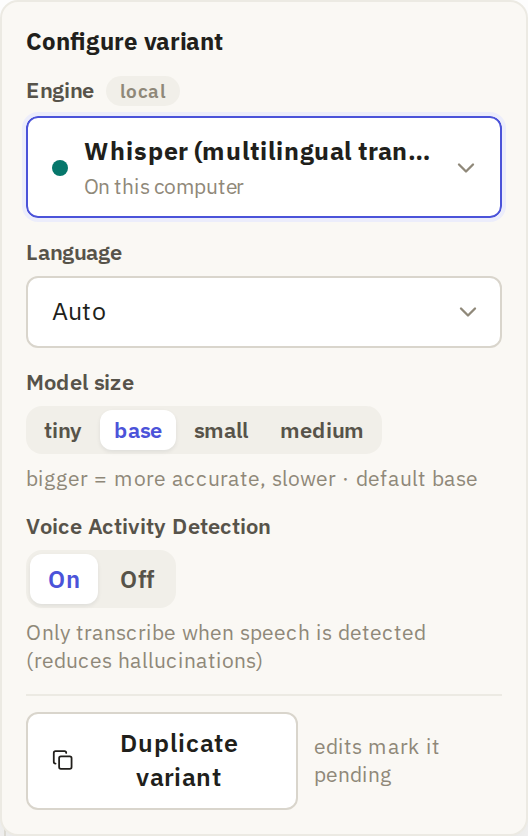
- Click the settings icon on Whisper's chip and check Model size is base.
MAI-Transcribe 2 needs an OpenRouter API key, or Frisket Cloud if your account offers it.
One engine that runs where Frisket runs, and one hosted engine.
Set to: Whisper (multilingual transcription), base; Microsoft MAI-Transcribe 2 (OpenRouter)
Choose the passage length
First seconds sets how much of the start of the recording each engine hears. It starts at 600, ten minutes, which would send the whole excerpt to every engine. Set it to 30. Thirty seconds is enough to hear how each engine handles names and unclear speech, and keeps the cost of a hosted engine small.
Only this many seconds are sent to each engine.
Set to: 30
 1
Run the comparison
Click Run comparison. Each engine's column fills in as it finishes. Whisper costs nothing to run. MAI-Transcribe 2 is charged by the provider; for these 30 seconds it cost under a tenth of a cent. If Frisket asks you to approve an estimate, check it and click Run it.

Inspect the comparison
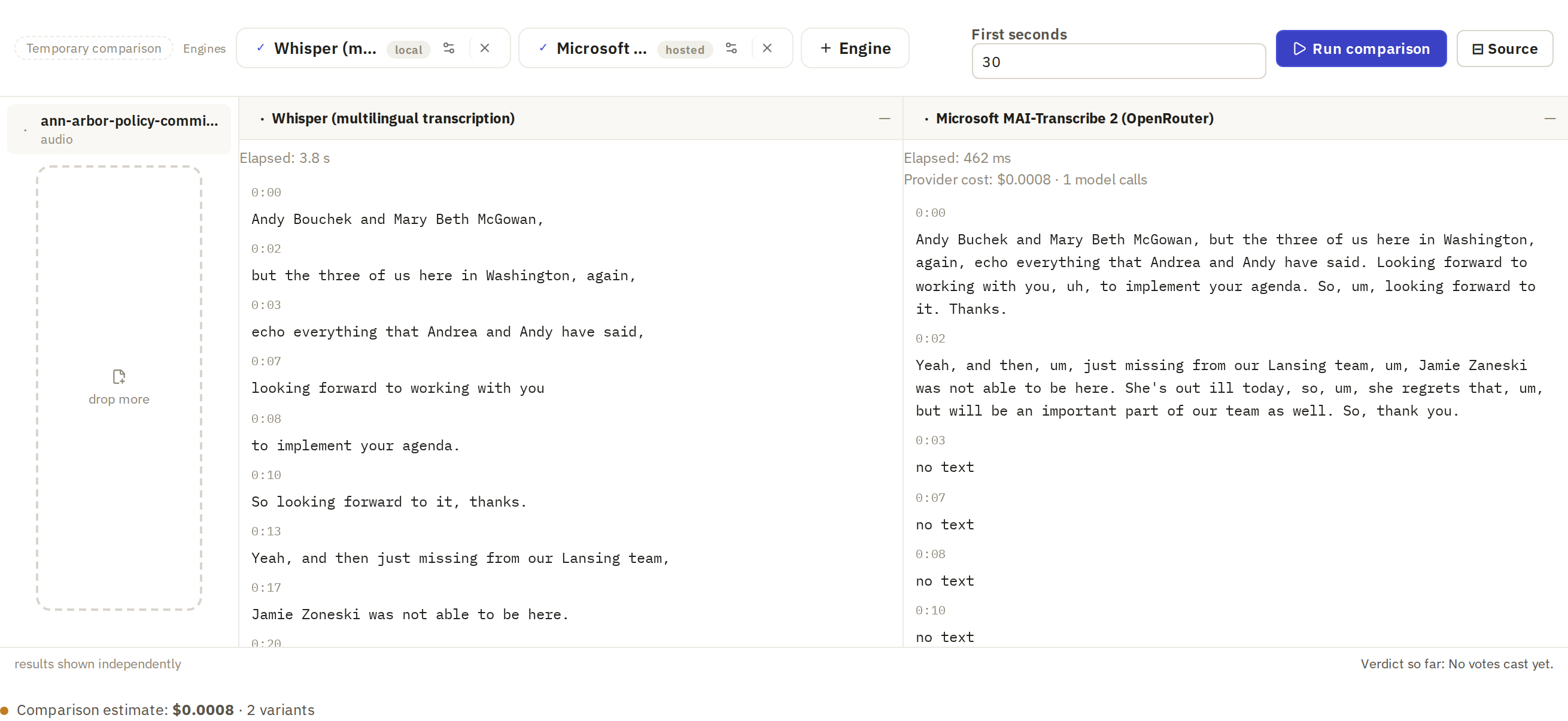
Read the two columns side by side. MAI-Transcribe 2 returns a few long passages and Whisper many short ones, so their timestamps don't line up, and MAI's later rows read "no text". Compare the words, not the rows.
Where the words differ, listen: click Source to open the recording's player, find the passage and play it. Pay most attention to names, numbers and short words that change the meaning. In this excerpt the engines spelled a name differently and heard one phrase differently.
Where the engines disagreed
| Source | Whisper · base | MAI-Transcribe 2 |
|---|---|---|
| Policy Committee · a name | Jamie Zoneski | Jamie Zaneski |
| Policy Committee · 0:20 | She's out there today | She's out ill today |
Both are real outputs for the same opening 30 seconds. Listen to these two moments before using either version.
Transcribe the recordings
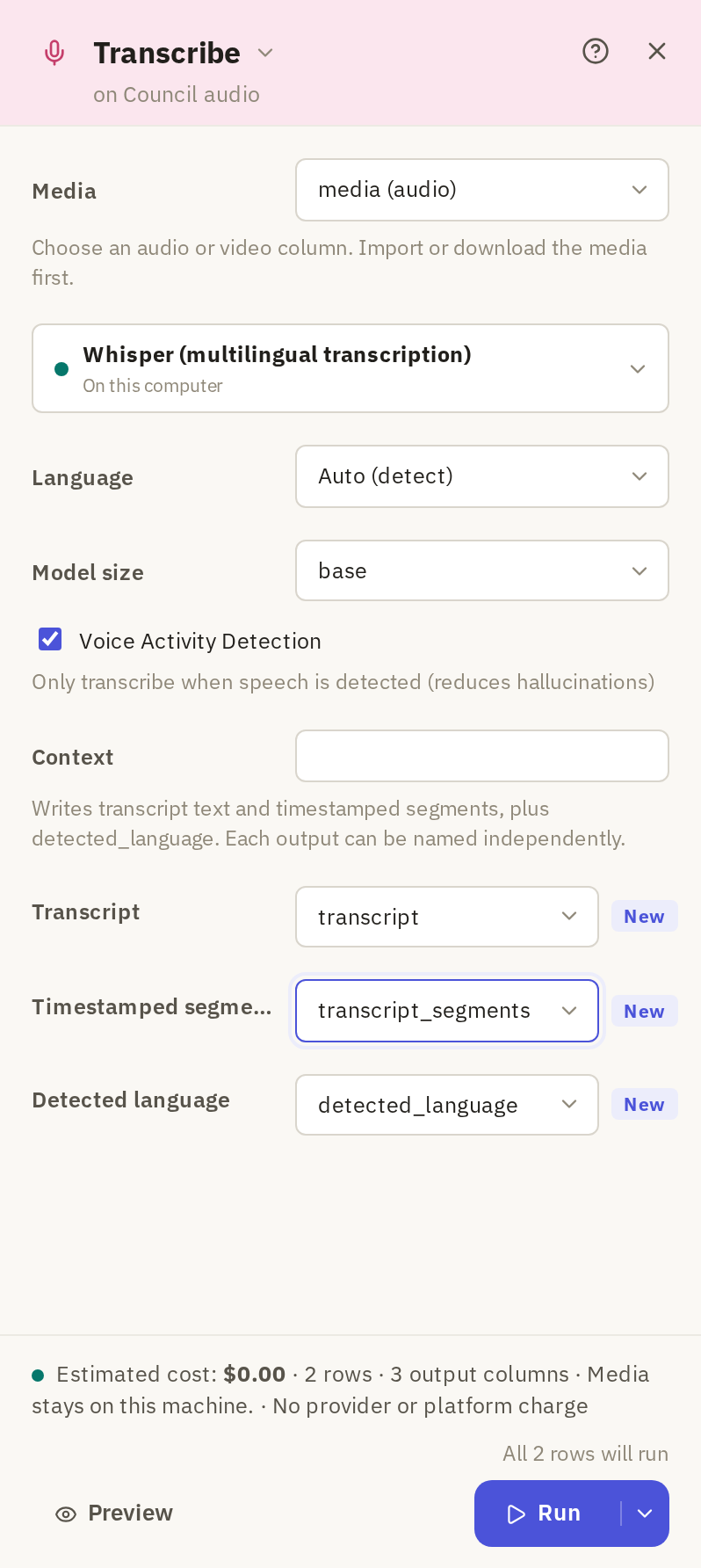
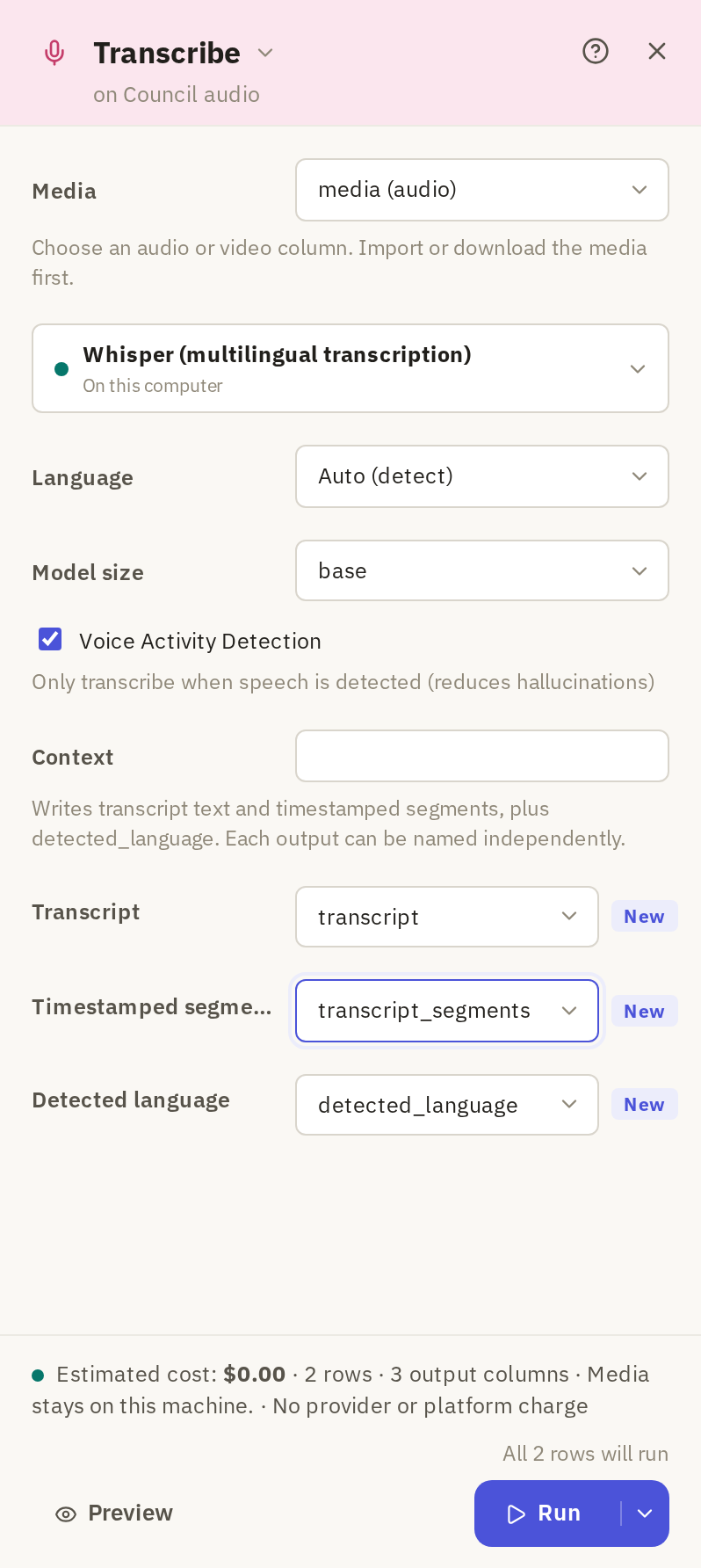
When you've chosen an engine, transcribe the recordings and save the results on the sheet. Go back to the Council audio sheet. On the Media tab, click Transcribe and set it up as below, then click Run. Whisper runs where Frisket runs, so there's no provider charge. Both recordings are transcribed, one row each.
Find it under Media › Transcripts › Transcribe

The column holding the recordings.
Set to: media
Runs where Frisket runs: on your computer with Frisket Desktop.
Set to: Whisper (multilingual transcription)
A small model that handles clear speech. Larger sizes are slower.
Set to: base
 123
The column for the full text.
Set to: transcript
The column for the text split into timed passages. Document view needs it to play the recording from a passage.
Set to: transcript_segments
 45
Read the transcript while listening
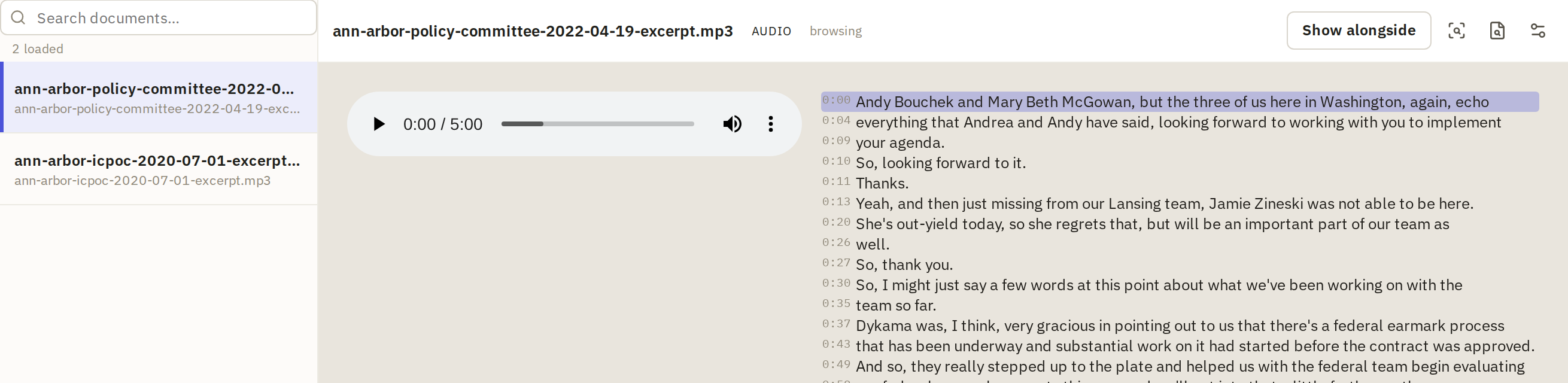
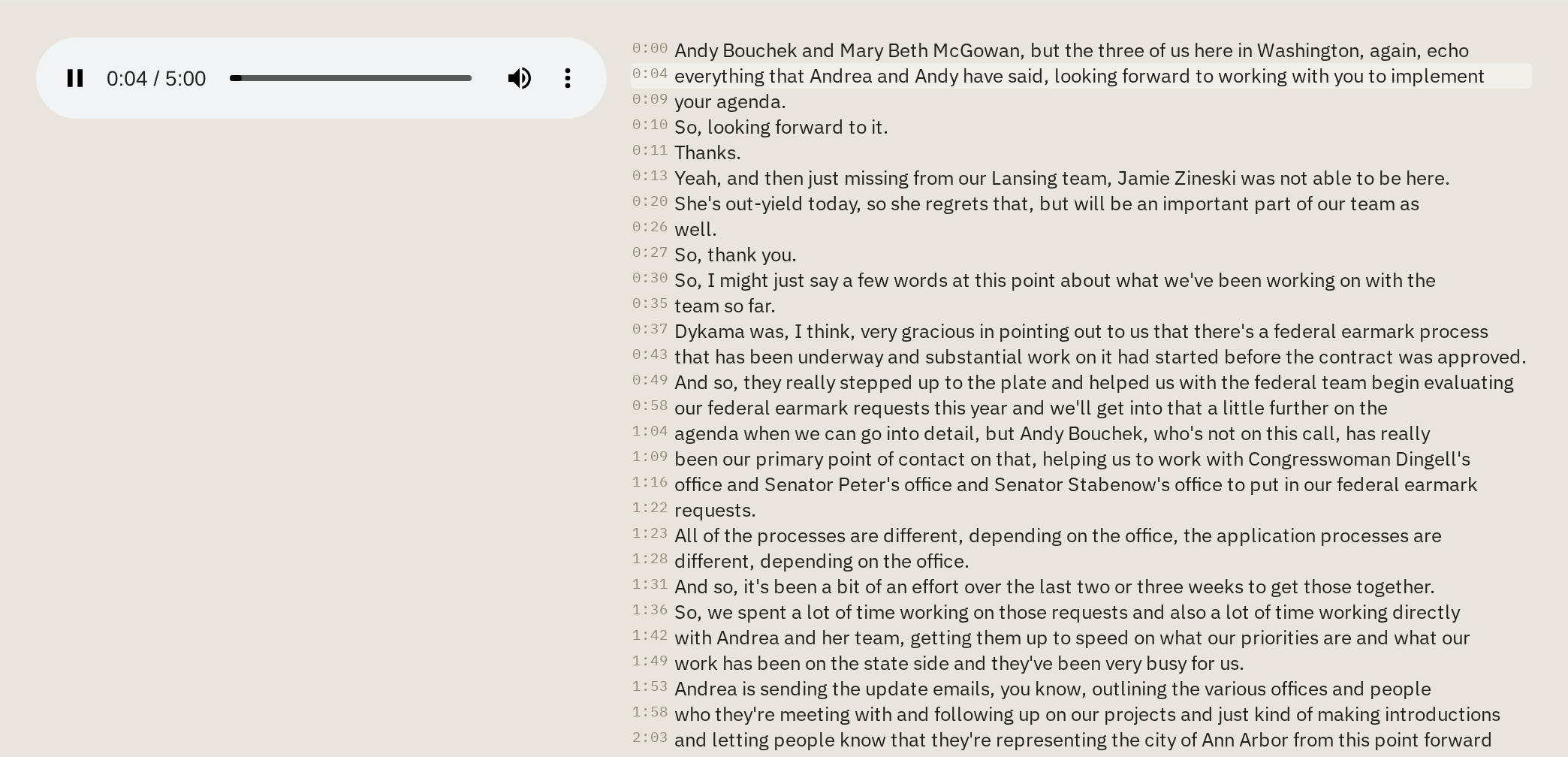
Document view shows a recording's player beside its transcript, split into short timed passages.
- Click Document above the grid.
- Choose a recording from the list on the left.
- Click a passage to play the recording from there.
Before you quote anyone, play the passage and check the names, numbers and wording against what you hear.

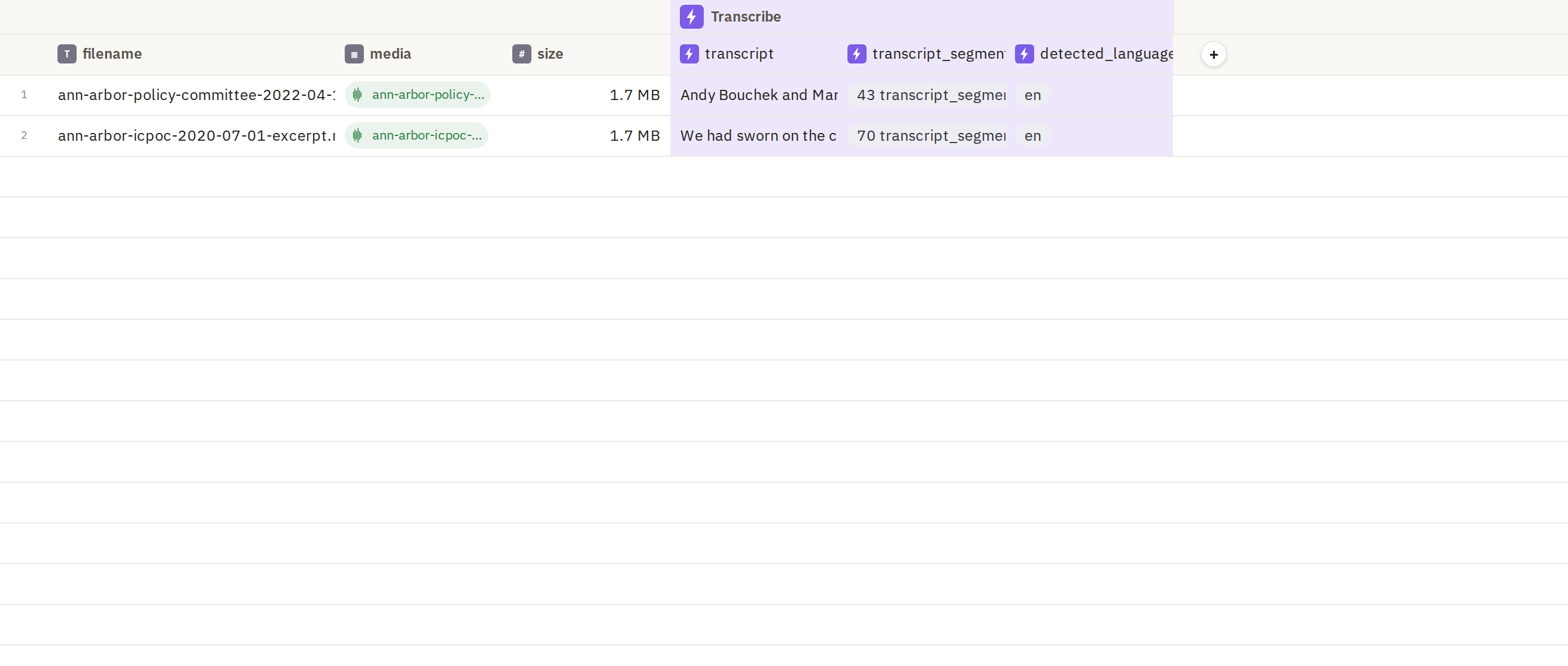
You should end up with
Three new columns on the Council audio sheet: transcript, transcript_segments and detected_language.
| filename | transcript | transcript_segments | detected_language |
|---|---|---|---|
| ann-arbor-policy-committee-2022-04-19-excerpt.mp3 | Andy Bouchek and Mary Beth McGowan, but the three of us… | 43 transcript_segments | en |
| ann-arbor-icpoc-2020-07-01-excerpt.mp3 | We had sworn on the… | 70 transcript_segments | en |
Transcription can differ between runs, even with the same model.
If it doesn't match
Transcribe doesn't offer the media column. Check you're on the Council audio sheet. The Council meetings sheet has links to the recordings, not the recordings themselves.
MAI-Transcribe 2 shows a setup message. Add an OpenRouter API key or connect Frisket Cloud, or compare Whisper with another engine you have set up.
The comparison ran on the whole five minutes. First seconds was still 600. Set it to 30 before clicking Run comparison.
Document view shows plain text with no timestamps. The Timestamped segments column is missing. Run Transcribe again with it named.