Connect an RSS feed
Add an RSS source, choose when to check it, and manage later polls from Sources & connections.
Add the feed
Some sources keep growing: a news site's RSS feed, an agency's YouTube channel, a court docket. Rather than importing them once, connect them as a feed. Frisket imports what's there now and can check for new items later, adding them as new rows without duplicating the old ones.
- On the Data tab, click Import data…, then Feed or source.
- Under URL or reference, paste the feed's address. Frisket works out the Type from what you paste. Check it's right; the types are RSS, YouTube playlist, YouTube channel, TikTok profile, API list and CourtListener docket.
- Give it a Name you'll recognise.
- Choose an Update frequency: Manual to check only when you ask, or Hourly, Every 6 hours or Daily.
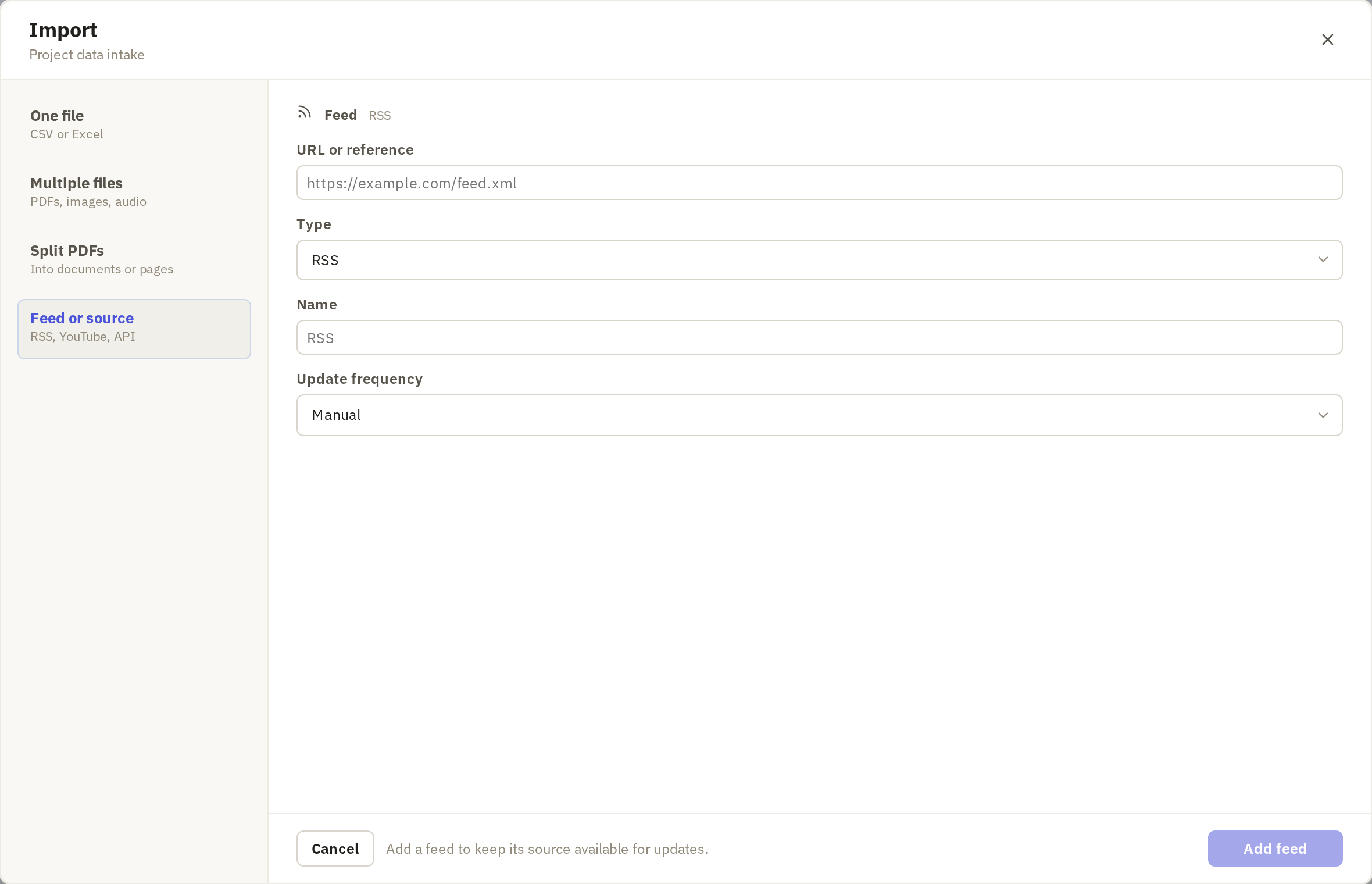
Some types have extra settings, such as a maximum number of items, or keywords for a CourtListener docket. Start with the defaults.
Click Add feed.
Choose whether to fetch rows now
Frisket asks Populate feed? Click Import to fetch what's in the feed now. Click Not now to save the feed without fetching; you can fetch it later.
For an RSS feed, each item becomes a row with its title, link, publication date and summary. Feeds usually list only their latest items, so the first import may not go back far.
Manage later checks
On the Data tab, click Sources & connections to see your feeds.
- Poll now checks a feed immediately.
- Change how often it's checked, or turn scheduled checks off.
- Poll history shows past checks and any errors. If a feed stops adding rows, look here first: the address may have changed.
Each check adds new items as new rows. If an item has changed since the last check, it's added again as a new row. Rows already in the sheet aren't changed.