Import a CSV or Excel table
Turn a table file or pasted rows into a new sheet, or add its rows to an existing sheet.
Choose the table or paste rows
Use this for data that's already a table: a spreadsheet of campaign donations, a CSV from a government portal, an answer key you've typed up. The import checks the table is read correctly before it becomes a sheet. Most problems with imported data, such as shifted columns, mangled accents and dates read the wrong way round, happen here, and are easy to fix before you import.
- On the Data tab, click Import data….
- Click One file.
- Click Choose a file and pick a CSV or Excel file. To use rows you've copied from a spreadsheet or web page, click Paste rows and paste them instead.
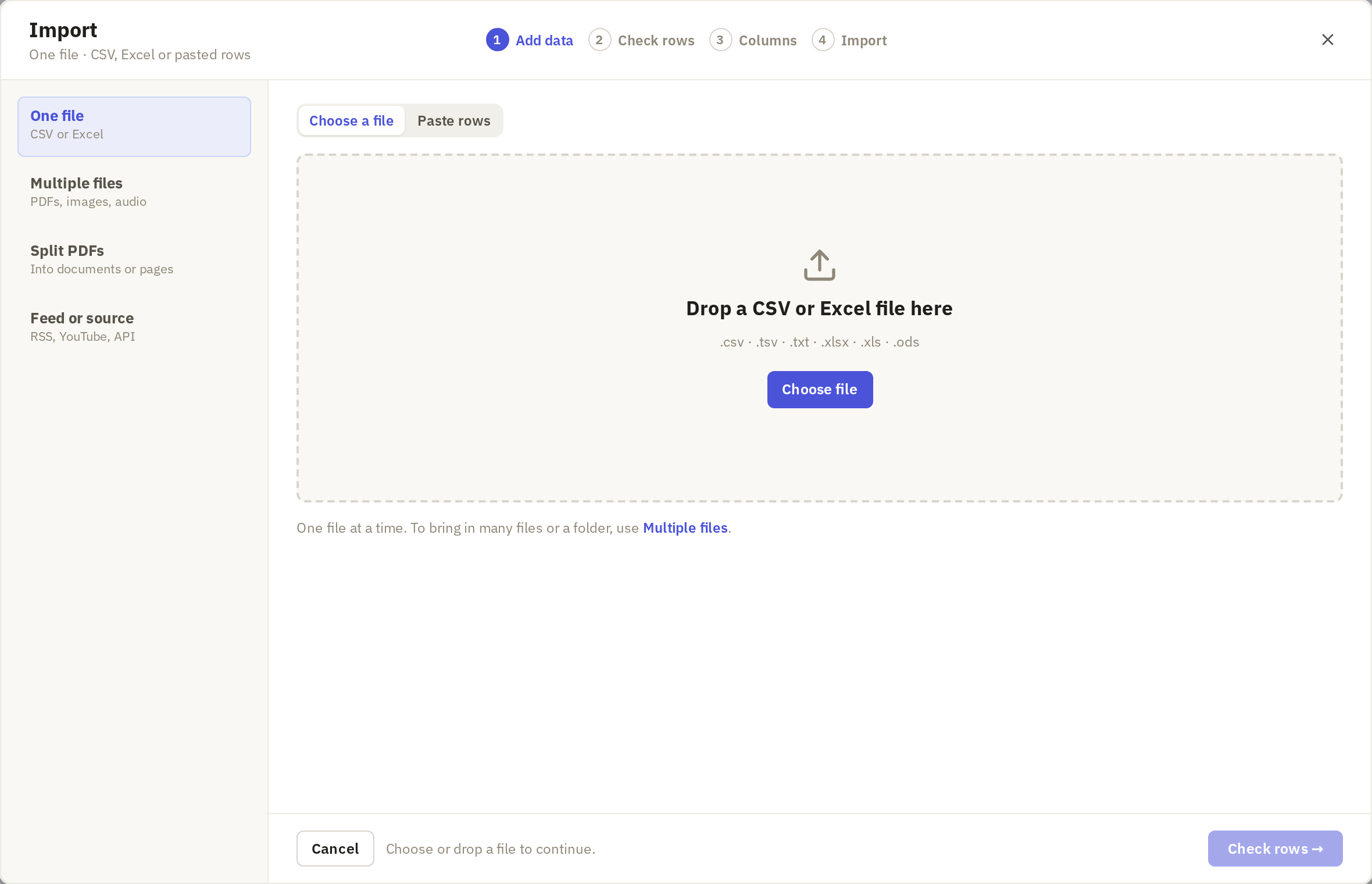
One file takes one table at a time. For a folder of CSVs, see several table files.
Check how the rows are read
Check rows shows the first and last lines of the table as Frisket will read them. Look at the preview, not the settings: if the columns line up and the text looks right, you can go on.
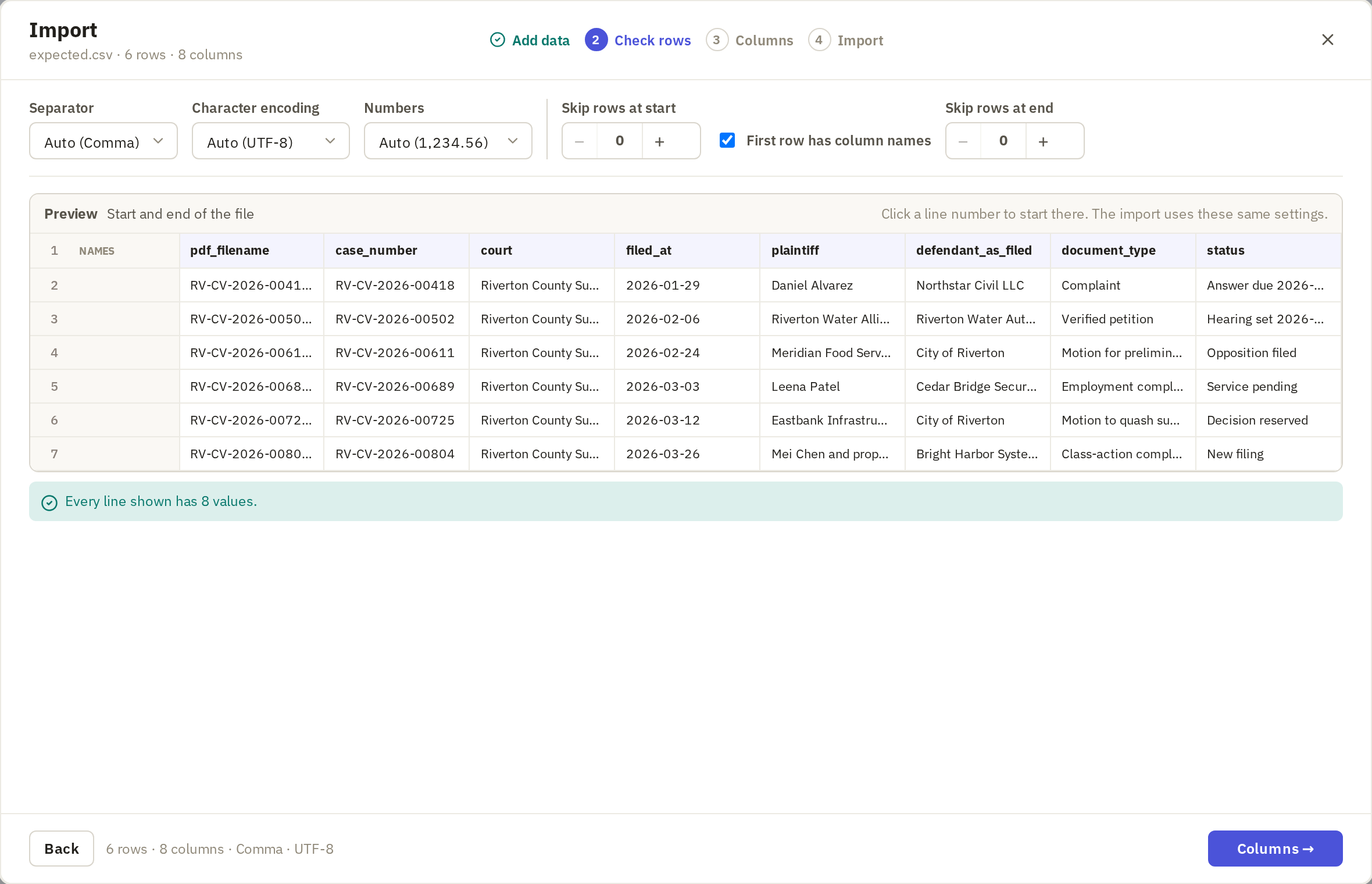
If something's wrong, here's what to change:
- Everything is in one column. The file uses a different separator. Try Semicolon or Tab under Separator.
- Accented letters look wrong, such as "é" instead of "é". Change Character encoding. Files from older Windows software are often Windows-1252.
- Numbers are wrong, such as 1.234 read as one point two. Under Numbers, choose the format the file uses: 1,234.56 or 1.234,56.
- The column names are a title, or a note. Many files start with a few lines before the table. Click the line number where the table starts, or set Skip rows at start. Use Skip rows at end for totals or footnotes at the bottom.
- The column names are data. If the file has no header row, clear First row has column names.
For an Excel file, choose the worksheet under Sheet.
Click Columns.
Review the column types
Each column gets a type, which decides how Frisket treats its values: whether you can sort it as numbers, filter it by date, and so on. Frisket suggests one for each column. Values as imported shows what the values will look like.
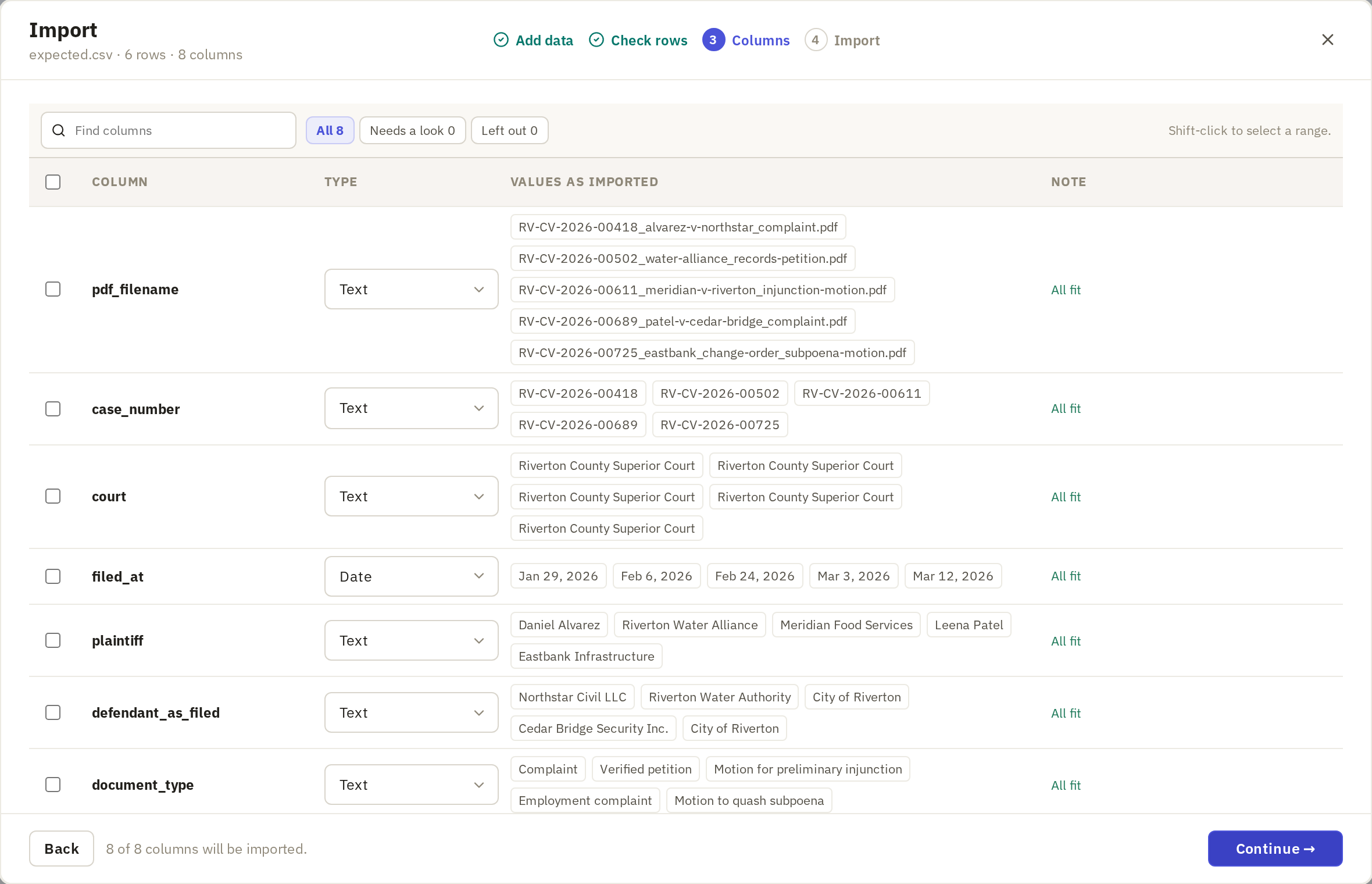
Check the Note column, which flags problems:
- values lose leading zeros: a ZIP code or ID such as 02134 would become 2134. Set the column to Text.
- values won't convert: some values don't fit the type, such as "unknown" in a number column. They'll be left blank, with the originals listed under Errors. Change the type to Text to keep them as written.
- Times are dropped: the column has times as well as dates. Choose Date & time to keep them.
For dates such as 03/04/2026, Frisket can't tell whether that's March 4 or April 3. Choose Month first or Day first to match the file.
Keep IDs, case numbers, phone numbers and anything with leading zeros as Text, even if they look like numbers. Choose Leave out for columns you don't need.
Click Continue.
Choose where rows go
Choose New sheet and type a Sheet name, or Add to an existing sheet to add rows to one you have, such as this month's data under last month's.
When adding to an existing sheet, Frisket matches columns by name. Check each match. Similar name, or a note that the sheet's column is a different type, needs a look. To avoid adding rows you already have, tick Skip rows already in the sheet and choose the column that identifies each row.
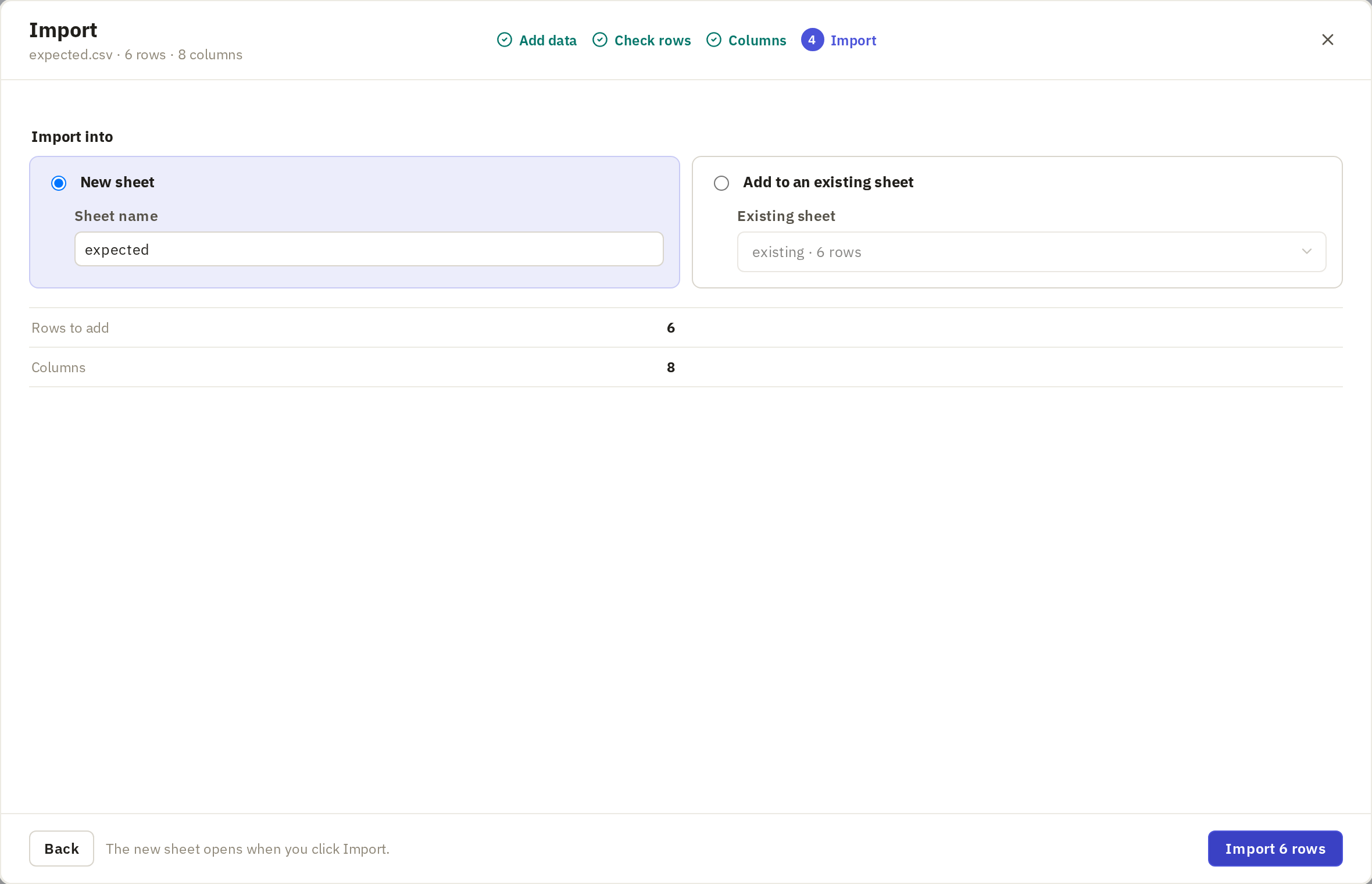
The summary shows how many rows will be added and anything unusual, such as lines with extra or missing values. Click Import.
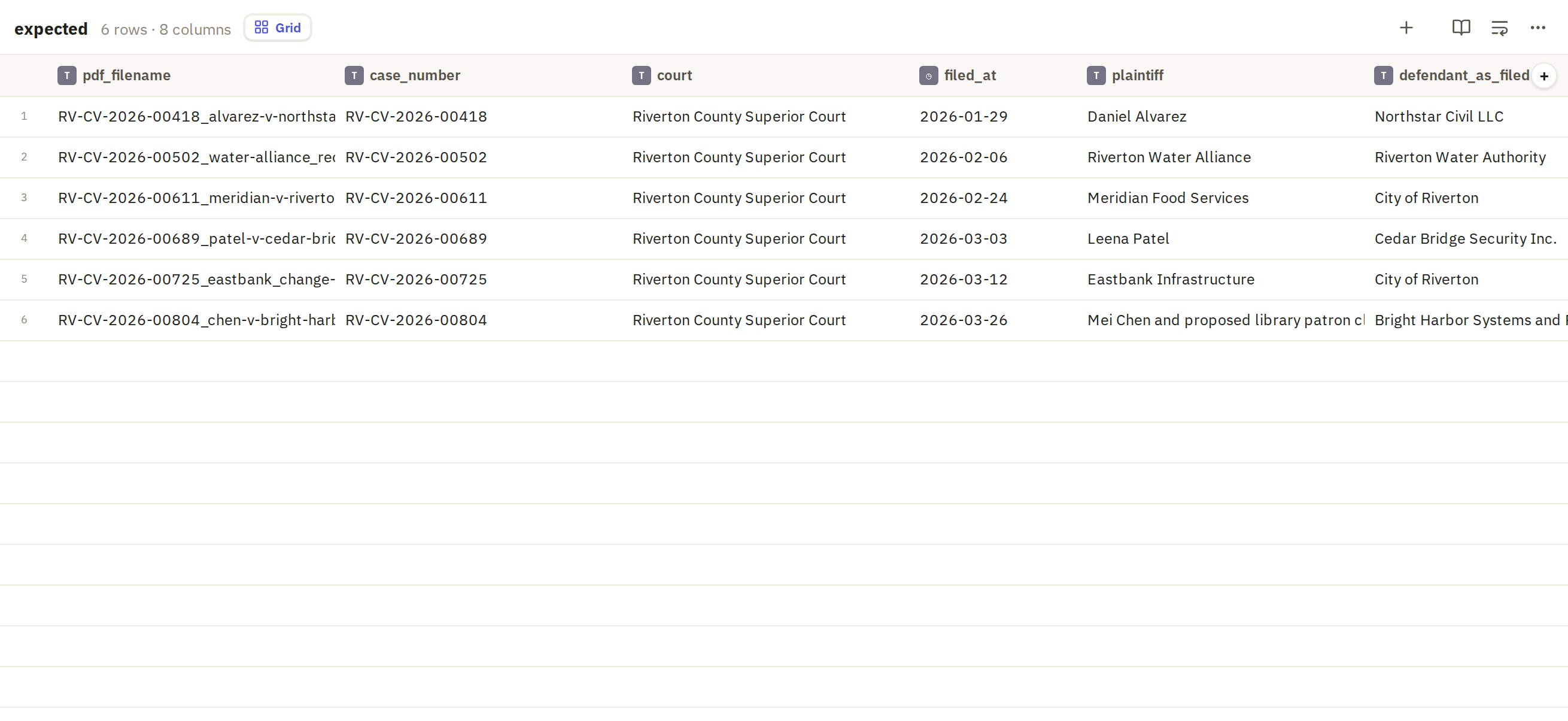
Then check the new sheet: the row count, the column names, and a few values against the original file, especially dates and IDs.
Bring in several table files
For several CSV or Excel files, use Multiple files instead. If some of the CSVs have the same columns, Frisket asks whether to Combine into one sheet or Import as separate sheets: combine monthly files of the same data, keep different tables apart. Click Execute import.