Check an action against expected answers
Join a sheet of known answers to saved output and compare the matching rows.
Prepare the answer sheet
Sometimes you already know the right answers for some of your documents: a reporter checked twenty filings by hand, or an agency published a summary table. That's an answer key, and it's the most reliable way to measure an action. Frisket compares the action's output with the key on every row and tells you how often it matched, field by field.
You need two things:
- The answer key as a sheet. Import it like any spreadsheet. It needs a column that identifies each document, such as the file name, plus one column for each field you want to check.
- A saved run of the action on the sheet you're checking. A preview isn't enough: run it, on at least the rows your key covers.
The identifying column has to match exactly. If the key says "RV-CV-2026-00418.pdf" and your sheet says "RV-CV-2026-00418_alvarez.pdf", the rows won't pair up.
Join the matching rows and fields
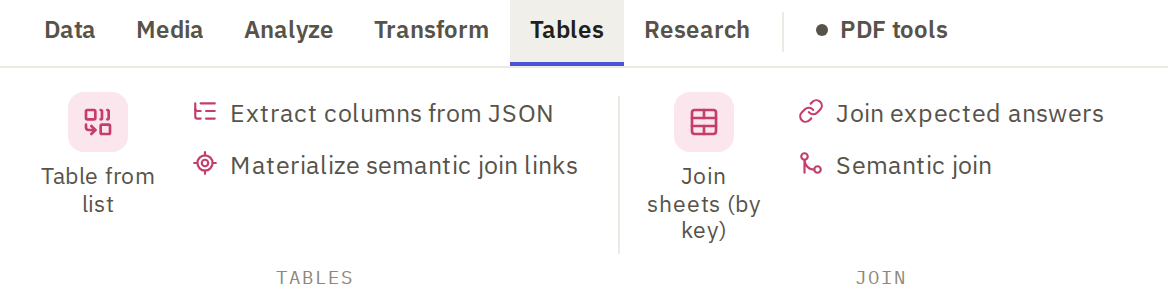
On the Tables tab, click Join expected answers.
The dialog has three steps:
-
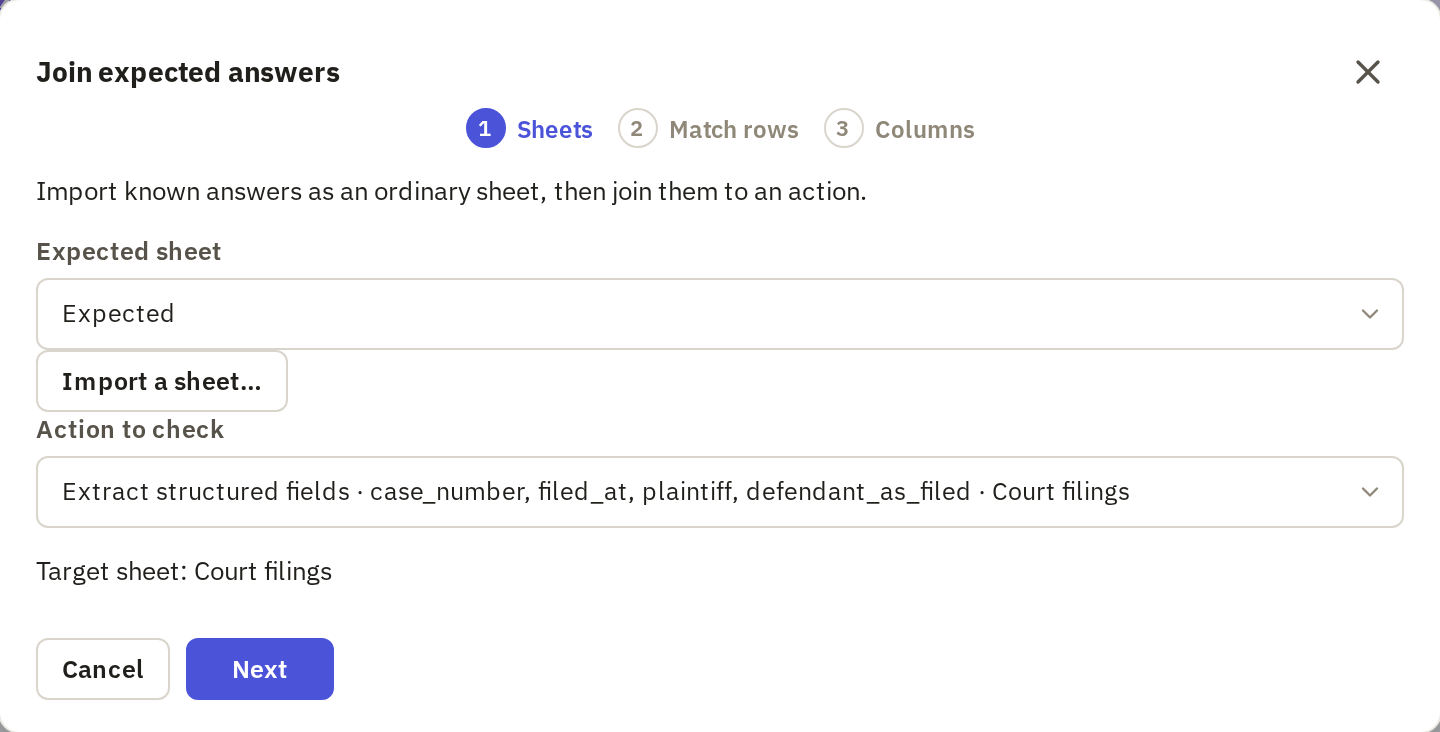
Sheets. Under Expected sheet, choose your answer key. Under Action to check, choose the run. Click Next.
-
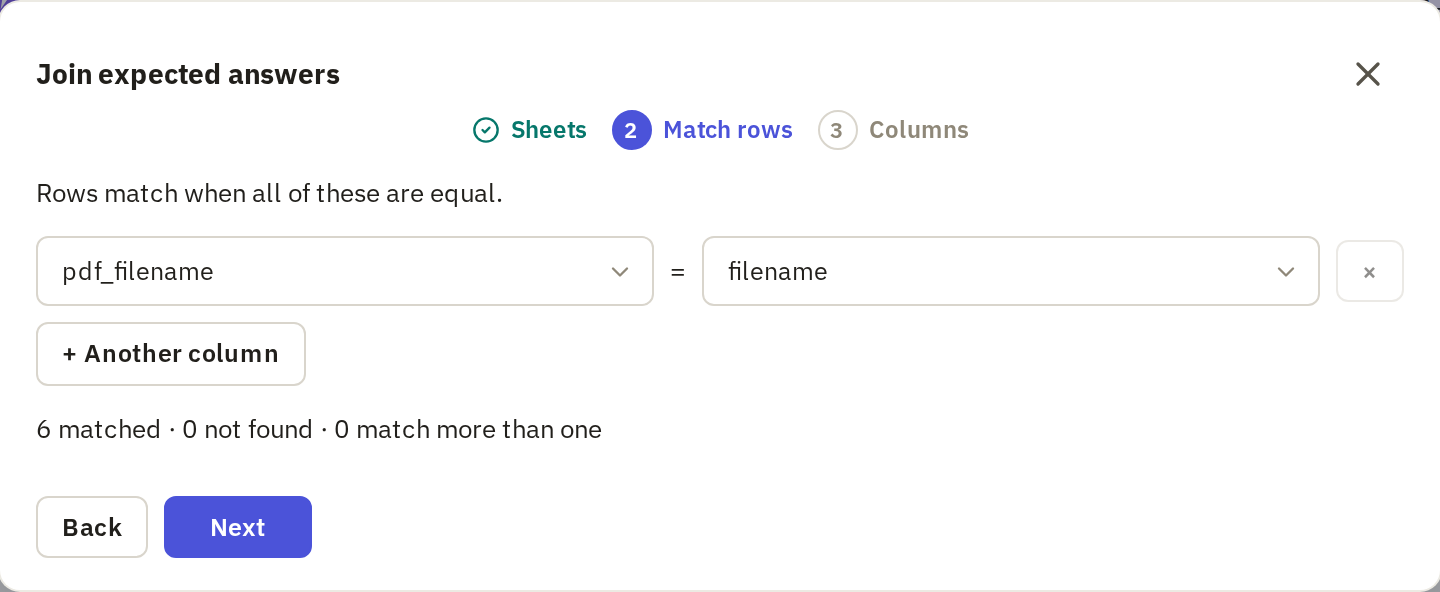
Match rows. Choose the column in each sheet that identifies the document. Frisket shows how many rows matched, how many weren't found and how many matched more than once. Fix any that matched more than once before going on; usually it means the key has duplicate rows.
-
Columns. For each answer column, choose the output it should be compared with, and a match rule. Click Join.
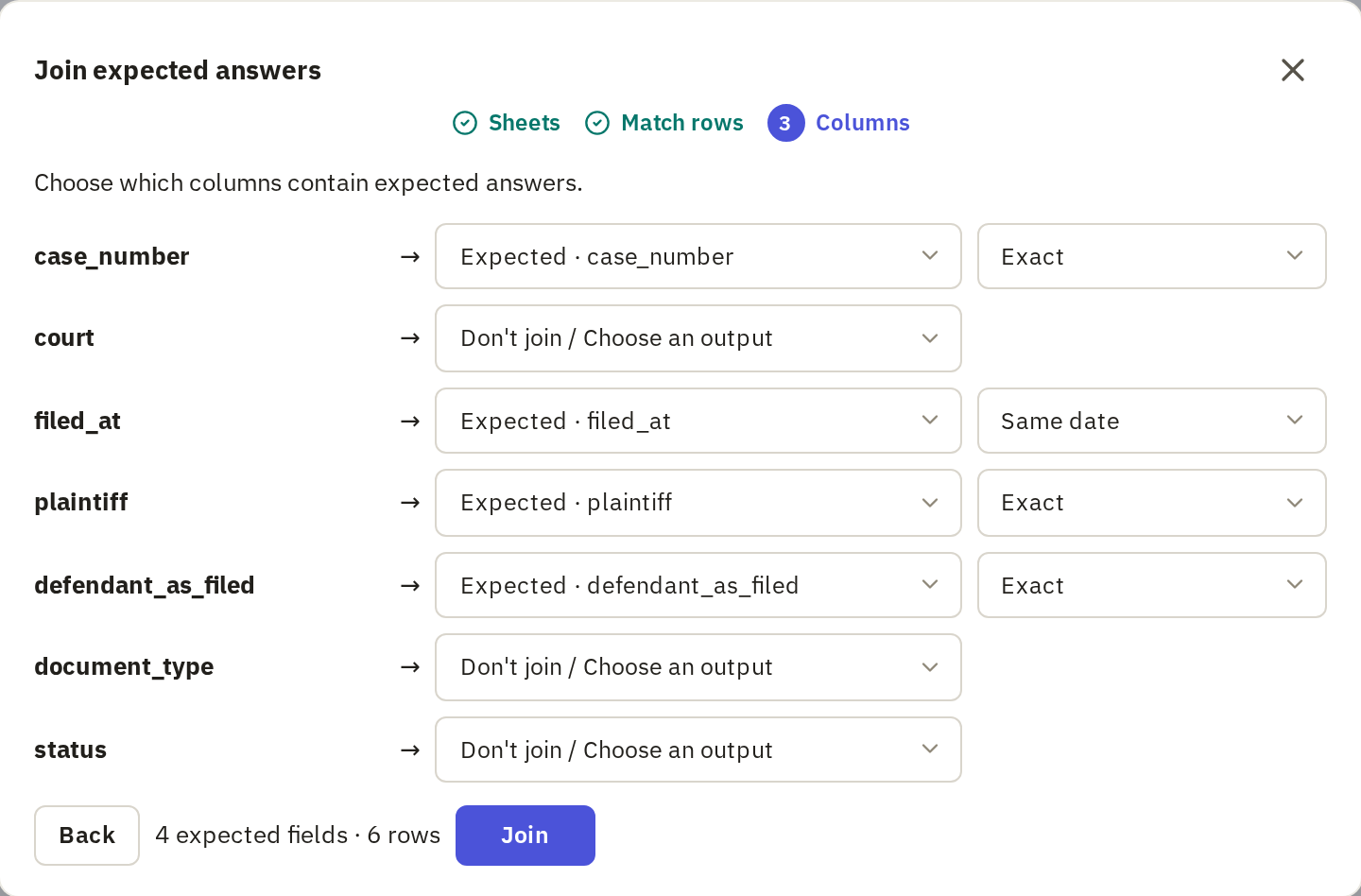
The match rule decides what counts as the same answer. Choose it for what the field holds:
- Exact for case numbers and IDs, where one character matters.
- Ignore case for names, if "NORTHSTAR CIVIL LLC" and "Northstar Civil LLC" should count as the same.
- Same number for amounts, so "1,200" matches "1200.00".
- Same date for dates written differently, such as "January 29, 2026" and "2026-01-29".
- Same items for lists where the order doesn't matter. The values have to be lists, not text with commas.
- Score by hand when only a person can judge, such as a summary.
Inspect matches and misses
On the Analyze tab, click Compare and choose the run ending in vs expected.

Click a field's name to see how the run did on it. The filters narrow the rows: Any miss shows every row where the output didn't match.
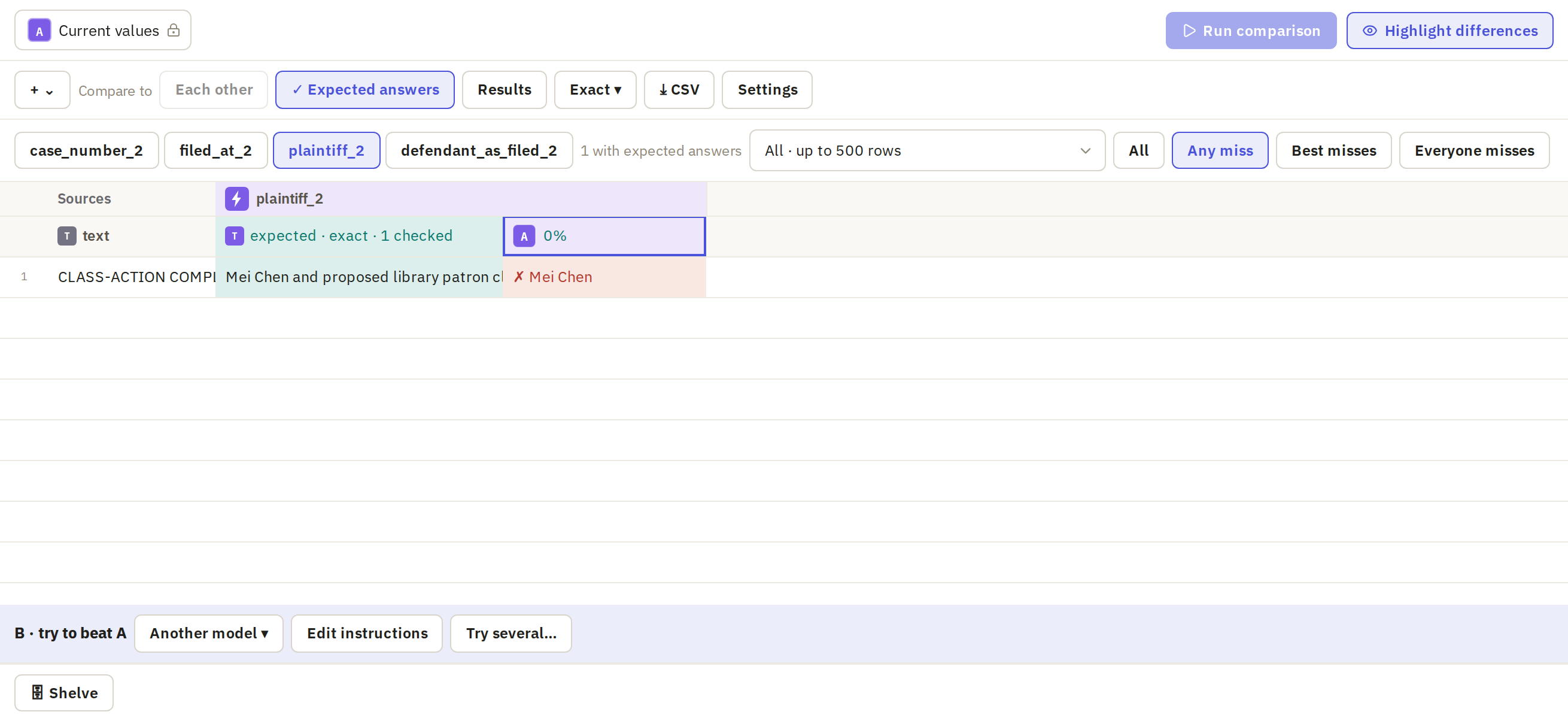
Open each miss and read the source. A miss isn't always the action's fault:
- The action was wrong. That's what you're looking for. Note the kind of mistake.
- The key was wrong, or written differently. Correct it with the pencil beside Expected answer. That changes the answer key, not the output, so check the source first.
- The rule was too strict. If "Mei Chen" missed "Mei Chen and proposed library patron class", decide which you wanted. Change the rule if it's the comparison that's wrong.
If any fields use Score by hand, click to score by hand and mark each answer.
Keep the key for another comparison
The answer key is an ordinary sheet, so it stays in the project. To use it in another project, export it as CSV and import it there, then join it again. The join's settings, such as which columns pair up and the match rules, don't travel with the CSV.