Compare action variants on rows
Try another model or instruction on the same sheet rows without replacing saved output.
Choose the action and sample
Use Compare to try a different model or different instructions for an action, on the same rows, before you commit to one. A typical case: you've extracted fields from a few filings with a cheap model, and want to know whether a better one would get more of them right.
Open the sheet and, on the Analyze tab, click Compare.

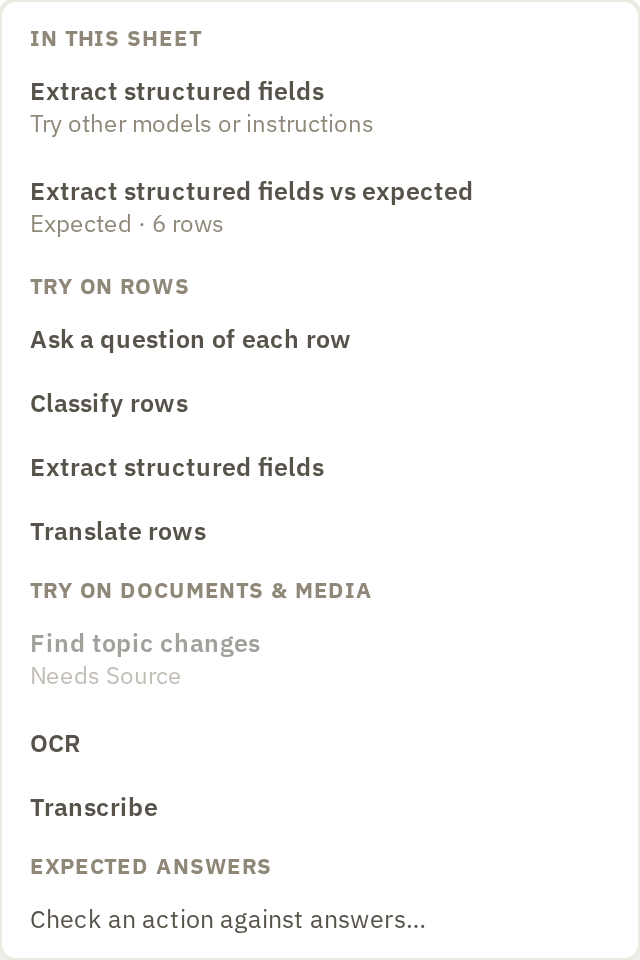
The menu lists what you can compare. The two groups for actions on rows are:
- IN THIS SHEET lists actions you've already run here. Choosing one opens the comparison straight away, with your existing results as the starting point.
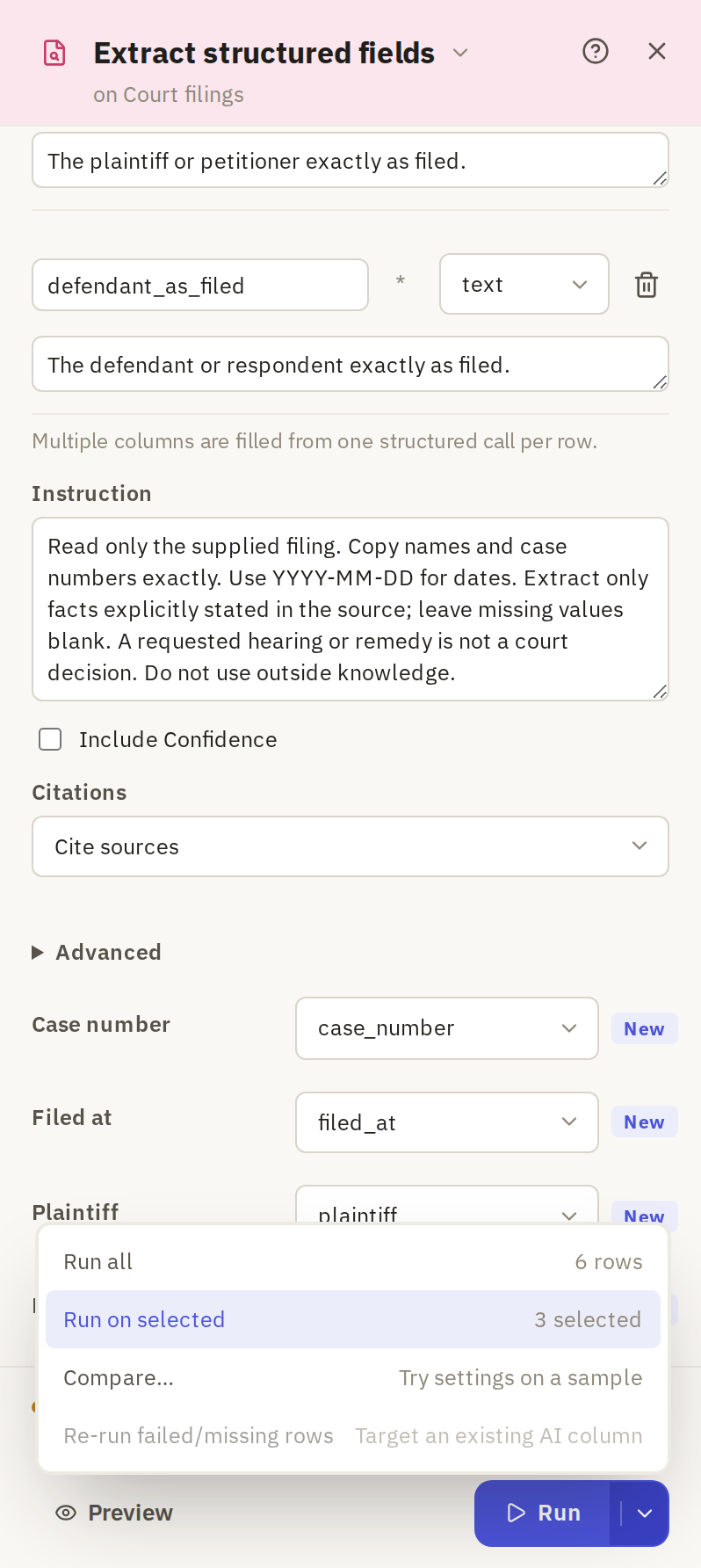
- TRY ON ROWS lists the actions you can set up for a new comparison, including ones you've run before. Choosing one opens the action's usual panel. Set it up as you would to run it: the source, the model and the fields. Then open the menu beside Run and choose Compare….
Many actions offer Compare… in the menu beside Run, so you can start from the action's panel the same way.
Compare opens in its own tab. The first column, A, is your starting point: the values already in the sheet if you started from a saved run, or the action's current settings if you started from the panel. It can't be removed, so you always have something to measure against.
Configure and run a variant
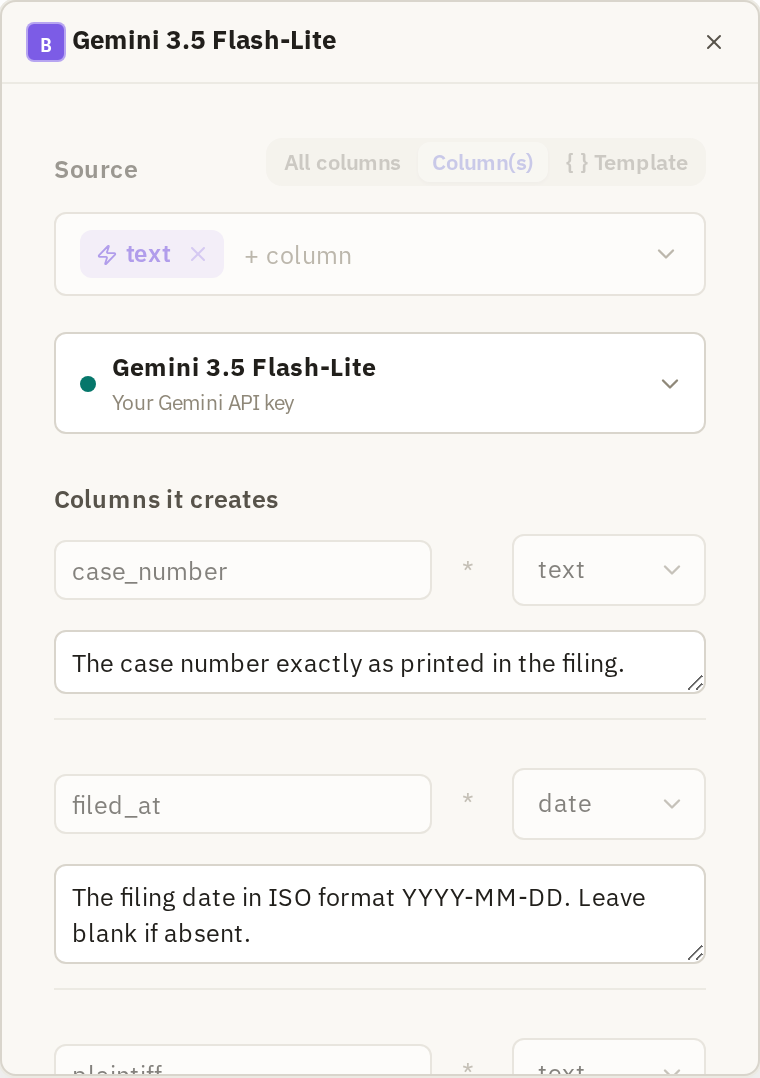
Each version you try is a variant. To add one, click + and choose New variant. Its settings open as the action's form.
Change one thing: a different model, or a change to the Instruction. The source columns and the fields to extract are locked, marked Fixed for this comparison, so every variant answers the same question.
Before running, choose which rows to compare: Sample · up to 20 rows is usually enough. All · up to 500 rows takes longer and costs more. If you've joined expected answers, you can choose the rows that have them. Then click Run comparison.
Read the results
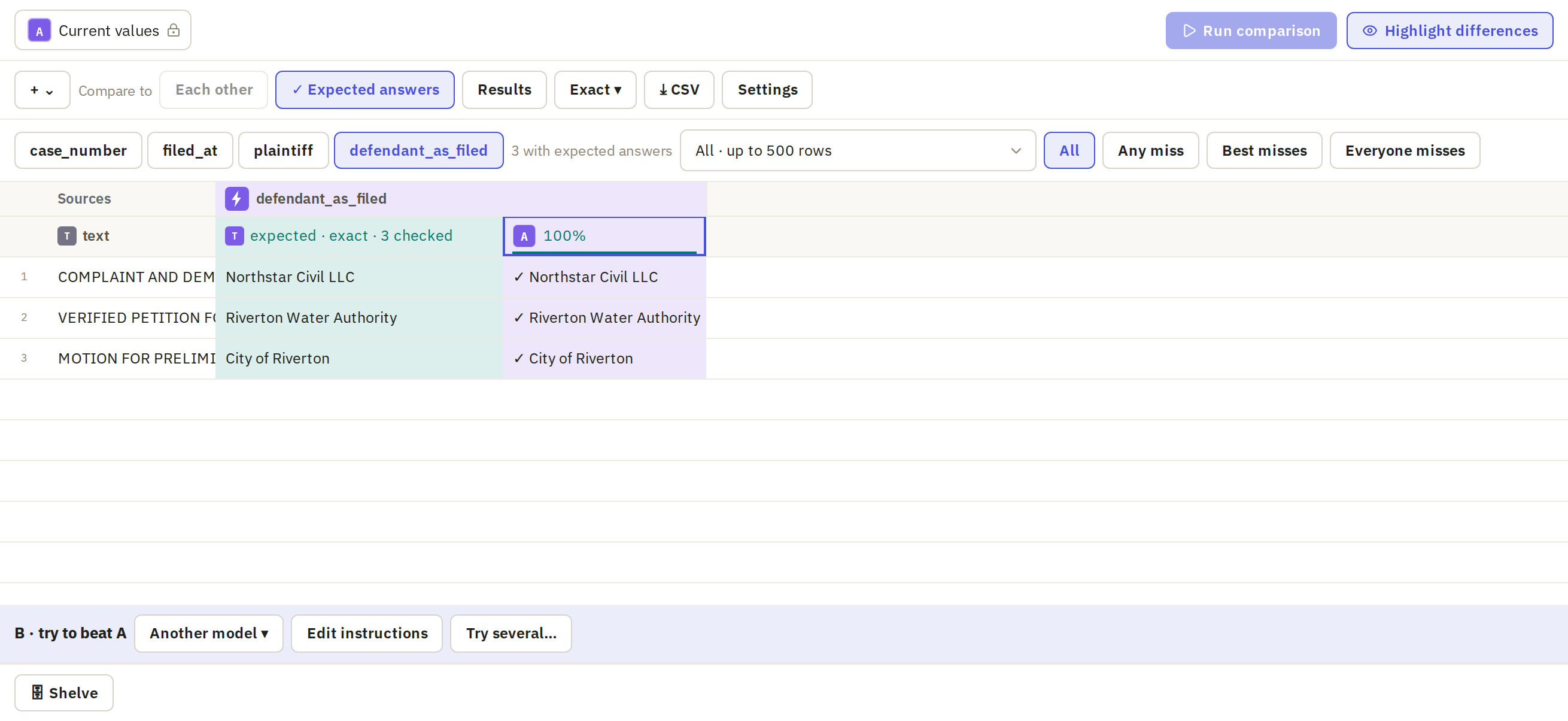
Results appear as a column per variant, field by field. Click a field's name to look at it. Under Compare to, choose how to read them:
- Expected answers, if you've joined an answer key to this sheet, scores each variant against it. The example below shows a saved run, column A, scored this way on one field.
- Each other, with two or more variants, compares them directly. Variants disagree then shows only the rows where they gave different answers. These are the rows to check: open each one and decide which variant is right from the source. Highlight differences marks what changed within each value.
Look for patterns, not single wins. If the new model gets names right but dates wrong, that matters more than its overall score.
Take checked settings back to the action
The comparison is temporary: close it, and the results are gone. To keep a variant's results to come back to, click Shelve.
When you've chosen a variant that has run, click its Use settings button. (The starting column made from your existing values, and shelved results, don't have one.) The action's panel opens with those settings. Check where it will write before you click Run:
- If you started from a saved run, it offers to Replace that run's columns.
- If you started from scratch, it creates new columns.
To keep a record of what you compared, click CSV to download the results, or Settings to download each variant's settings.