Turn court filings into a checked table
Pull the case number, filing date and parties out of six court filings, check the results against an answer key, then run it on every filing.
Bring in the filings
The sample has six fictional civil filings from the same court, as PDFs, and expected.csv: a table of the right answers for each one, filled in by hand.
Click Open in Frisket Desktop or Open in Frisket Cloud at the top of this page, then Open in Frisket in the dialog. It imports both for you: the filings into one sheet, one row each, and expected.csv into a sheet called Expected.
If you import the files yourself, import expected.csv as its own sheet. It's the answer key you'll check the model against, so don't give it to the model as input.
Check the text and keep each filing together
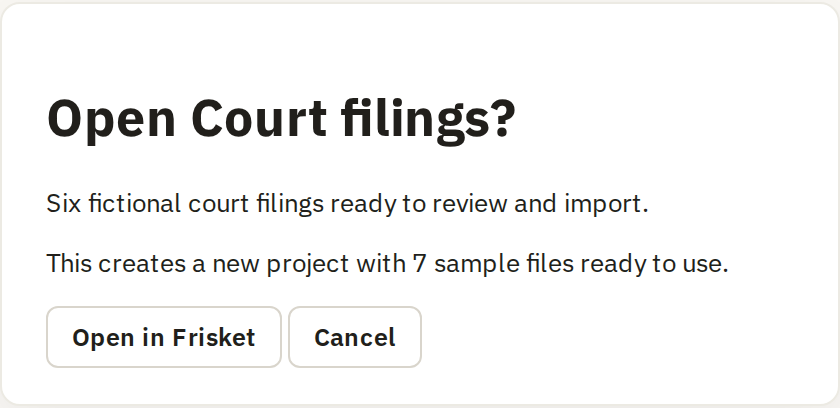
Before a model can read the filings, Frisket needs their text. On Check text, click a filing and compare the text on the right with the page. These PDFs were made on a computer, so their built-in text is good: names, case numbers and line order all match the page.
The built-in text matches the page, so no OCR is needed. For scans, or text that looks wrong, you'd choose another option.
Set to: None
Use it. Choose None under Apply OCR to.
Which OCR engine should you use? →One row per filing, with all its pages, so the model reads each filing whole.
Set to: Keep documents
 12
Describe the fields to extract
On the Analyze tab, click Extract fields. You describe the facts you want, one column each, and a model reads each filing's text and fills them in. Set it up as below. The descriptions matter: the model follows them literally, so say exactly what you want, including the format for dates.
Find it under Analyze › Extract › Extract fields

The text column the import created.
Set to: text
Extract from the text. You get citations you can check.
Extract from text or from the PDF? →A cheap, fast model. Start cheap and move up only if the check below shows it getting fields wrong.
Set to: Gemini 3.5 Flash-Lite
Keep those settings for the next rows, then check their results too.
Which model should extract your fields? →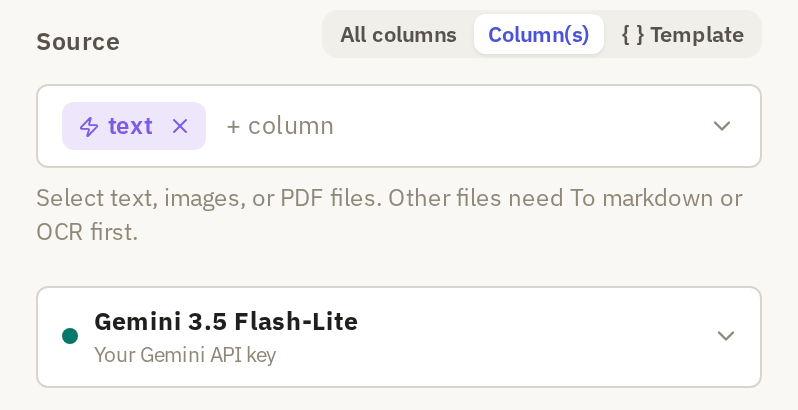 12
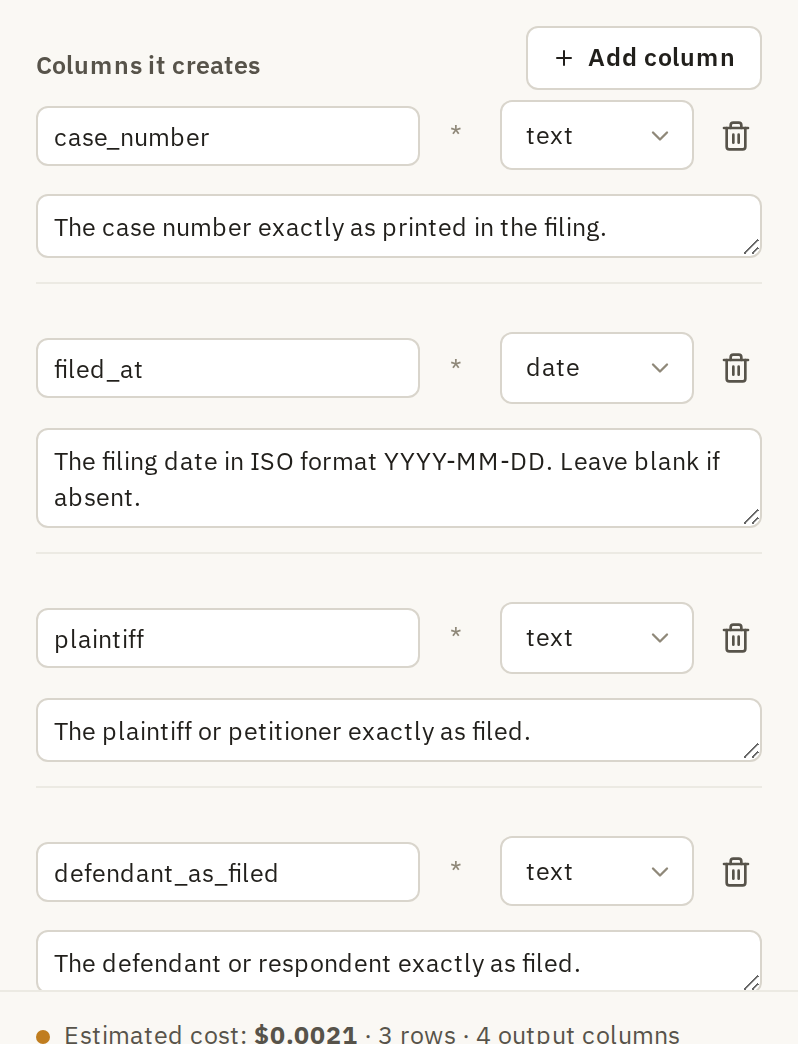
Four columns: case_number, filed_at as a date, plaintiff and defendant_as_filed. Each has a description telling the model what to copy and how.
| Name | Type | Description |
|---|---|---|
| case_number | text | The case number exactly as printed in the filing. |
| filed_at | date | The filing date in ISO format YYYY-MM-DD. Leave blank if absent. |
| plaintiff | text | The plaintiff or petitioner exactly as filed. |
| defendant_as_filed | text | The defendant or respondent exactly as filed. |
 3
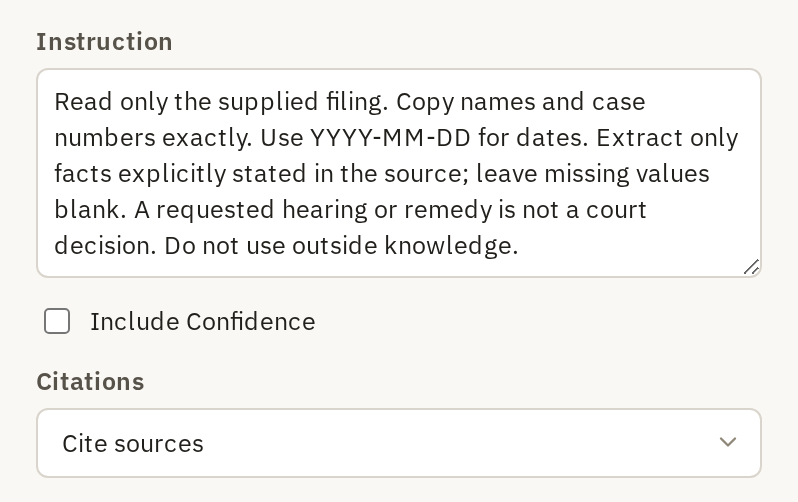
Tells the model to use only what the filing says, copy names exactly, and leave a field blank rather than guess.
Set to: Read only the supplied filing. Copy names and case numbers exactly. Use YYYY-MM-DD for dates. Extract only facts explicitly stated in the source; leave missing values blank. A requested hearing or remedy is not a court decision. Do not use outside knowledge.
Records the passage each value came from, so you can check it in Review.
Set to: Cite sources
 45
Preview the selected sample (optional)
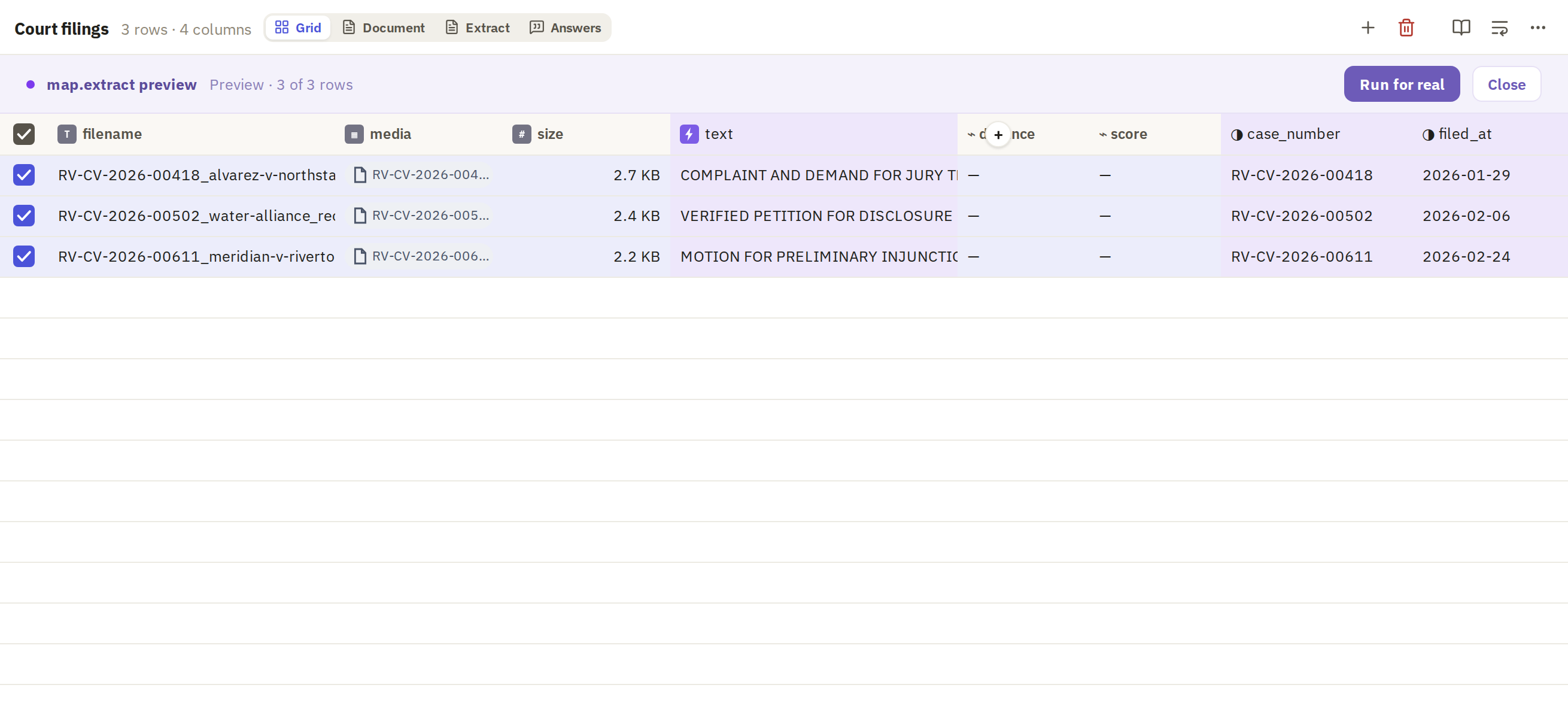
Before running anything for real, try it on a few rows. Select the first three filings, then click Preview. The values appear in the sheet but aren't saved; close the preview and they're gone. Read them against the filings. If a field is wrong, change its description and preview again.
Three filings is enough to catch a badly worded field, and costs almost nothing.
Set to: 3 selected rows
Extract a small selected sample
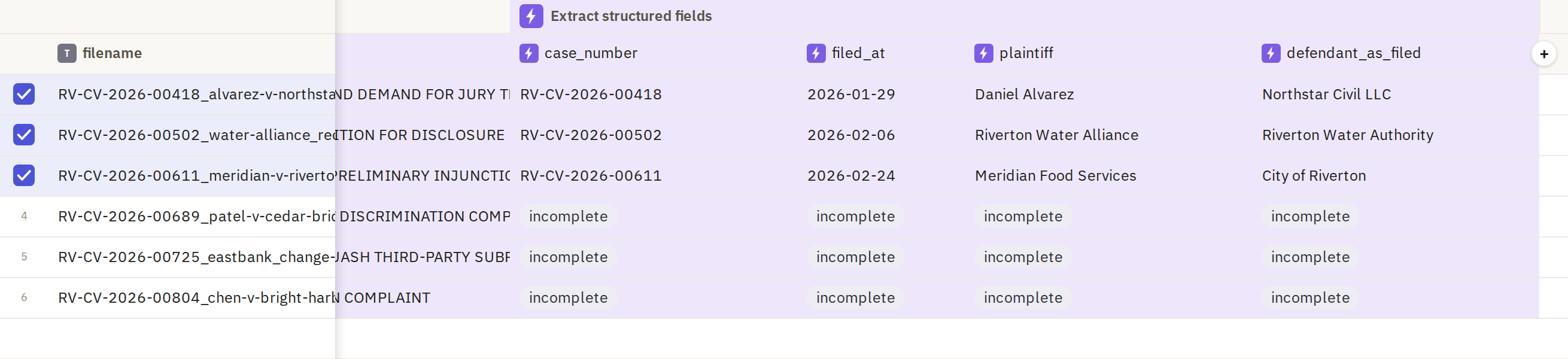
Now save results for the same three filings, so you can score them. Keep them selected, open the menu beside Run and choose Run on selected. The four columns fill in for those rows; the other three show as incomplete.
Saves real results for the selected rows only.
Set to: Run on selected
Use the same three whenever you try another model or instruction, so the results are comparable.
Set to: Filings 00418, 00502 and 00611
Compare the saved sample with expected answers
Since you have the right answers in the Expected sheet, let Frisket score the run.
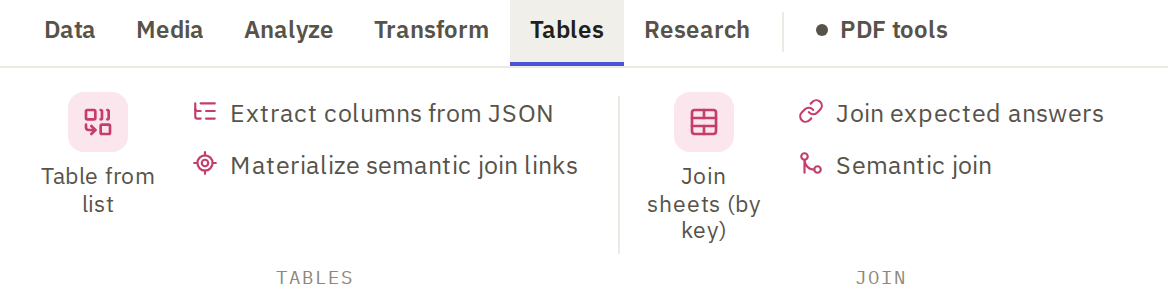
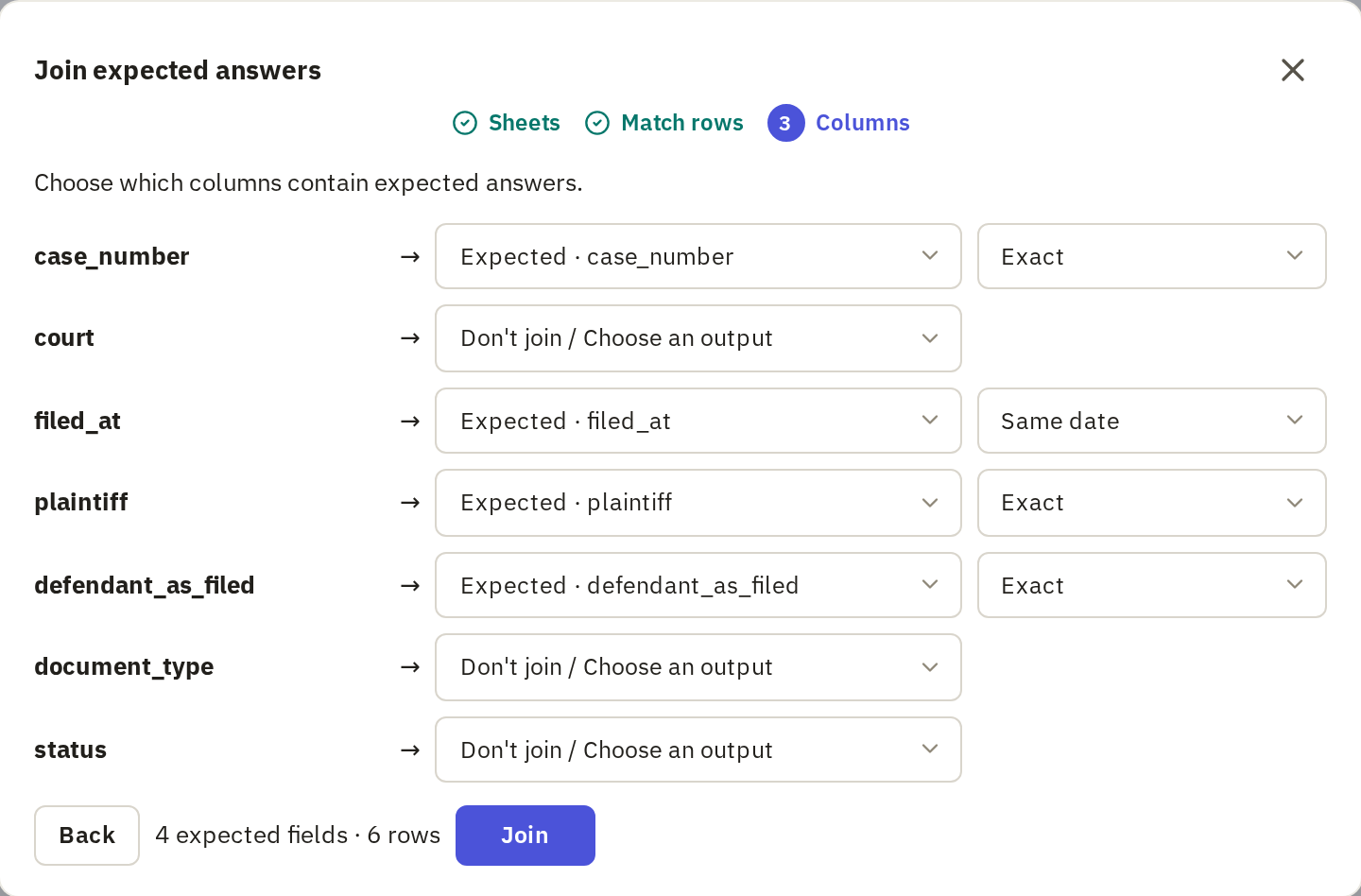
- On the Tables tab, click Join expected answers and set it up as below. This pairs each filing with its row in the answer key, and each extracted column with its answer.
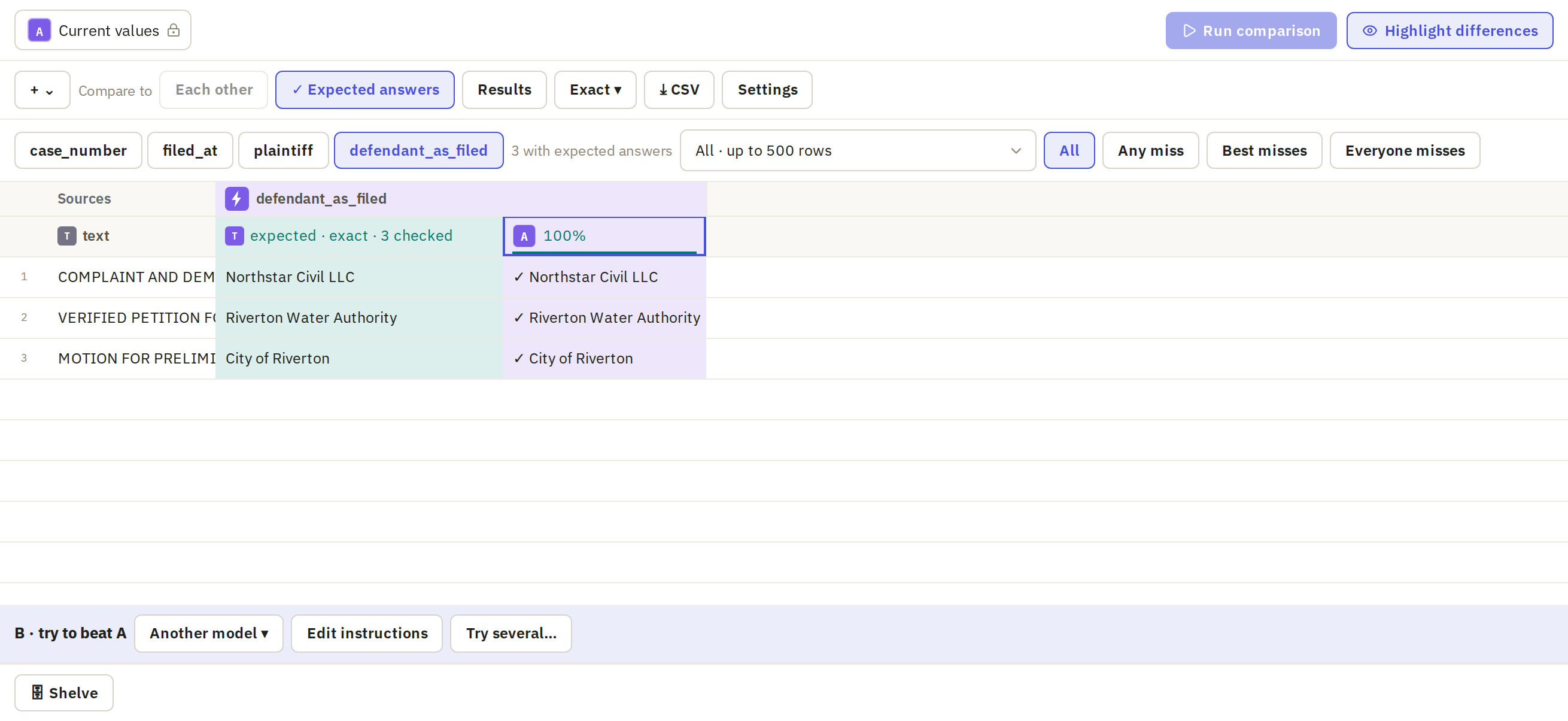
- On the Analyze tab, click Compare and choose the run whose name ends in vs expected.
- Click each field to see which rows matched.

The answer key from expected.csv.
Set to: Expected
The answer key's column naming each PDF.
Set to: pdf_filename
The filings sheet's column naming each PDF. The two must match exactly for rows to pair up.
Set to: filename
Pair each extracted column with its answer column. Leave the key's other columns, such as court and status, unpaired; you didn't ask the model for them.
Same date for filed_at, so different date formats still match. Exact for the rest.
Run the checked settings on all filings
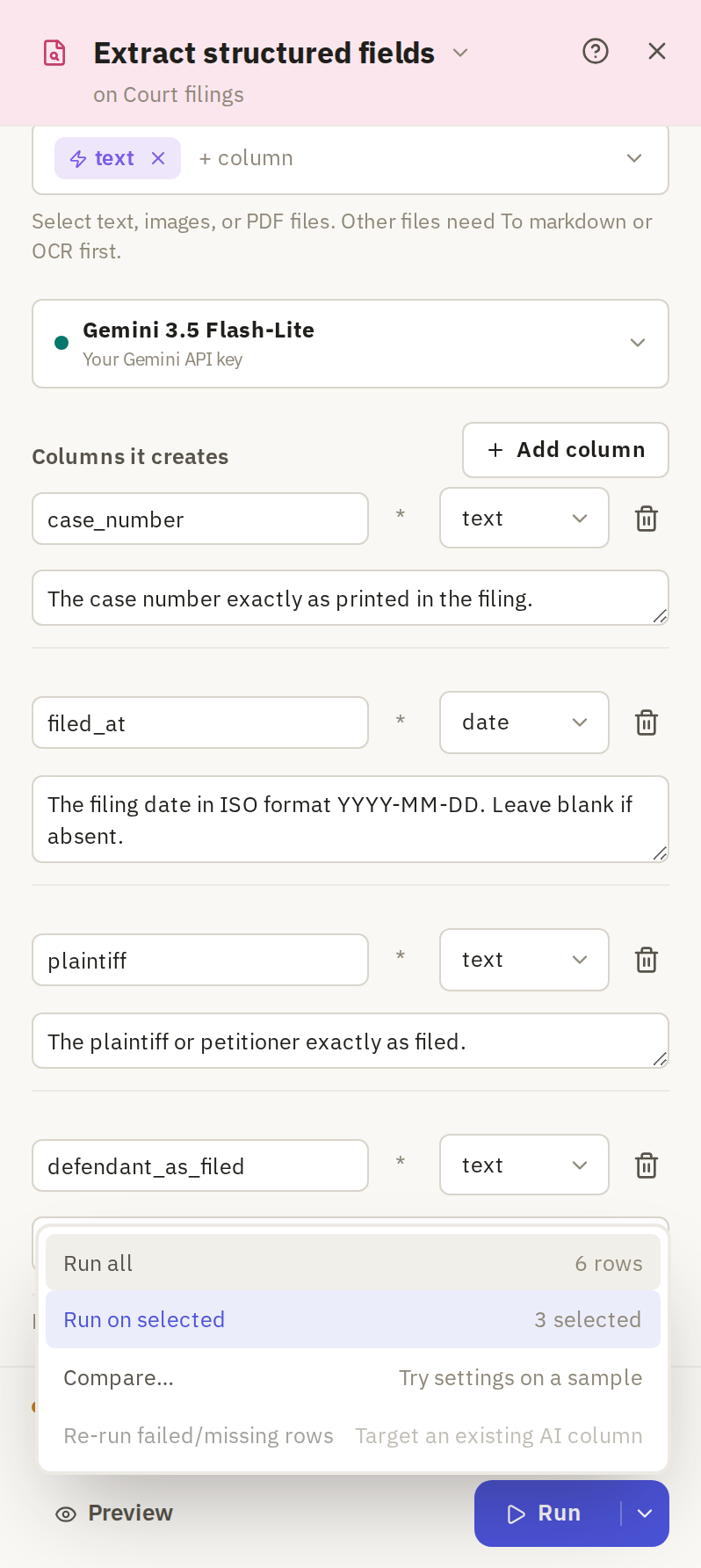
When the sample scores well, run the same settings on every filing. Open Extract fields again with the same settings, open the menu beside Run and choose Run all. Because the sample columns already exist, this run makes a new set with _2 on the end of each name, such as case_number_2. Your sample results stay as they were.
Every filing in the sheet.
Set to: Run all
Check the values against the filings
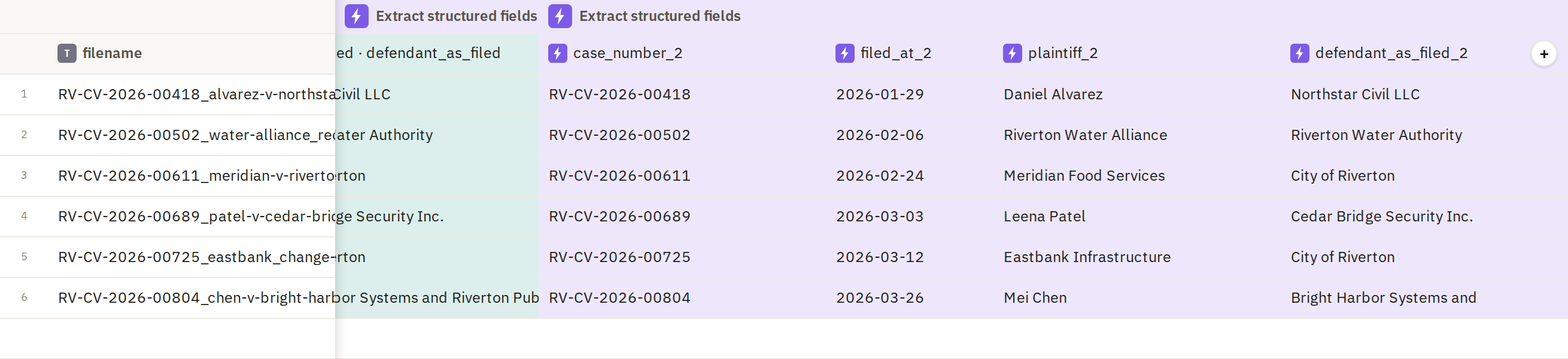
The _2 columns hold the full run, six rows. A good score on three filings doesn't guarantee the other three. Check them against the Expected sheet, and open the PDF for any value that differs.
To check values against their sources one by one, click Review in the status bar at the bottom of the window. If you have more filings like these, review a random sample of them before you rely on the column.
You should end up with
Six rows remain connected to their PDFs, with four extracted fields ready for review.
| case_number | filed_at | plaintiff | defendant_as_filed |
|---|---|---|---|
| RV-CV-2026-00418 | 2026-01-29 | Daniel Alvarez | Northstar Civil LLC |
| RV-CV-2026-00502 | 2026-02-06 | Riverton Water Alliance | Riverton Water Authority |
| RV-CV-2026-00611 | 2026-02-24 | Meridian Food Services | City of Riverton |
These are the answer-key values, not a model run. The Water Alliance is the petitioner; keep its filed name rather than replacing it with an individual.
If it doesn't match
The text is empty or garbled. Return to Check text, compare a page with its text layer and try OCR on a sample before applying it.
A case has several rows. Check the import organization. This recipe keeps one document per PDF.
A party or date differs from the key. Read the source PDF and the citation. Correct the value or adjust the field description, then preview again.