Review a saved run
Go through an action's results row by row beside the source, and mark each value correct or incorrect.
Why review
An action that reads documents gets some values wrong, and the mistakes look just like the right answers. Review shows you each value beside the passage it came from, one row at a time, so you can mark it right or wrong. When you've done enough rows, Frisket tells you how often the action was right. That tells you whether you can rely on the rest of the column, or need to change the settings and run it again.
You don't have to review every row. A first check of twenty or thirty rows, picked at random, shows whether the action is broadly working. It's an estimate, not a guarantee: the more rows you review, the more you can trust it.
Open Review
Click Review in the status bar at the bottom of the window. The red number beside it counts results waiting for a decision.
To review one particular run, open the menu on one of its output column headers and choose Display format and settings. In the panel that opens, click Review this run.
Choose the run and fields
Review opens over the sheet. The bar along the top sets what you're reviewing:
- The first menu picks the run, for example "Extract structured fields · Court filings · run #3". If the one you want isn't listed, click Older runs beside the menu.
- The second menu picks All output fields or a single field.
- The sliders button sets the order you see the rows in:
- Random is the default. Use it when you want to know how often the action is right. Rows picked at random give you a fair sample; the first rows of a sheet often aren't typical.
- Lowest confidence shows the values the action was least sure of first. Use it when you want to find and fix mistakes rather than measure them. These rows aren't typical, so the percentage correct won't tell you about the rest of the run. It's greyed out when the action didn't record confidence values.
- Row order goes down the sheet. Use it when you mean to check every row.
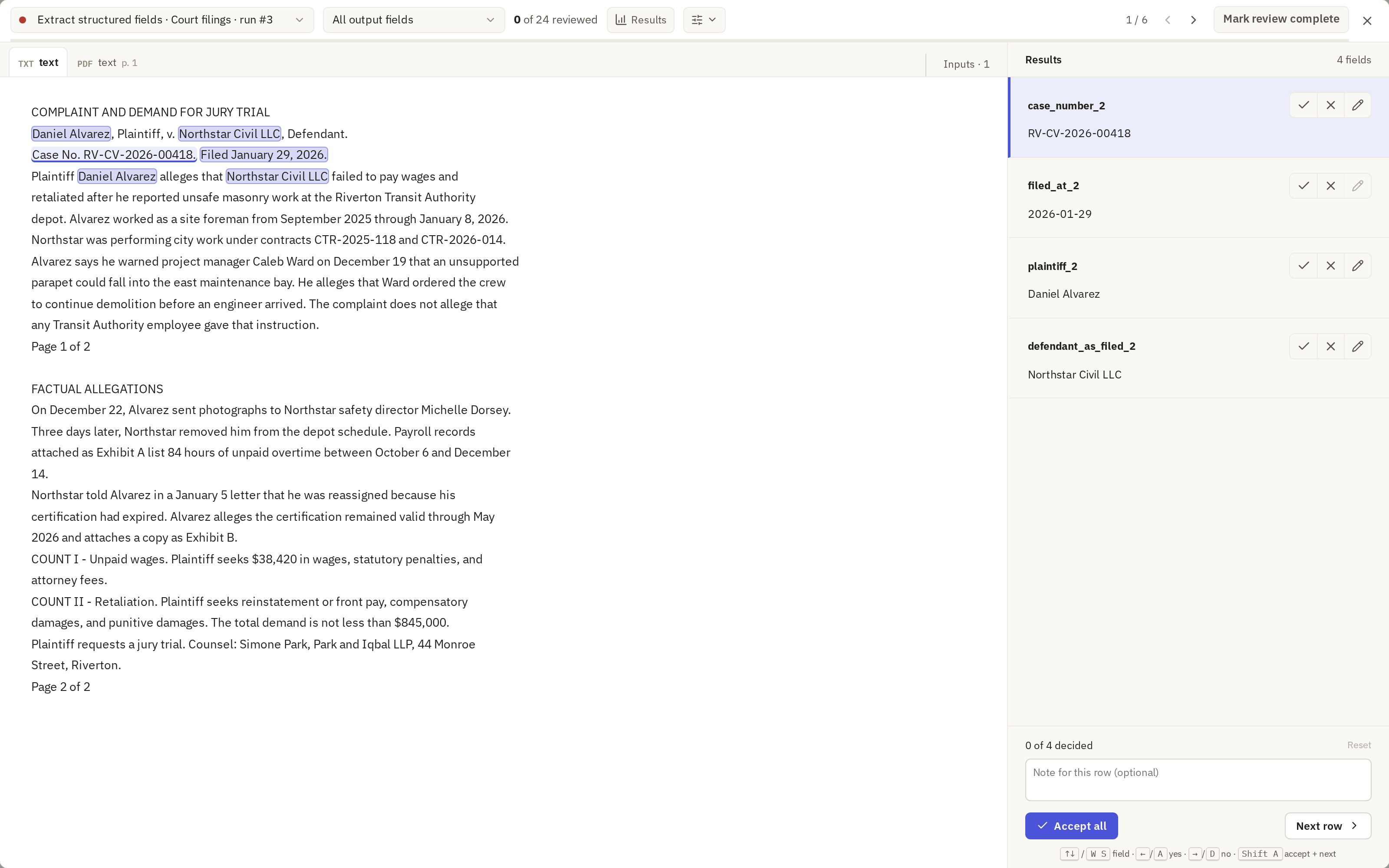
The bar also shows how many results you've reviewed so far, and your position in the rows, for example 1 / 6.
Read the source
The left side shows what the action read for this row. Where the action saved citations, the passages it used are highlighted. A tab appears for each cited source; a PDF tab shows the page number.
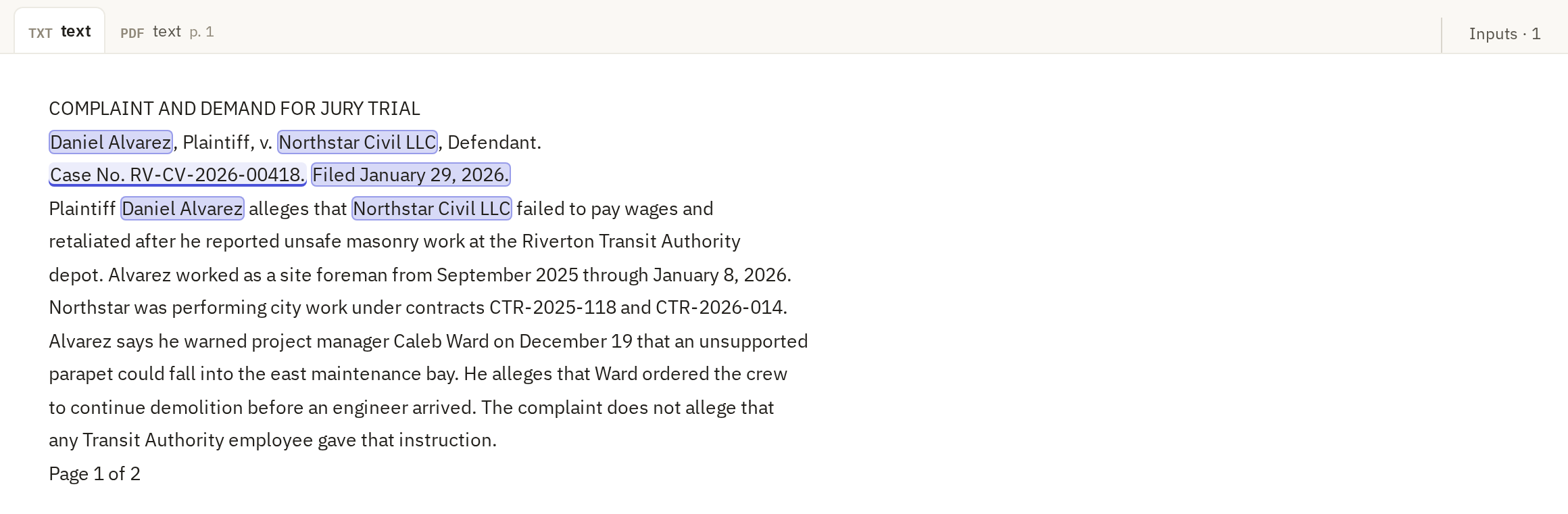
Click Inputs at the top right of the pane to see every value the action read for the row. If the run saved no citations, the pane shows those input values instead, one tab per column, marked "Current input · no saved citation for this result".
Mark each value
The right side lists the row's output fields. Read each value, find it in the source, and check it says the same thing. Watch for:
- names that are almost right
- dates in the wrong format, or from the wrong part of the document
- values that don't appear in the source at all
Then click:
- ✓ if it's correct. Keyboard: ← or A.
- ✕ if it's wrong. Keyboard: → or D. The value stays in the sheet; you've recorded that it's wrong.
- ✎ to correct it. Keyboard: E. Type the right value and click Save edit. The cell is updated, and the original value counts as incorrect.
Reject when you're measuring the action and will fix the settings and run it again. Edit when you want the right value in the sheet now.
Click a button again to clear your decision. Use ↓ and ↑, or S and W, to move between fields.
You can only edit plain text values. The pencil is greyed out for:
- dates and numbers
- values shown as an excerpt
- values that were changed after the run
Move to the next row
At the bottom, add a note for the row if you need one, then click Next row.
Accept all marks every field in the row correct and moves on. Once you've decided some fields, the same button reads Accept remaining and marks only the rest. Its shortcut is Shift+A. Use it after you've checked those fields, not instead of checking them.
Reset clears your decisions for the row.
See the results
Click Results in the top bar. It shows how many values you've reviewed, how many you accepted and how many you marked incorrect, overall and for each field. Corrected values count as incorrect.
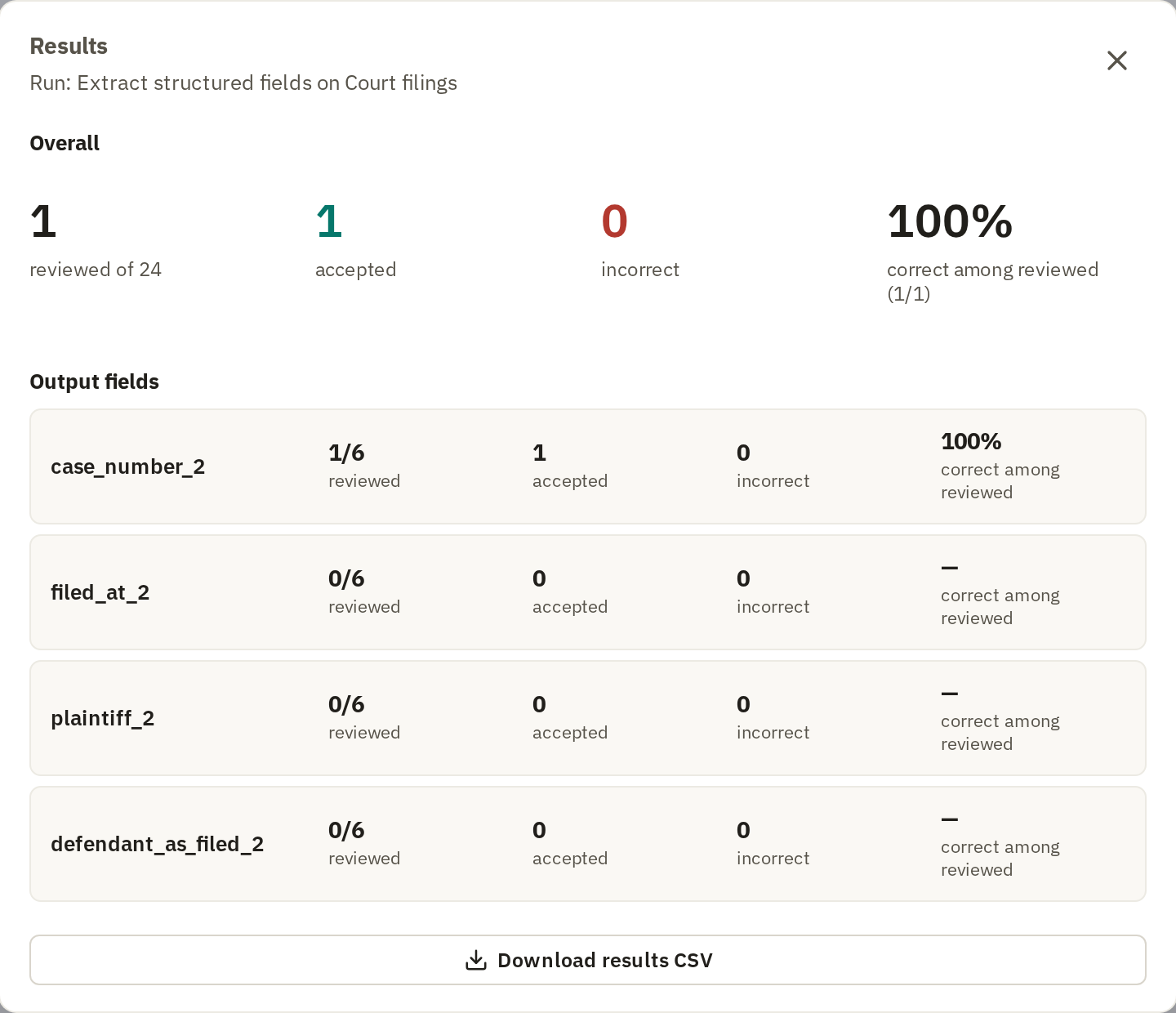
The percentage correct covers only the values you reviewed. With a random sample it's a rough estimate for the rest of the run, and gets better the more rows you review. With Lowest confidence or Row order it says nothing reliable about the rows you didn't review. To save the decisions, click Download results CSV if it's shown.
When you've finished, click Mark review complete. Click Reopen review to make more decisions later.