Split PDFs already in a sheet
Turn existing PDF rows into page or document rows, carrying selected source columns into the results.
Open Split PDFs from the sheet
If your PDFs are already in a sheet, you can split them without importing them again. Do this when you find, after import, that some PDFs hold several documents, or that you need to work page by page.
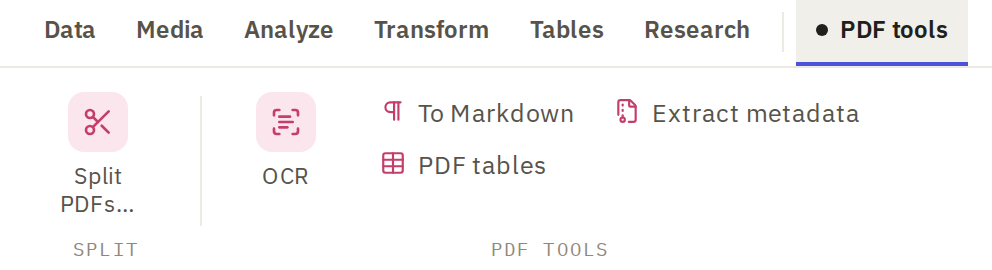
Click the PDF tools tab on the ribbon. It appears when the sheet has a column of files. Click Split PDFs….
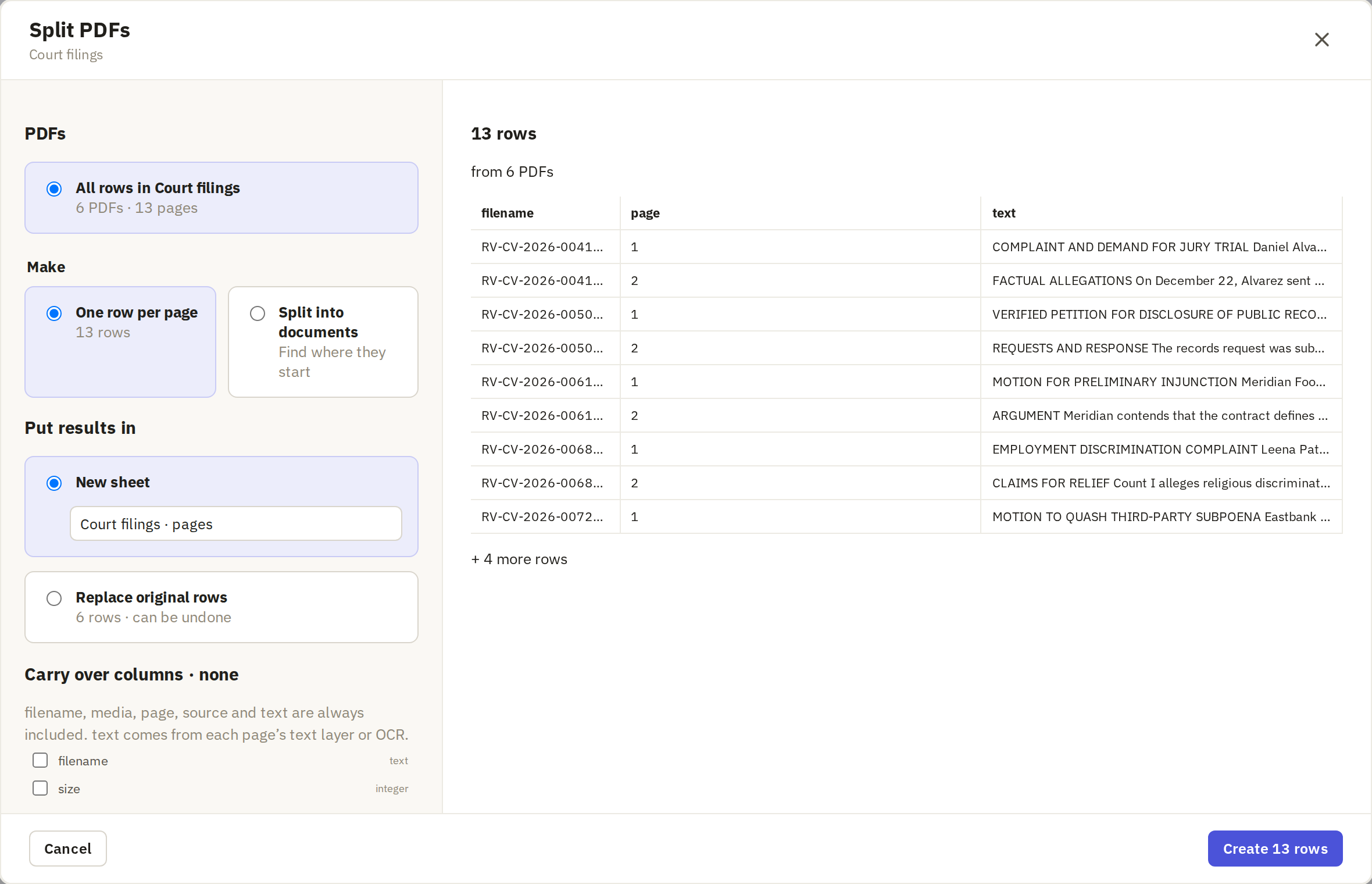
Under PDFs, choose which to split:
- Selected rows, if you've selected some.
- Filtered rows, if a filter is on.
- All rows in followed by the sheet's name, for all of them.
The option you choose shows how many PDFs and pages it covers.
Choose the output and destination
Under Make, choose:
- One row per page, the default, when you want to work page by page.
- Split into documents when the PDFs hold several documents each. You'll mark where each starts on the next screen.
One row per page: when it helps
Splitting a packet: when it helps
Under Put results in, choose:
- New sheet to keep the original rows as they are and put the pages or documents in a new sheet. This is the safer choice.
- Replace original rows to swap each PDF's row for its pages or documents, in place. You can undo it.
Choose the columns to carry over
The new rows always get filename, media, page or pages, source and text. Under Carry over columns, tick any other columns whose values should be copied to every new row, such as a date or a case number you added to the original row.
Results that an action made for the whole PDF are listed separately. Think before carrying them over: a summary of a whole 40-page PDF copied onto each page row describes the PDF, not the page.
Review text and document starts
If some pages need their text checked, Check text comes next. It works as it does during import.
If you chose Split into documents, Find documents comes next. Mark where each document starts.
Apply the displayed result
The final button says what will happen, such as Create 13 rows or Replace 6 rows with 13. Check the numbers before you click. Then open the result and check a few rows: the page numbers, the text, and any columns you carried over.