Split a PDF packet into documents
When one PDF holds several documents, mark where each one starts and import one row per document.
When to split
Records often arrive as one long PDF that's really many documents, such as:
- a 300-page scan of a year's council minutes
- a bundle of court filings
- a public records release with dozens of letters in one file
If you import it as one row, everything you do treats it as one document: one date, one author, one answer.
Splitting gives each document its own row, with its own text and its own PDF. You tell Frisket where each document starts; it ends on the page before the next start. The original PDF isn't changed.
If each page is its own document, such as a stack of one-page forms, you don't need to find starts. Use one row per page instead.
Add the packet
On the Data tab, click Import data….

Click Split PDFs on the left of the Import dialog. Click Choose PDFs, Choose folder or Upload ZIP, or drag the files onto the dialog. You can add several packets at once.
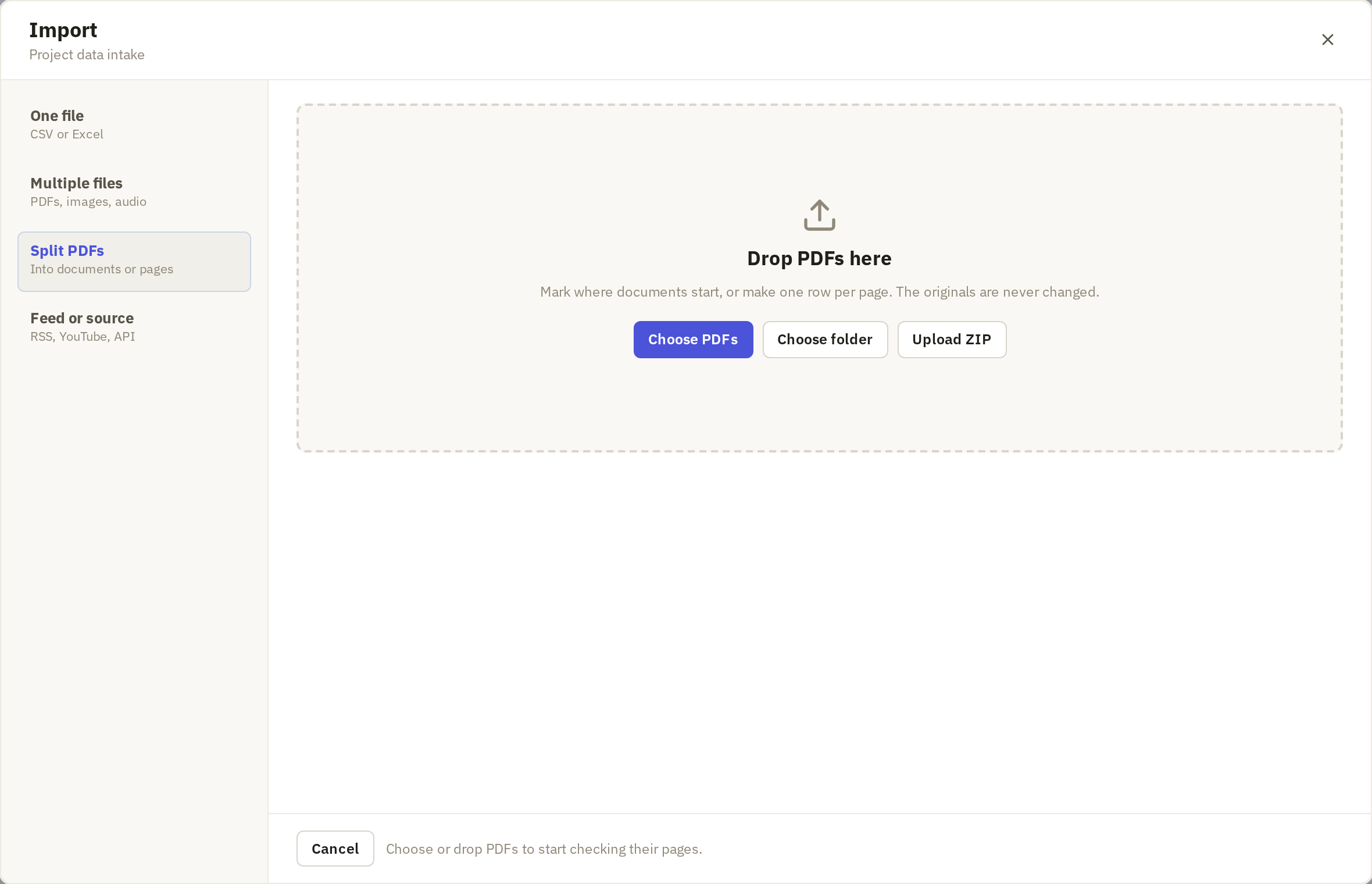
When the files have loaded, click Check text.
Check the text
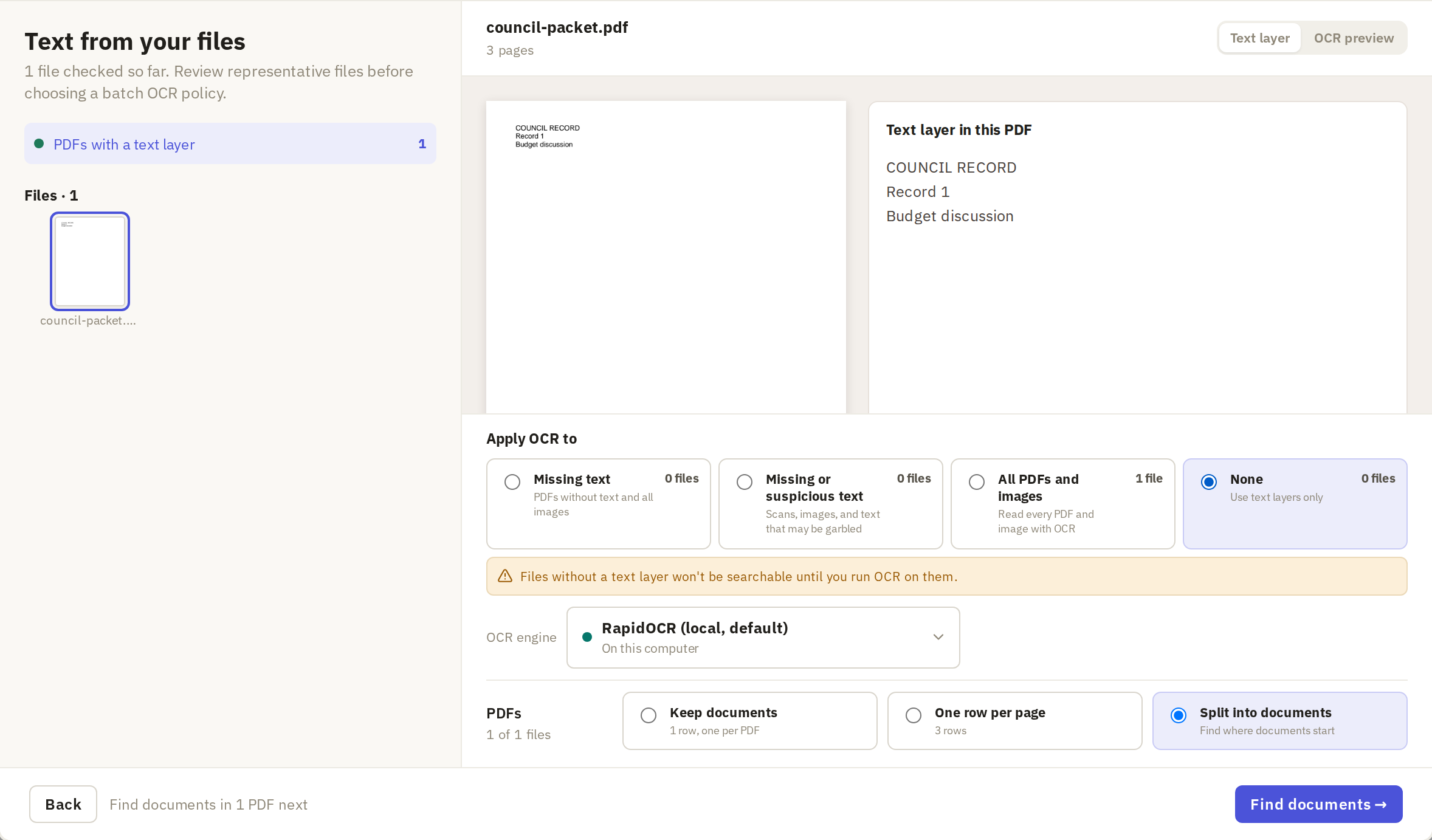
Check that Frisket can read the text, and choose which files need OCR, as for any PDF import. This matters more for packets than usual: one of the ways to find document starts searches the text, and it can only find words that were read correctly.
How to check the text and choose OCR
Next to PDFs, Split into documents is already chosen. Click Find documents.
Choose how to find the starts
The Find documents screen shows every page of the packet as a thumbnail. On the right, choose how Frisket should help you find the first page of each document. Think about what those first pages have in common:
- Visual: the first pages look alike. Every letter starts on letterhead, every form has the same heading block, every filing has a cover sheet. Frisket compares each page with the starts you've marked and suggests the ones that look similar. This is the default.
- Text: the first pages share some words, such as "IN THE CIRCUIT COURT", "MINUTES OF THE REGULAR MEETING" or "Dear". Type the words and Frisket suggests the pages that contain them, as well as any that look like the starts you've marked.
- Manual: there's no pattern, or only a handful of documents. You click the first page of each document yourself.
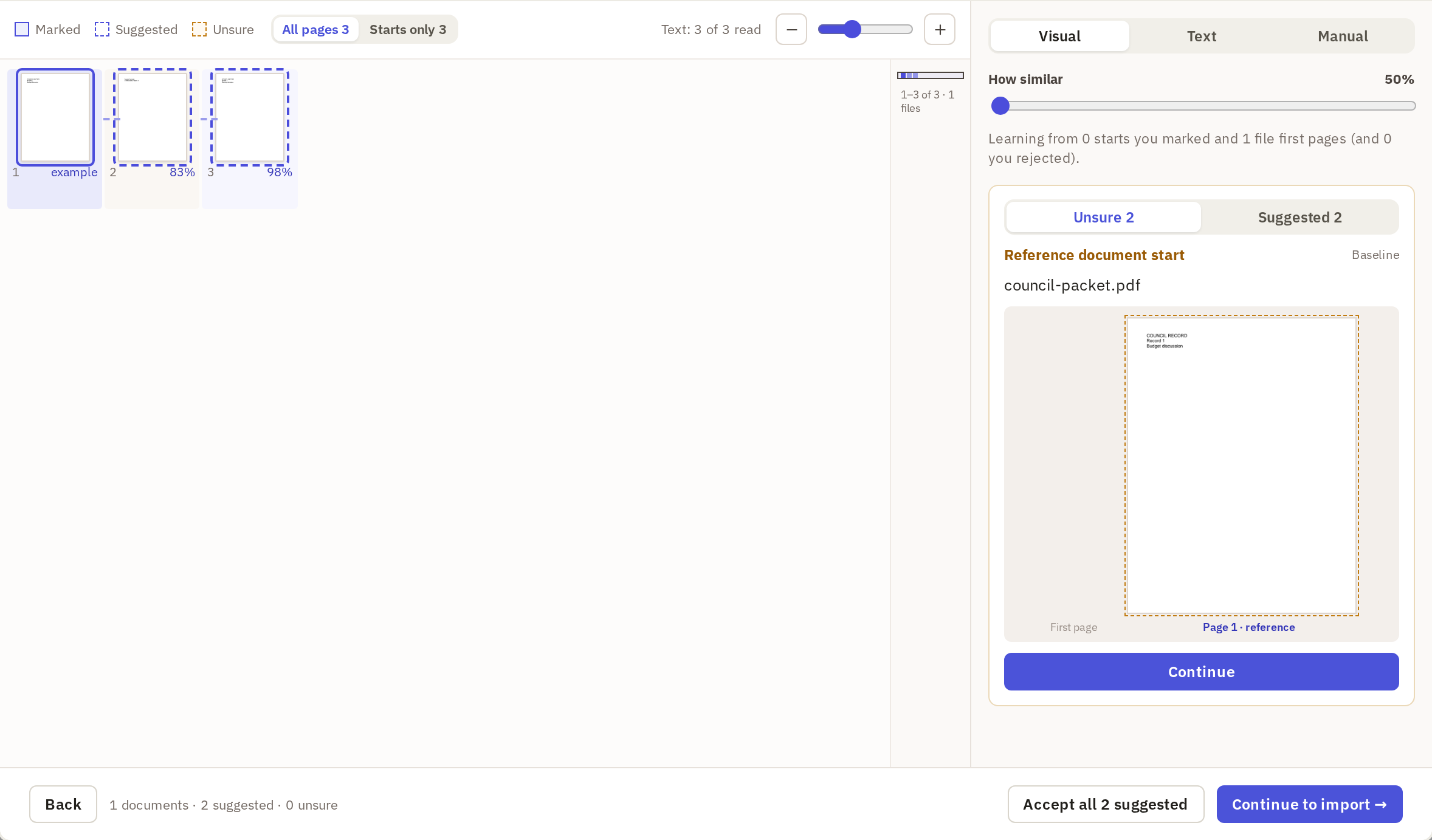
The first page of each file is always a start. You can't mark where a document ends; it runs until the next start.
With Visual, start by marking a page you know is a first page: point at it and click the check mark (Mark as start). Frisket uses the starts you mark as examples. With one packet, it uses the packet's first page as an example too. With several, tick Also learn from each file's first page if every file starts with a document like the ones inside it. If it suggests too many pages, move How similar to the right; if it misses some, move it to the left. Each start you accept becomes another example, so suggestions improve as you go.
With Text, type a phrase in First-page phrase. Each phrase shows how many pages contain it. Pick words that appear on first pages and nowhere else. Words that are also in a running header would match every page. Click Add a phrase to add another; a page matching any of them is suggested. If the text came from OCR, tick Allow small OCR errors so a misread letter or two still matches.
With Manual, click each page that starts a document. Click it again to remove the mark.
Go through the suggestions
Pages are marked in three ways:
- Marked: a start you've confirmed.
- Suggested: Frisket thinks it's a start.
- Unsure: Frisket isn't sure.
Suggestions aren't starts until you accept them. Pages left as Suggested or Unsure are not split when you import.
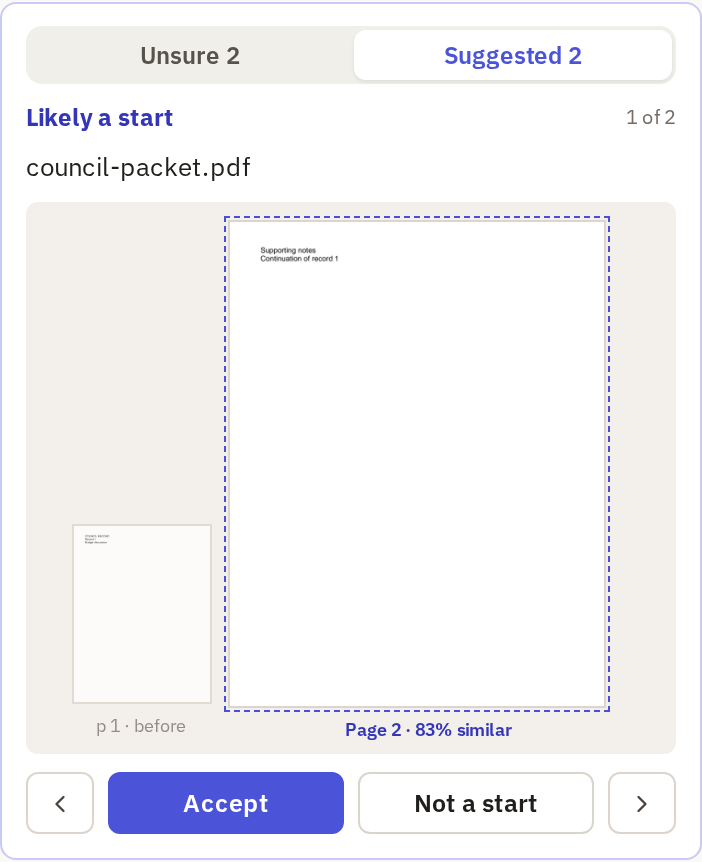
The panel on the right takes you through them one at a time. With a single packet it first shows the packet's first page as the reference start; click Continue. Then, for each page, compare it with that reference:
- On the Unsure tab, click Yes, starts here or No.
- On the Suggested tab, click Accept or Not a start.
On either tab, Y and N on the keyboard do the same. Each answer teaches Frisket a little more and updates the other suggestions. If you've checked a sample of the suggestions and they're all right, click Accept all … suggested at the bottom of the screen to accept the rest. It doesn't accept Unsure pages; go through those yourself.
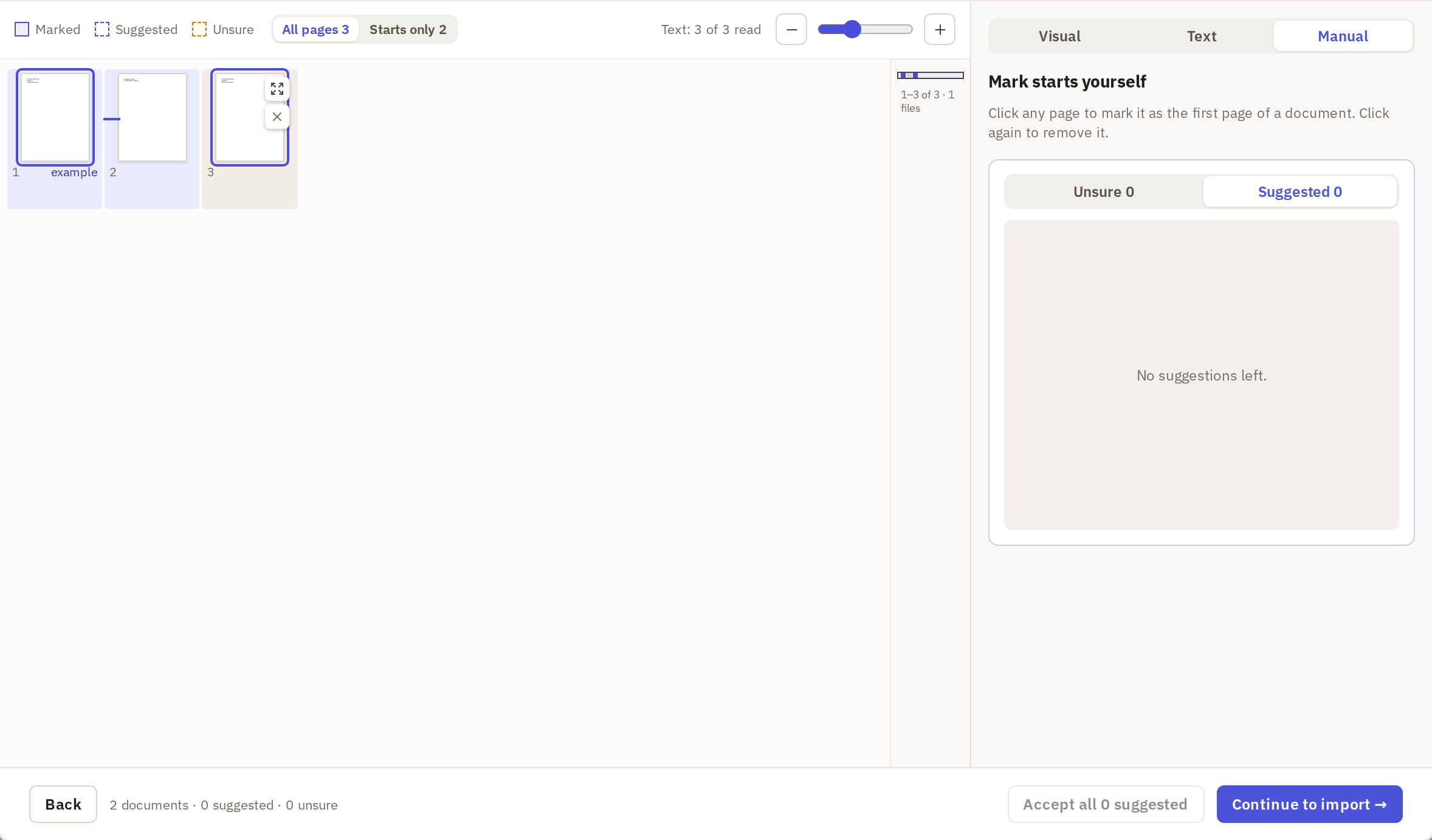
Then check the result yourself. Click Starts only above the thumbnails. It shows every page that is a start or might be one: Marked, Suggested and Unsure. Only the Marked pages will be split. Look for:
- A start that isn't one, such as an attachment that happens to have letterhead. Point at the page and click the × (Remove start on a marked page, Not a start on a suggestion). Don't click the page itself: on a suggestion, that marks it as a start.
- A missing start, where two documents would be joined. Click All pages, find the page, point at it and click the check mark (Mark as start).
- Suggestions you haven't answered. Accept them or mark them Not a start; any left over won't be split.
The footer counts the documents you'll get. If you expected about 40 letters and it says 12, some starts are still missing.
When the count looks right, click Continue to import.
Import the documents
-
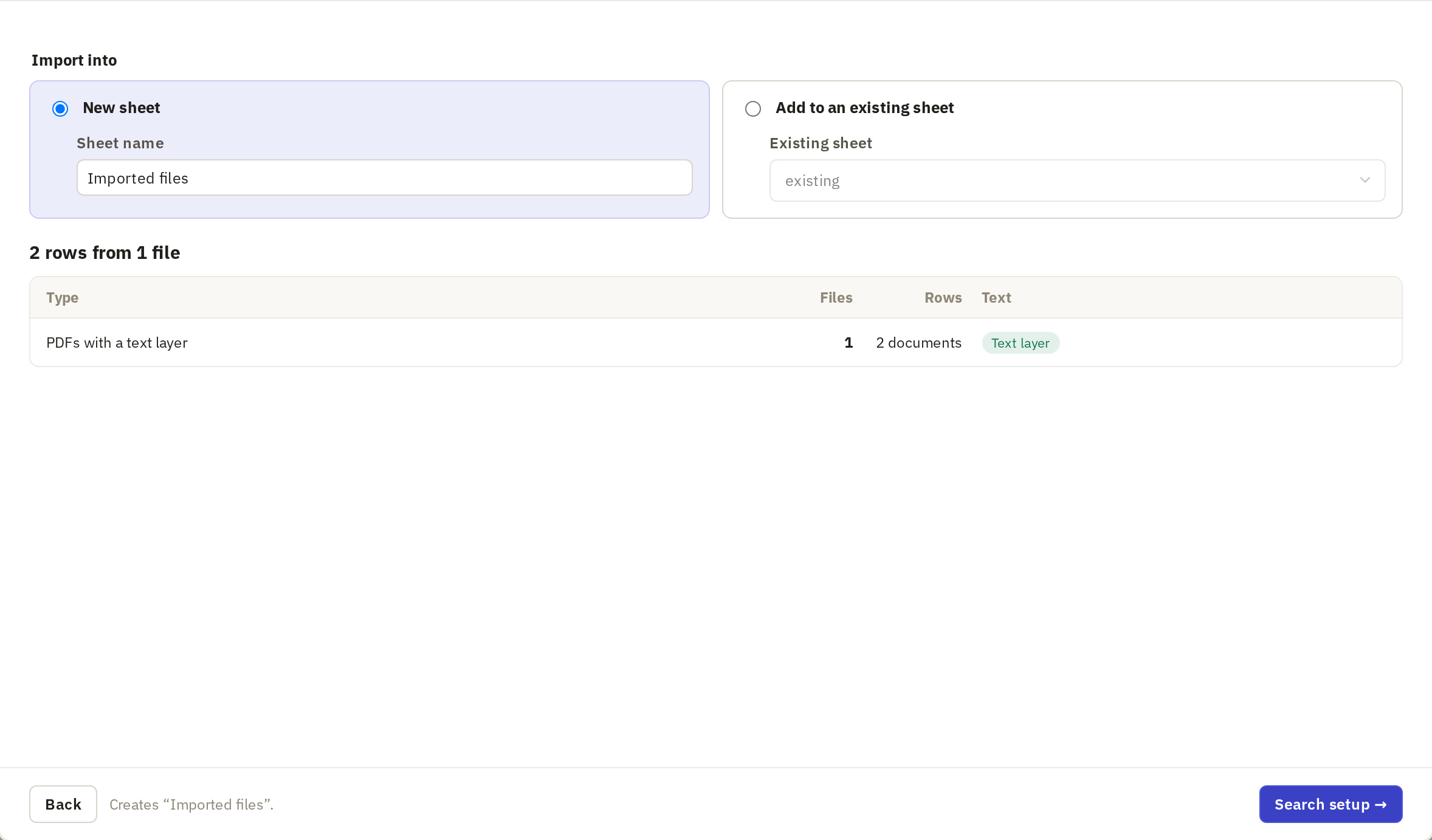
Choose New sheet and type a Sheet name, or choose Add to an existing sheet. The summary shows how many files and documents will be imported.
-
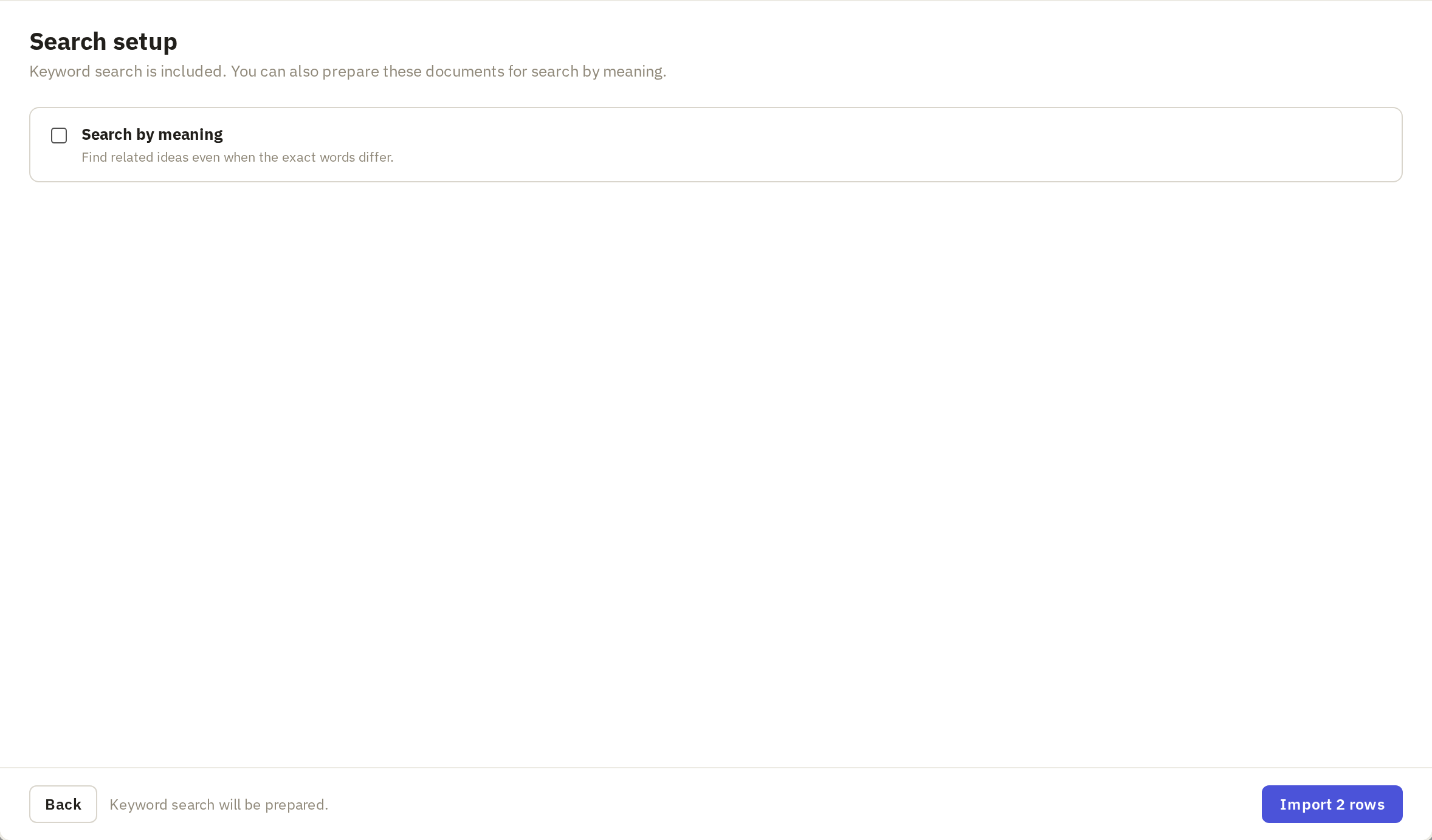
Click Search setup and choose whether you want search by meaning.
-
Click Import.
Check the documents
The new sheet has one row per document:
- filename: the name of the packet the document came from. Every document from the same packet has the same name.
- media: a PDF holding just that document's pages.
- pages: which pages of the packet it covers, such as 1–2.
- source: a link back to the packet.
- text: the text of those pages.

Look down the pages column for anything unusual. Either of these usually means a start was missed or added by mistake:
- a one-page document in a packet of long letters
- a document far longer than the rest
Open that row's PDF to check. To fix a missed or extra start, import the packet again and correct the starts.