Make one row per PDF page
Put each page of your PDFs on its own row, with its own text, so you can search, read and extract page by page.
When to use page rows
Normally each PDF becomes one row. With page rows, a 40-page report becomes 40 rows, each with that page's text and a copy of just that page.
Use page rows when the page is what you care about:
- Finding where something is. Search or extract from each page, and every result points to the page it came from.
- Long documents. An action that reads a whole 200-page PDF at once is slow and can miss things. One page at a time is easier to check.
- Pages that each stand alone, such as a stack of invoices or forms, one per page.
Don't use page rows when you want one answer per document, such as the date a filing was made. Each page would get its own answer, and most pages won't contain it. Use one row per file instead.
If your PDFs hold several documents each, and you want one row per document rather than per page, see Split a PDF packet into documents.
You can make page rows while you import, or later from PDFs already in a sheet. Either way, the original PDFs aren't changed.
Make page rows while importing
- On the Data tab, click Import data….
- Click Multiple files and add your PDFs.
- When they've loaded, click Check text.

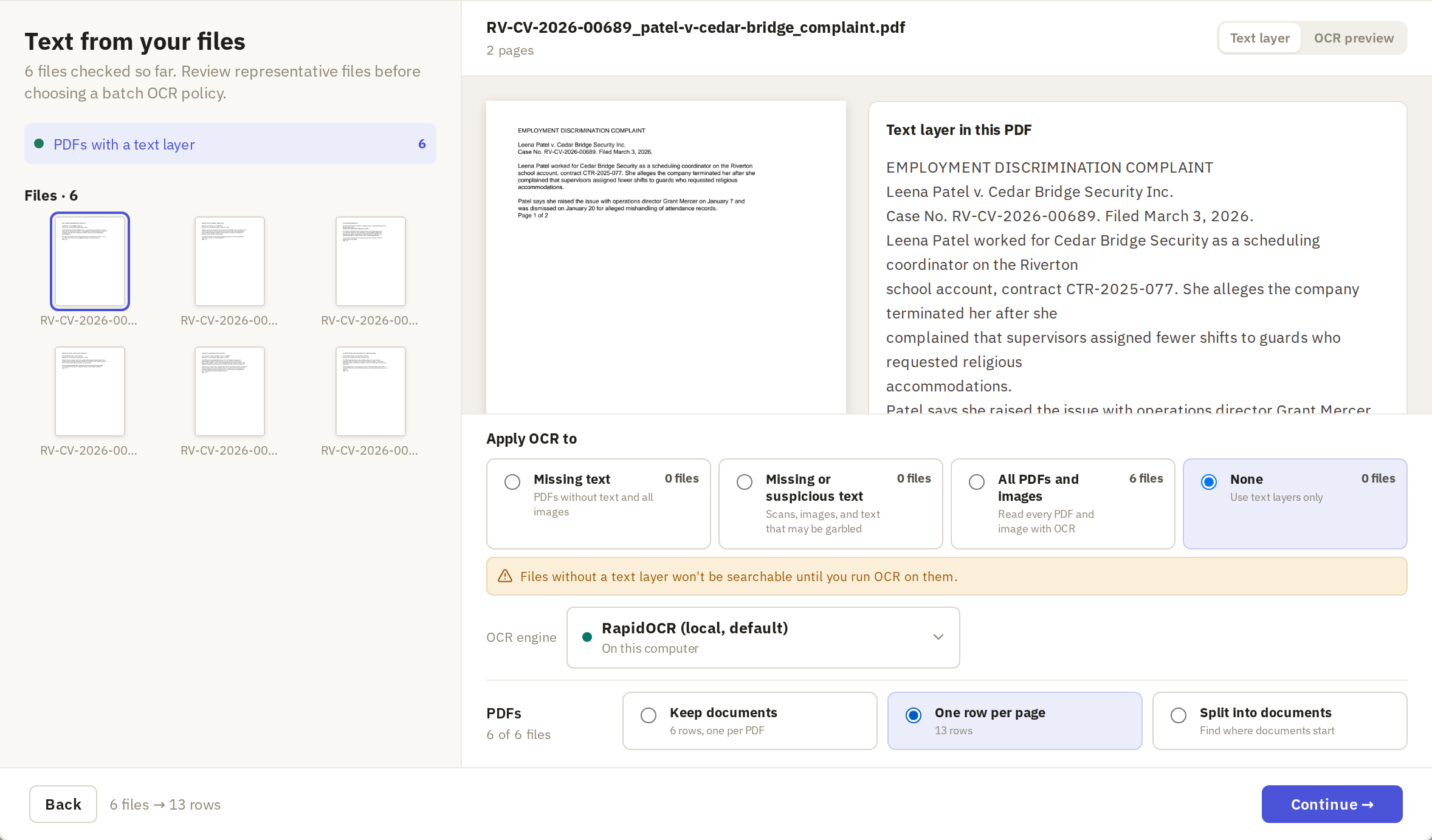
On the Check text screen, first check that Frisket can read the text and choose which files need OCR. Page rows get their text from this step, so a bad choice here means bad text on every page.
How to check the text and choose OCR
Then, next to PDFs, choose One row per page. The option shows how many rows you'll get, and so does the footer: here, 6 files → 13 rows. If the number is much larger than you expected, check you've picked the right files before going on.
Click Continue, choose a sheet, and click Search setup, then Import. These steps are the same as for any PDF import.
Check the page rows
The new sheet has one row per page, with these columns:
- filename: the name of the PDF the page came from. Every page of a PDF has the same name.
- media: a PDF holding just that page.
- page: the page number within the original PDF.
- source: a link back to the original PDF.
- text: the text of that page.
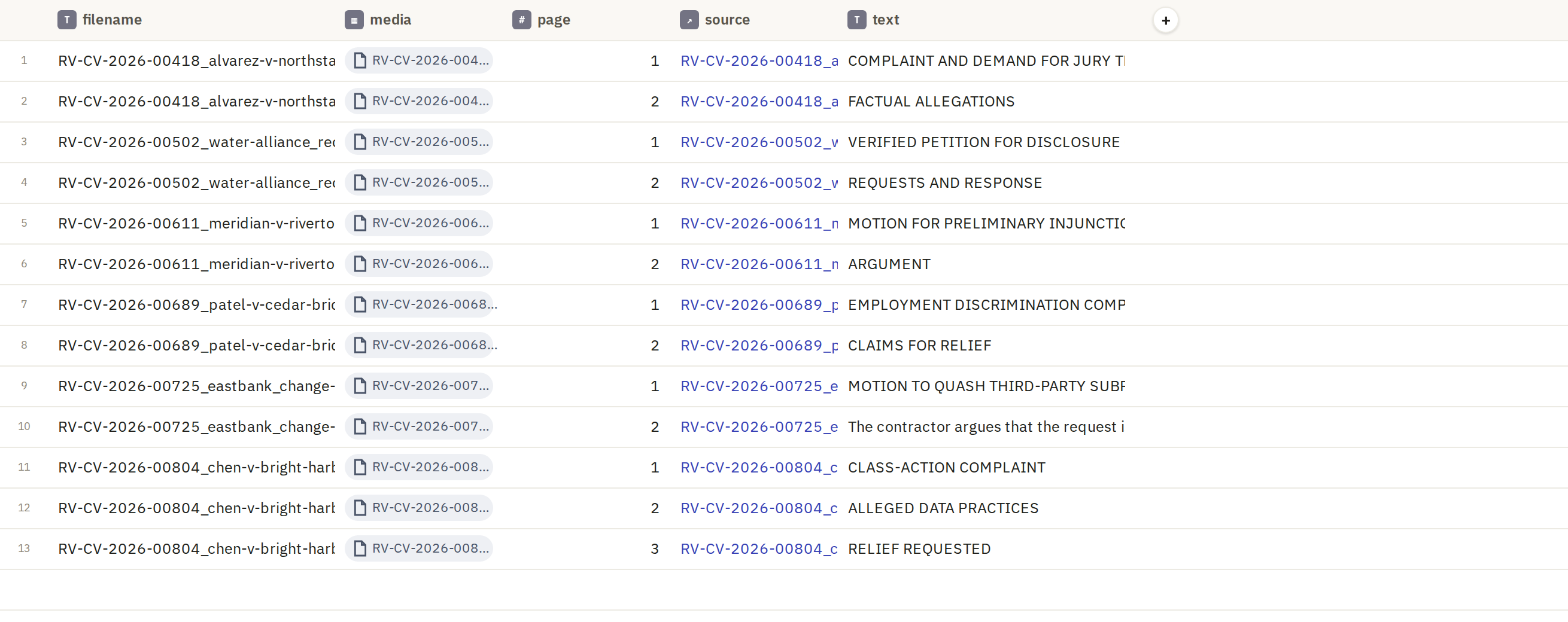
Scroll to a long document and check its pages are all there, numbered 1, 2, 3 in order. Open a row or two and compare the text with the page. A page with no text was probably a scan that didn't get OCR; run the OCR action on those rows.
Make page rows from PDFs already in a sheet
If your PDFs are already in a sheet, you don't need to import them again.
-
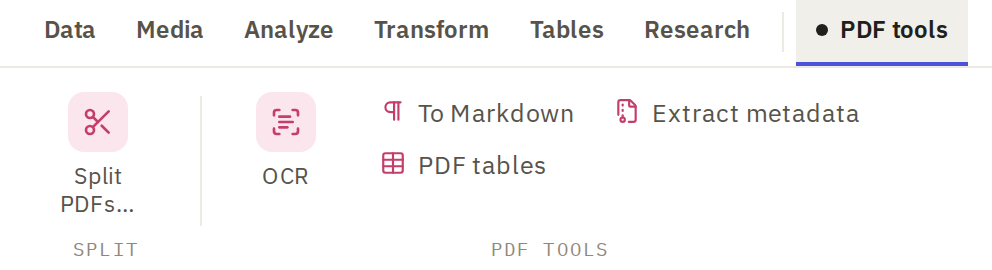
Click the PDF tools tab on the ribbon. It appears when the sheet has a column of files.
-
Click Split PDFs….
-
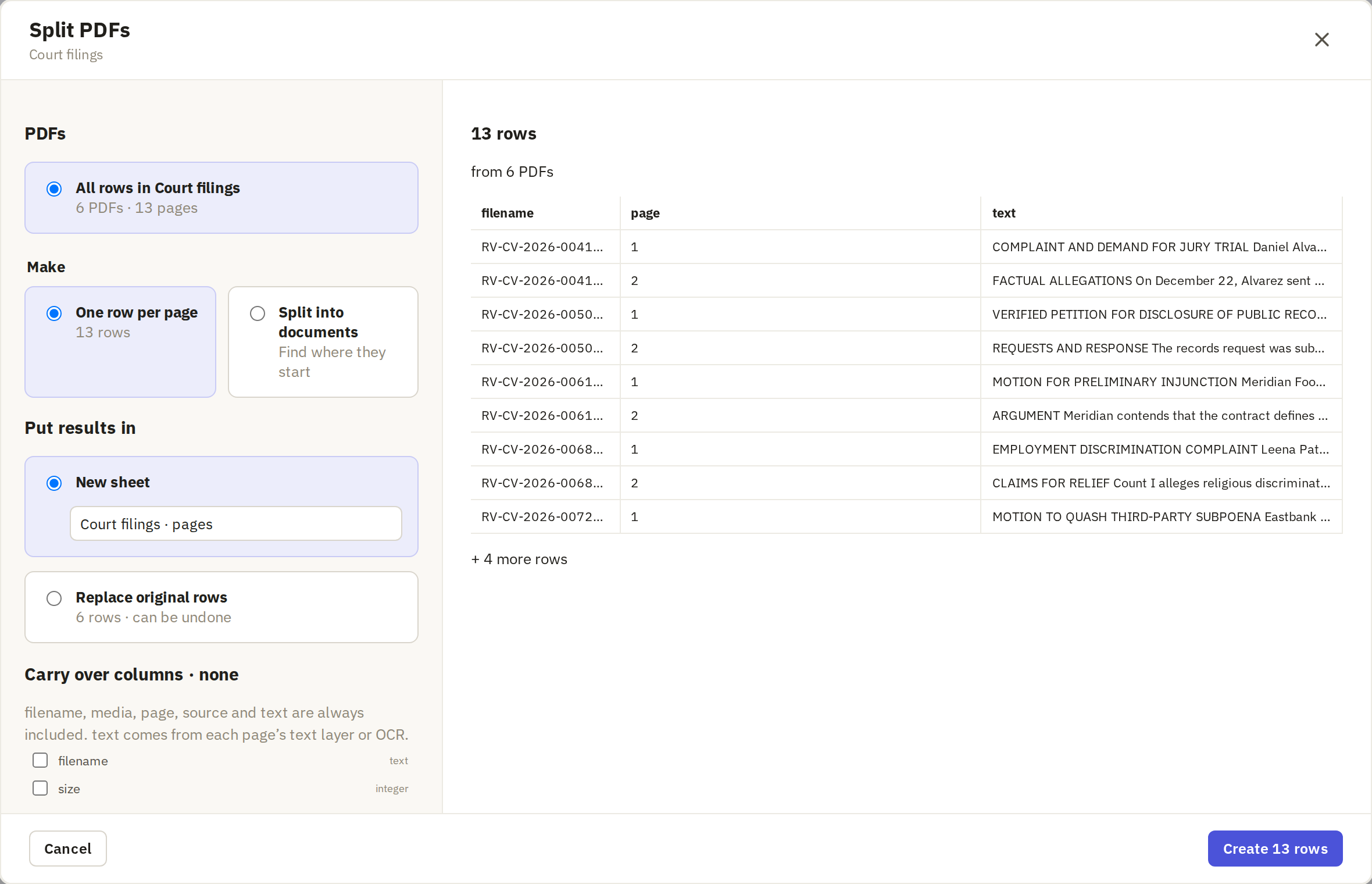
Under Make, choose One row per page.
-
Choose whether to put the pages in a new sheet or replace the original rows.