Compare OCR on the same page
Read different engines' output beside a PDF page or image before processing more files.
Add a page to OCR Compare
OCR engines, and the same engine with different settings, read the same page differently. One drops a faint line; another reads a table across the wrong columns. OCR Compare runs several on the same pages and shows what each read, so you can choose before you process a whole batch.
It's a scratch space. Files you add aren't saved to your project, and neither is the text.
On the Media tab, click OCR Compare, in the Documents group. If you're already setting up the OCR action, click Compare engines in its panel instead; it starts the comparison with the engine and settings you chose.

Click the drop area and choose a few PDFs or images, or drag them onto it. Pick your hardest pages: faint scans, small print, tables, stamps, handwriting in the margin.
Choose engines and pages
Each chip along the top is one engine with its settings, called a variant. Click a chip to change it in Configure variant:
- Engine: which OCR engine reads the page.
- Rendering DPI: how sharp an image of each PDF page the engine gets. 200 is the default. Raise it to 300 if small print comes out wrong; lower settings are faster.
- Language: set it if you know the language. Auto works for most documents.
- Pages: which pages to read, as a comma-separated list such as 1, 3, 7. Up to 10. The default is page 1.
To add a variant, click + Engine. To try one engine with two settings, such as 150 and 200 DPI, click Duplicate variant and change the copy. Use the same pages for every variant, so you're comparing like with like.

Run and read the comparison
Click Run comparison. If Frisket asks you to approve an estimate for a paid engine, check it and click Run it.
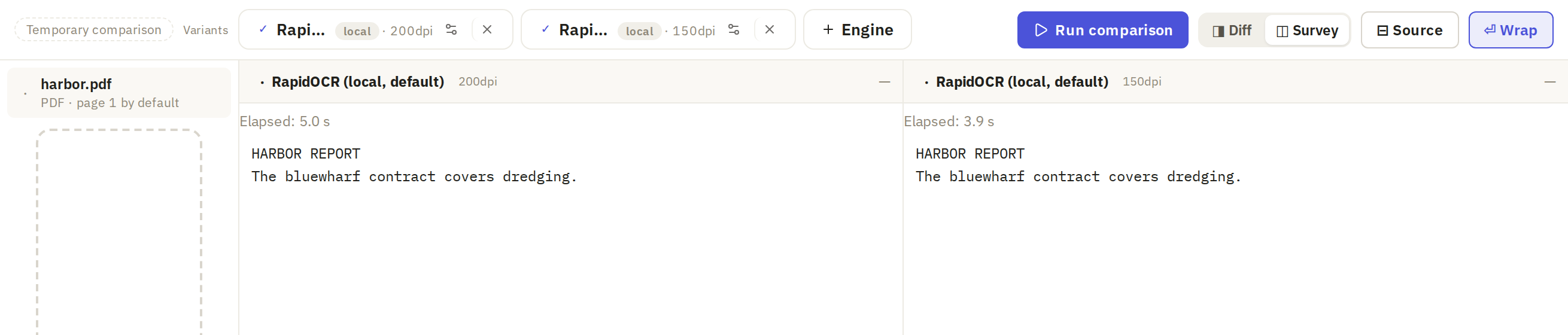
Each variant's text appears in its own column. Two views help you read them:
- Survey shows each variant's full text, page by page.
- Diff shows only the words that differ between two variants, with arrows to step through them. It needs exactly two variants. Click a differing word to see that page.
Click Source to see the page itself, and check the differences against it. Look at:
- names and case numbers, character by character
- figures in tables, and whether each one stayed in its column
- line order in multi-column pages
Highlighting shows where variants disagree, not which one is right. If two variants read a page the same way, as two DPI settings of one engine often do, that's useful too: you can use the faster one.
Use the checked choice in the real import or action
The comparison doesn't save any text. Use the engine and settings you chose where you need the text:
- During an import, choose them on the Check text step.
- For files already in a sheet, open OCR on the Media tab. Choose the file column under Document, the engine and settings, and run it.