Clean a column and join two sheets
Keep the original values, clean a matching key in a separate column, then combine rows from two sheets.
Clean the key in a separate column
Joining combines two sheets by matching a column they share, such as an agency name in a payments sheet and in a budget sheet. The match has to be exact: "Dept. of Health" and "Department of Health" won't pair up, and neither will "HEALTH" and "Health". Real data is full of these differences, so clean the column first.
Clean column makes a tidied copy of a column. The original stays as it is, so you can always check what changed.
- Import both tables into the same project.
- In the first sheet, on the Transform tab, click Clean column.
- Under Column, choose the column you'll match on.
- Under Case, keep Fix capitalization (names & titles).
- Under Cleanings, keep the defaults to start. They blank placeholder values such as "n/a" and "unknown", expand common abbreviations, and merge values that differ only in capitalization, punctuation, accents or word order. With the defaults, "NEW YORK dept. of health" becomes "New York Department of Health".
- Result names the new column, such as agency_clean.
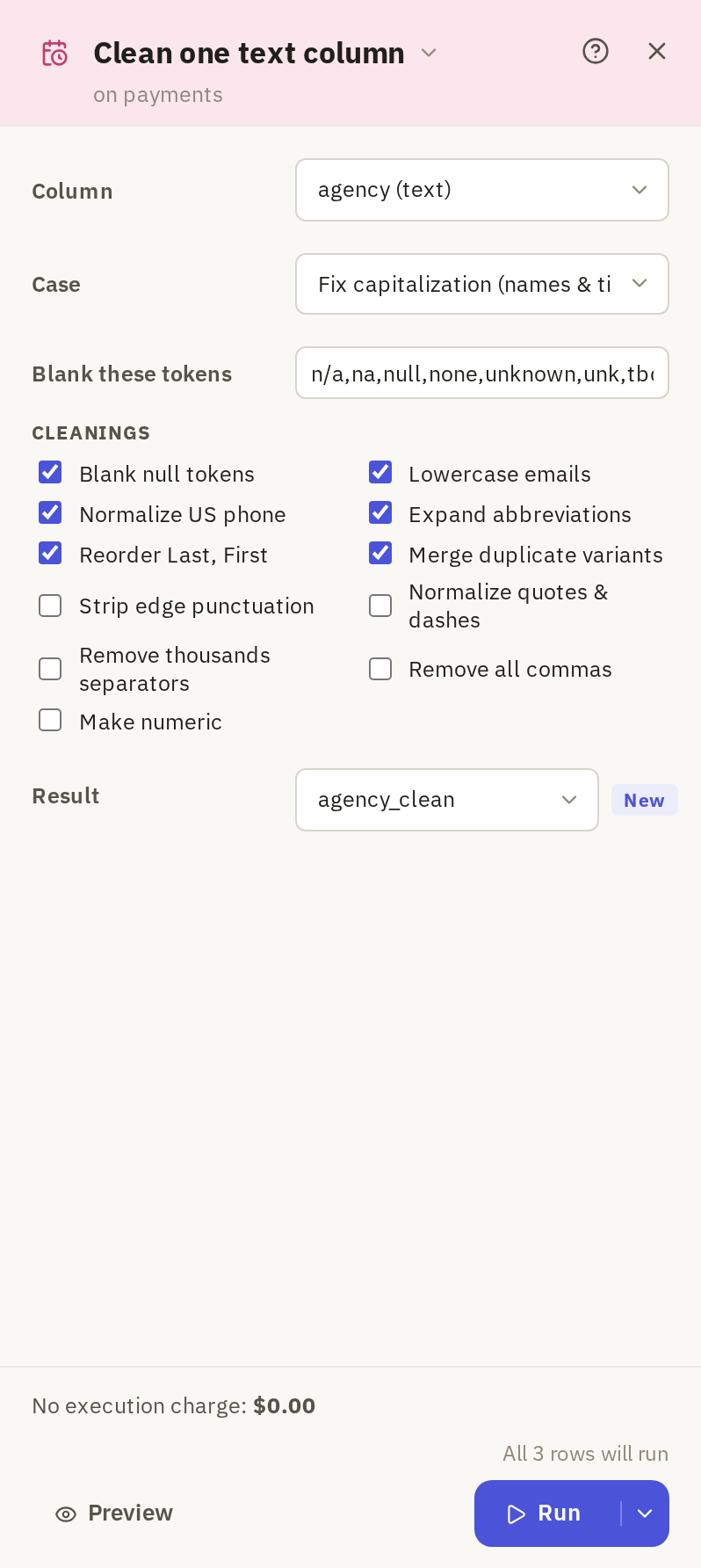
Click Run. Cleaning runs where Frisket runs, with no model and no charge.
Then compare the original and cleaned columns. Look for:
- values that were merged but shouldn't be
- values blanked that mattered
- variants that still differ, such as typos. Cleaning doesn't fix misspellings; fix those by hand or use Semantic join.
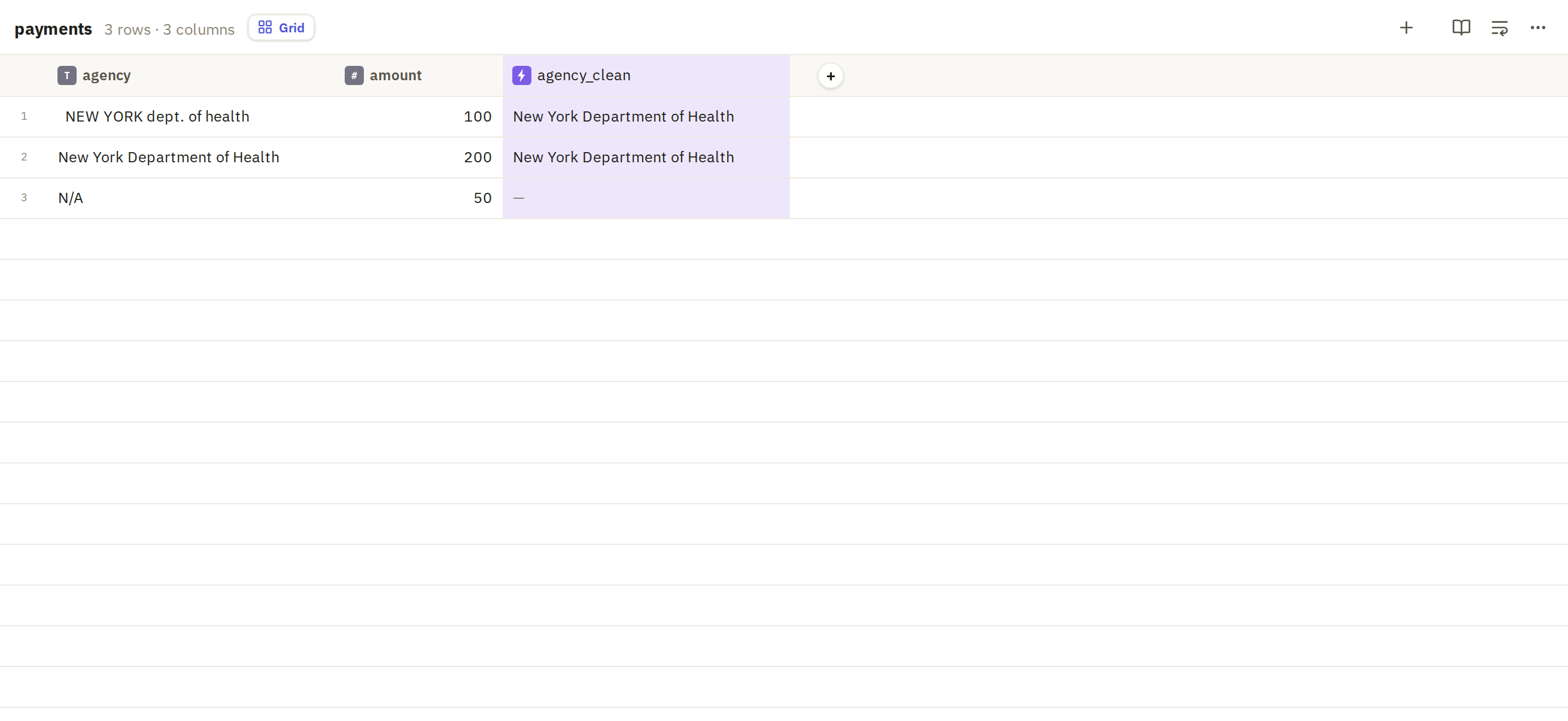
Do the same to the matching column in the other sheet, so both sides are cleaned the same way.
Choose the sheets and matching columns
With the first sheet open, on the Tables tab, click Join sheets (by key).
- The sheet you're in is the left side. Under Right sheet, choose the other.
- Under Key pairs, choose the matching columns, such as agency_clean on both sides.
- Under How, choose which rows to keep:
- inner keeps only rows that matched. Use it when you only care about matches.
- left keeps every row of the left sheet, matched or not. Use it to see which rows found no match.
- right keeps every row of the right sheet.
- outer keeps everything from both.
- Name the new sheet.
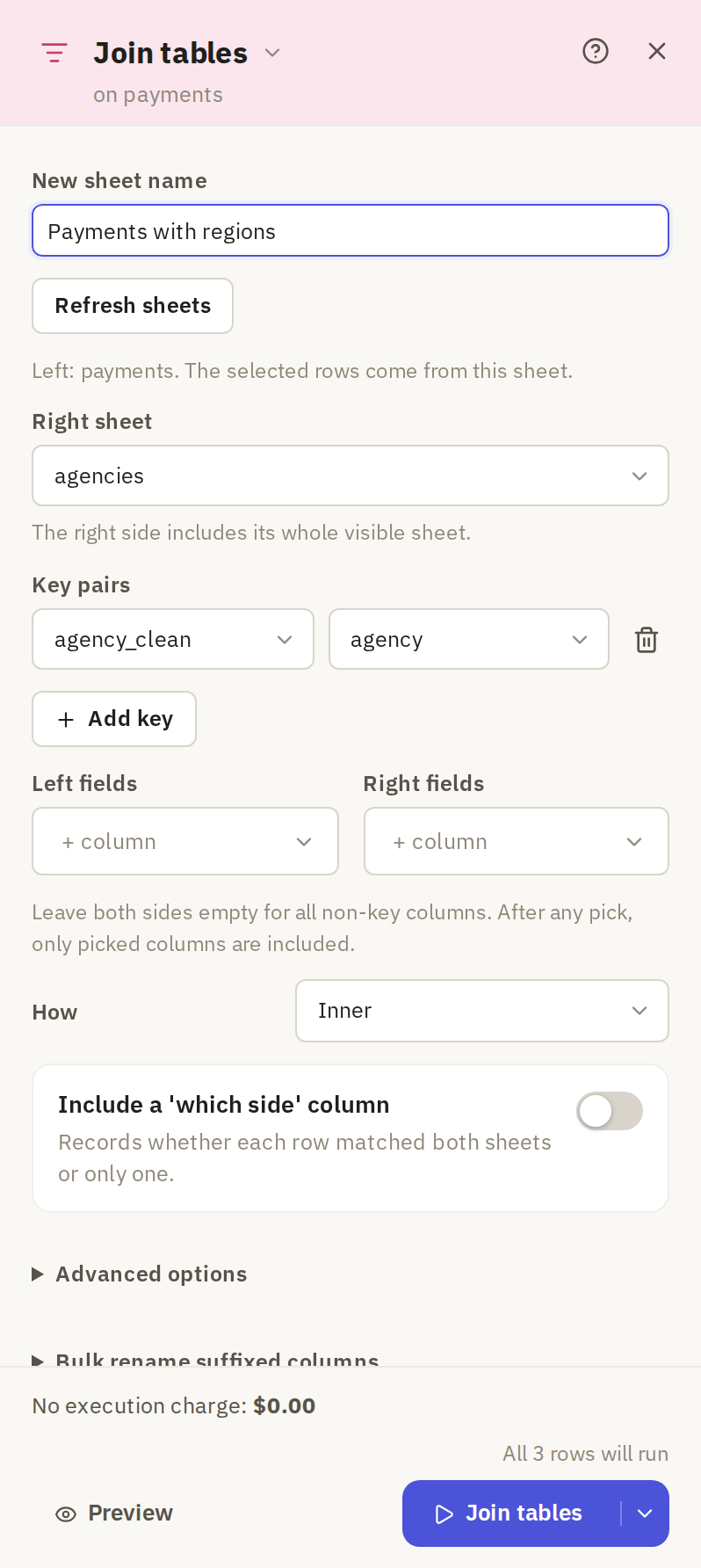
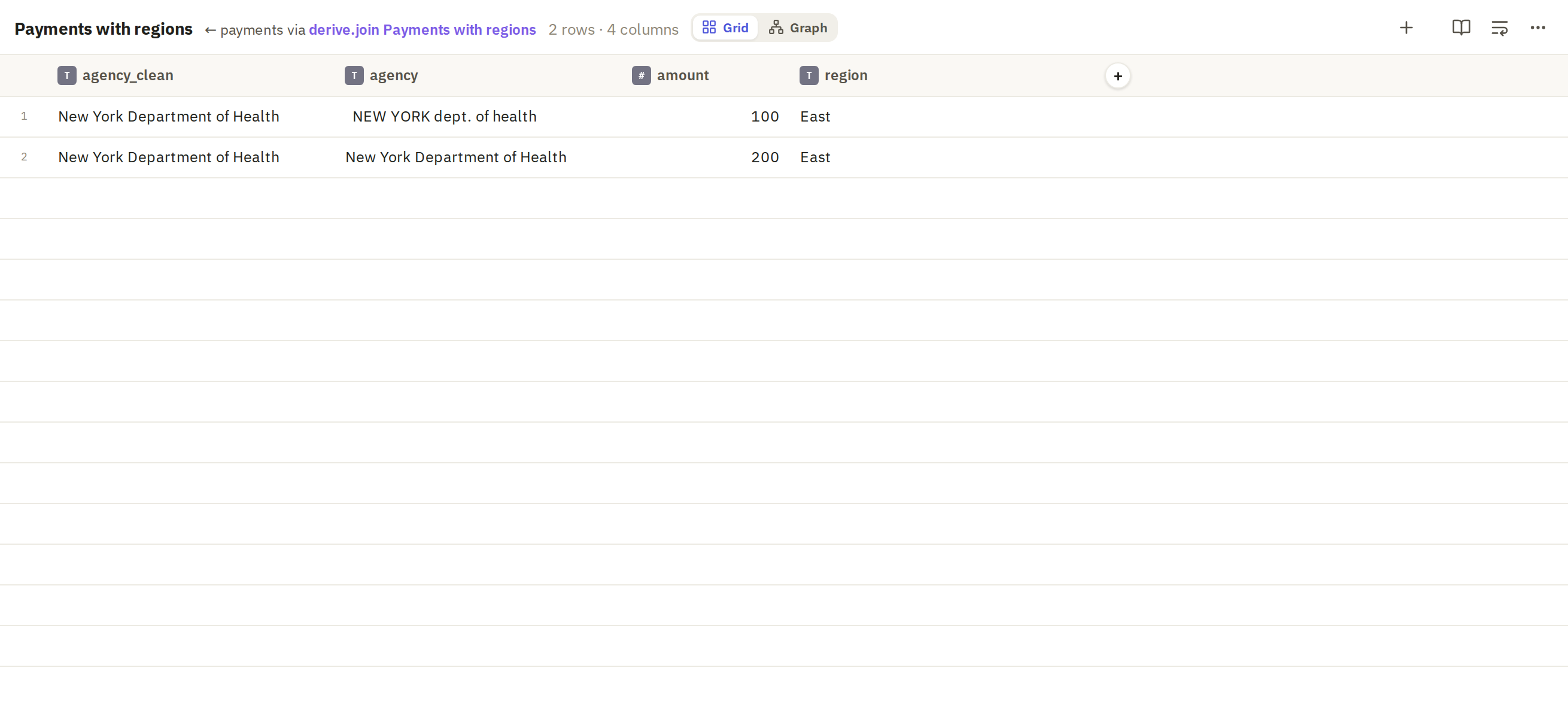
The join makes a new sheet; neither original changes.
If names are too varied for cleaning to fix, such as "IBM" and "International Business Machines", try Semantic join instead. It matches values that mean the same thing and gives each match a score to check.
Inspect the preview
Click Preview to see the joined rows before saving. Check:
- The row count. If it's much larger than either sheet, a key appears more than once on one side, and each match multiplies the rows.
- Unmatched rows, with a left or outer join. Look at their keys: often they're one cleaning step away from matching.
- A few matched rows against both originals.
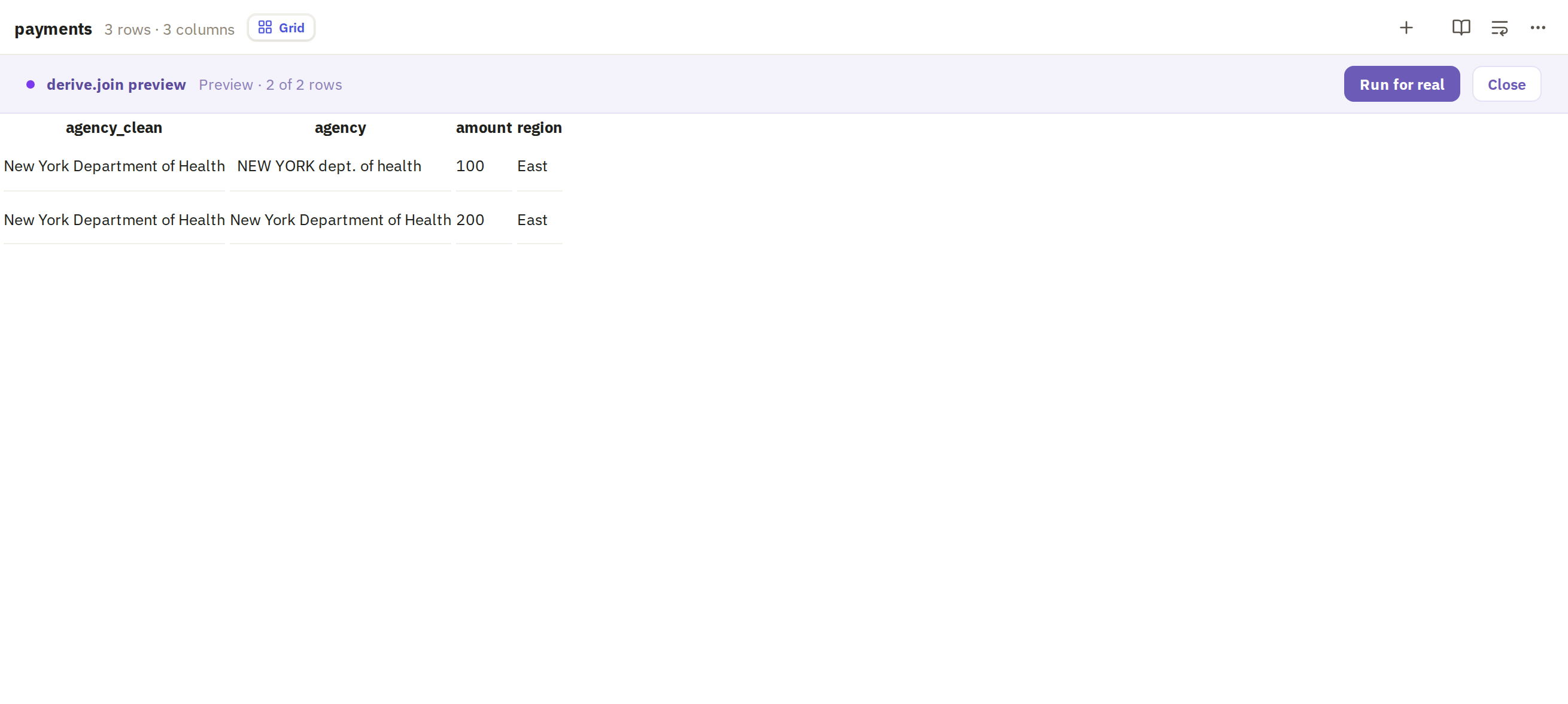
Change the settings and preview again until it looks right.
Create the joined sheet
Click Run for real to save the joined sheet. Spot-check a few rows against both originals before you use or export it.